
A PDF generated by scanning contains only page images. Power PDF allows such image-only PDF documents to be made searchable. This is achieved by Optical Character Recognition (OCR). This process can be made more accurate by proofreading
To make a PDF searchable
Click Make PDF Searchable at Home > Convert.
Provide preferences for the OCR process at File > Options > Document > Searchable PDF Document. Specify a language for use in the conversion process and also for the proofreader (if enabled or started). Specify a reject character marker. By default 'Keep original images' is selected. This means the original page appearance will be conserved with the recognized text laid beneath it. If this is deselected, the appearance of pages may differ from those in the source document. .
Proofreading can raise the accuracy of text generated by OCR. The recognition determines a confidence level for each recognized character and each word. It offers doubted words for checking. The top of the proofreader panel (A) shows a picture of the word or string. The next panel (B) shows the current solution while the bottom panel (C) lists alternatives derived with the help of a dictionary. Use the buttons to retain the current solution or choose one of the suggestions. If none are suitable, type in the correct word or string and press OK. Use the button Document Ready (D) to finish proofing before the end of the document is reached. Use 'Page Ready (E) to skip the remaining text on the current page and move to the next page.
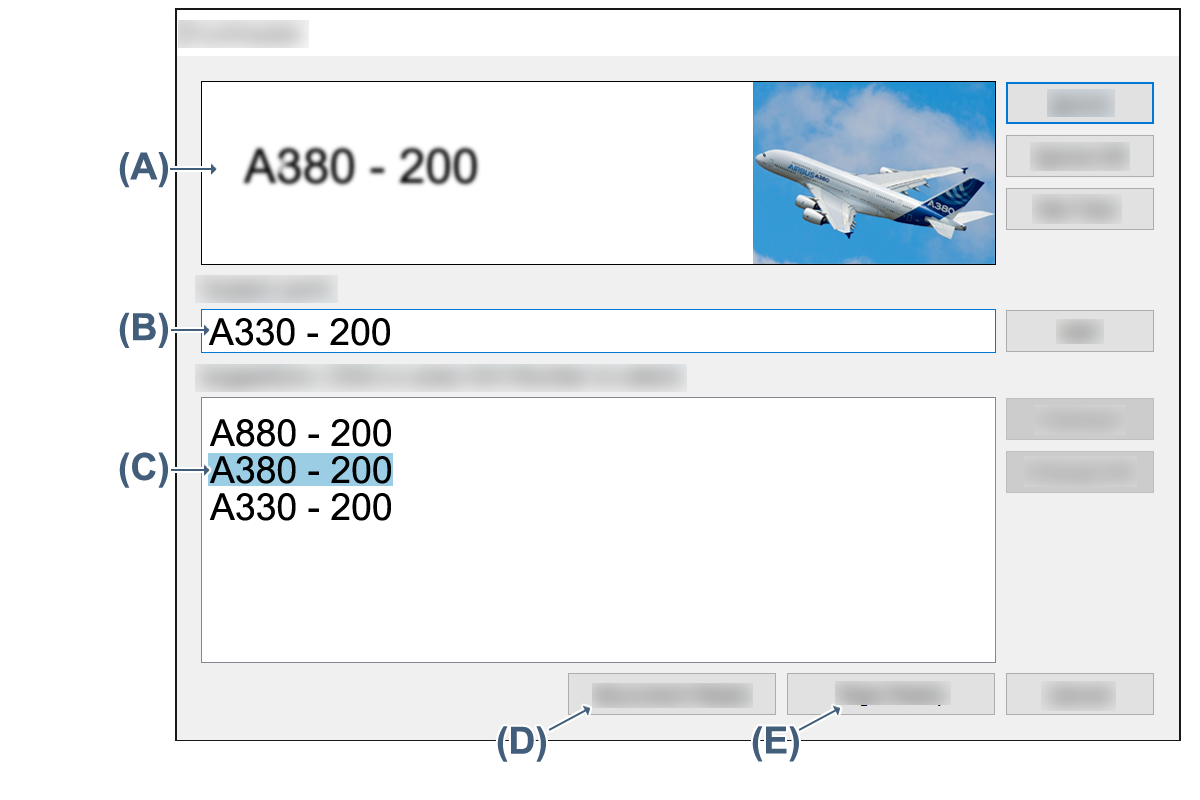
The buttons on the right allow you to handle the proposed solutions:
Ignore: Choose this if the current suggestion is correct. The proofreader moves to the next doubted word.
Ignore all: Choose this to signal that all further identical doubted words will be considered correct.
Not text: The OCR process may create text solutions for line art or diagrams. Use this button to drop the suggested text.
Add: Accept the currently selected solution and add it to the current dictionary
Change: Accept the currently selected solution.
Change All: Accept the currently selected solution, and accept it to all further identical occurrences
If none of the suggestions are correct, type the correct solution in the edit box and click Change or Change All.
Choose to have proofreading run whenever you make a PDF searchable at File > Options > Document > Searchable PDF Document.
At this location you can select a language for the OCR process. Many languages have built-in dictionary support. It is possible to specify a user dictionary to supplement the built-in dictionary or to assist in recognizing languages without a built-in dictionary.
Without automatic proofing, it can be requested for a particular file at Home > Make PDF Searchable > Proofreader.
Searchable PDF can also be created using PDF Create.