for text

for vertical left-rotated text

for vertical right-rotated text

for vertical Asian text


for table


for graphics


for form


for process zones


for ignore zones
You draw zones on the current page image in the Page Image panel using tools in the Image toolbar. Rectangular zones are the most common. You can create irregular-shaped zones for all zone types except for tables and for vertical text zones. You can make irregular zones by addition or by subtraction. You can join and split zones, resize or delete zones. Expanding and replacing one or more zones are also allowed.
Select the zone drawing tool of the desired type. Click and drag the cursor.
|
|
|
for text |
|
|
|
for vertical left-rotated text |
|
|
|
for vertical right-rotated text |
|
|
|
for vertical Asian text |
|
|
|
for table |
|
|
|
for graphics |
|
|
|
for form |
|
|
|
for process zones |
|
|
|
for ignore zones |
Form zones are available only in OmniPage Ultimate. They must be manually drawn.
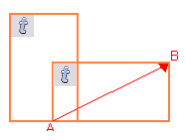
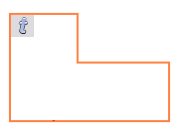
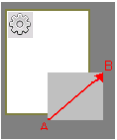
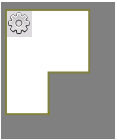
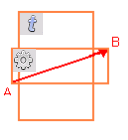
In the following examples, a red arrow pointing from A to B indicates the newly-drawn zone.
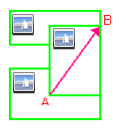
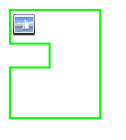
To create an irregular zone by addition
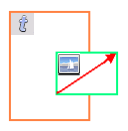
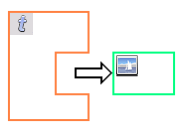
Draw a partly overlapping zone of the same type.
|
existing zone + new zone |
resulting zone |
|
|
|
Draw an overlapping zone of the same type as the background.
|
existing zone |
resulting zone |
|
|
|
new
|
|
Draw a joining zone with the same Draw zone tool (in our example, the Graphic zone tool).
|
two existing |
|
resulting zone |
|
|
new
|
|
Draw a splitting zone of the same type as the background.
|
existing text zone |
|
resulting zones |
|
|
new
|
|
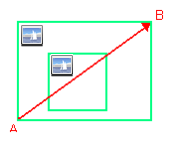
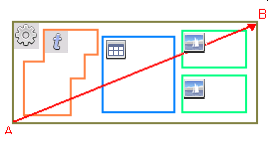
Draw a new zone to completely enclose the existing zone(s).
In this example, the larger graphic zone will replace the existing smaller one.
In this example, all smaller zones will be replaced by one large process zone drawn to enclose them completely.
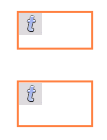
Draw an overlapping zone of a different type.
|
existing zone |
|
new zone remains, |
|
|
existing zone is reshaped |
|
|
|
new zone
|
|
A zone drawn over part of a zone of a different type seems to overlap it, but in fact the new zone replaces the overlapped part of the existing zone. You can see this is so if you move the newly drawn zone aside.

Select a zone with the Select zone tool or by clicking either with a zone drawing tool. Move the cursor to a side or corner, catch a handle and drag it to the desired location.
Select a zone with the Select zone tool or by clicking with a zone drawing tool. Click the Del button or choose Clear from the Edit menu or from the shortcut menu.
Shift-click to select additional zones. To delete all the zones in one step, choose Select All in the Edit menu and press the Delete key or choose Clear.
Certain zone shapes are not permitted. These are U-shaped zones, inverse-U zones and zones completely inside an existing zone. Table zones and vertical text zones must remain rectangular.
Asian text is usually best left to auto-zoning, but if you need to zone it manually, use the following:
Simple horizontal text zone for horizontal Asian text
Vertical Asian text zone for vertical Asian text
Non-Asian vertical text can in many cases be auto-detected, but if you need to zone it manually, use the following:
For vertical left-rotated text
For vertical right-rotated text
Here are examples of these:
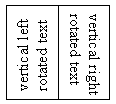
Vertical text inside table cells cannot be zoned manually; use auto-zoning for this. Auto-zoning cannot detect multiple lines of vertical text in scanned pages or those coming from image files – use manual zoning.