Commenting provides revision tools for people reviewing and sharing documents. You can mark places in your PDF by highlighting sections, drawing, adding notes, lines of text, stamps, and more. For example, you can circle a diagram and add the text “Make this diagram bigger”. This text will appear when you hover the cursor over the object.
All comments are added to the Comments list and are displayed in the Comments panel with a number of convenient tools to manage them.
Enable the Comments panel from the Navigation Panels drop-down list.
Tools on the Comments panel
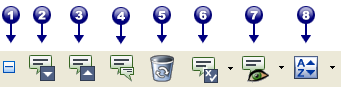
Click on a comment in the document to focus it in the Comments panel and to jump to the page containing the comment. You can navigate through comments using the Next (2) and Previous (3) buttons, and collapse and expand (1) them for overview or details. You may then Reply (4) to other people’s comments or add your own. You can add a message to any comment (even a drawing object).
Use the Show (7) button to filter comments by Type, Reviewer, Status and Checkmarks; and the Sort (8) button to order them by Type, Page, Author, Date, Color or Checkmark Status.
When you have reviewed a comment, choose Set Status (6) to change its Review status from None to Accepted, Rejected, Cancelled or Completed. After this, an icon is added to the Status row of the Comment.
Choose Set Status and Migration to pass judgment on the review status. Choose None to Confirmed or Not Confirmed.
Note
Use Edit > Comment Preferences to set default appearance for text boxes.