Keyboard Guide
This listing is for Power PDF first explains how to use keyboard shortcuts, then it lists shortcuts aaccording to functional areas, and lower down, according to keystrokes.
You can reach the tools of the application via shortcuts and hotkeys. Press <F6> to cyclically switch between areas, or press <Alt> to see hotkey letters for the elements of the ribbon set, Panel bar, View bar, Search bar and the Quick Access Toolbar. Once these are shown, press the letter (combination) of the tool you want to use. In the ribbon, you can also use the cursor arrows to navigate, or to move to other ribbons. To do this, press <Alt> so the ribbon tab comes into focus. Then with left and right arrows you can switch to previous and next ribbons. With the <Down Arrow> key you can move to the ribbon and you can navigate then between the buttons in the current ribbon.
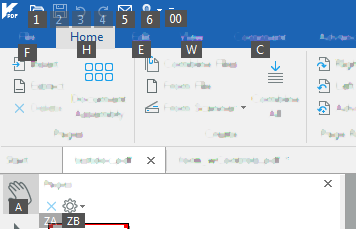
When you choose a ribbon tab with the keyboard shortcut (for example <Alt> then <H> for Home – as shown above) you get access to all ribbon tools with the help of further key (combinations) – shown below. You may also reach the Quick Access toolbar from here, using the arrow keys. Use arrow keys or <Tab> to navigate within any toolbar.
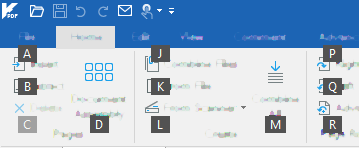
You can step back to navigating the Ribbon tabs by pressing <Esc>.
The File menu works just as the Ribbon does: after pressing <Alt> then <F> you can either use hotkeys directly, or navigate with the cursor arrows among the options available under New (if there are no open documents) or Info (if a document is open). To access the root menu (New, Open, Save, etc) under File use the hotkeys or press <Alt> repeatedly: first to hide hotkeys then to show them again. This takes focus over to the root menu: now you can navigate this area with the cursor arrows.
Use the <F6> key to switch between the following panels (works with visible panels only):
Ribbon bar (press (<Ctrl> + <F1> to show/hide)
Panel bar
View bar
Search bar
Document View.
Switching is cyclic, so Ribbon bar comes again after Document View.
The Panel bar (at the left) can be used without a mouse (or any pointing device), using the keyboard.
For a successful keyboard navigation apply the following:
Press <F6> or <Alt> and the appropriate keyboard shortcut to switch between the ribbon area, Panel bar, View bar, Quick Access toolbar. (The icon or list item having focus is displayed with a gray background or with a color border.) Switch to the Panel bar.
If there is no panel open, then press <Tab> to switch between Panel bar buttons. Press <Enter> to open or close a panel, when the focus is on the required panel button.
As a panel in the Panel bar receives focus, the main list area will become active. Use the arrow keys to navigate in the panel.
Press <Tab> to navigate to the panel toolbar on the top of the panel, the first toolbar button will become active. Press <Tab> again to move to the next toolbar button.
By pressing <Tab> on the last toolbar button, you will go back to the Panel bar buttons on the right. Press <Tab> again to move to the main list area of the panel.
Press <Enter> to activate the icon or list item currently having the focus.
The View bar (at the bottom) can be used without a mouse (or any pointing device), using the keyboard.
For a successful keyboard navigation apply the following:
Press <F6> or use <Alt> and the appropriate keyboard shortcut to switch between the ribbon area, Panel bar, View bar, Quick Access toolbar. (The icon or list item having focus is displayed with a gray background or with a color border.) Switch to the View bar.
Press <Tab> or <Right Arrow> to switch to the next View bar button. By pressing <Tab> on the last toolbar button, you will switch back to the first one.
Press <Shift> + <Tab> or <Left Arrow> to switch to the previous View bar button. By pressing <Shift> + <Tab> on the first toolbar button, you will switch to the last one.
To reach any other tools while in the File menu press <Esc> then press <Alt>.
It is possible to navigate through the ribbon with arrow keys.
Keystrokes by functional areas
The following shortcuts and hotkeys can be used in the application:
Application shortcuts:
• <F1> - opens the Help system at a topic relevant to the current screen area or dialog box
• <Ctrl> + <Q> - quits application
• <Shift> + <Ctrl> + <H> - opens the About Kofax Power PDF dialog box
• <Alt> + <F4> - quits application
User interface shortcuts:
• <Esc> - switches to the Hand tool.
• <F9> - hides/shows both the tab bar and ribbon area
• <Ctrl> + <F1> - hides/shows the ribbon area
• <Shift> + <F10> - the equivalent of a right mouse click, shows the shortcut menu of the object in focus
• <Ctrl> + <R> - toggles displaying rulers
• <Ctrl> + <U> - display/hide gridlines
• <Shift> + <Ctrl> + <U> - toggles snap to grid mode that aligns objects to grid when object is moved
Document shortcuts:
• <Ctrl> + <N> - creates new blank document in advanced edit mode
• <Ctrl> + <Tab> - Moves to the next opened document in tabbed view
• <Shift> + <Ctrl> + <Tab> - Moves to the previous opened document in tabbed view
• <Ctrl> + <O> - opens the Open dialog box
• <Ctrl> + <S> - saves document
• <Shift> + <Ctrl> + <S> - saves as document
• <Ctrl> + <F4> - closes document
• <Ctrl> + <W> - closes document
• <Ctrl> + <P> - prints a document
• <Ctrl> + <D> - opens document properties
• <Ctrl> + <K> - opens the Options dialog box
• <Ctrl> + <F> - opens the Search panel
• <Shift> + <Ctrl> + <F> - opens the Search floating window for fuzzy, pattern, and multiple document search
• <Shift> + <Ctrl> + <W> - Closes all documents.
• <F7> - opens the Check Spelling dialog box. Spell checking works only on comments.
Operations shortcuts:
• <Delete> - Deletes the selected object or the character right to the cursor
• <Ctrl> + <Y> - redoes last operation that can be redone
• <Ctrl> + <X> - cuts selected item to clipboard
• <Ctrl> + <C> - copies selected item to clipboard
• <Ctrl> + <V> - pastes item from clipboard
• <Ctrl> + <Z> - undo action
• <Ctrl> + <A> - with Hand or Select tool, it selects all text in the document (or the current page if single page viewing is set)*.
• <Shift> + <Ctrl> + <A> - deselects all text or objects in the document.
* If the Edit Object tool is active, it selects all objects on the current page.
Zoom and View Page fit shortcuts:
• <Ctrl> + <M> - opens the Zoom to dialog box
• <Ctrl> + <1> - zooms to actual size
• <Ctrl> + <2> - zooms to page width
• <Ctrl> + <3> - zooms to fit visible
• <Ctrl> + <4> - zooms to page height
• <Ctrl> + <0> - zooms to fit page
• <Ctrl> + <-> - zooms out
• <Ctrl> + <+> - zooms in
• <Ctrl> + <L> - toggles between full screen and previous zoom value
• <Ctrl> + <Alt> + <P> - zooms to fit the page and keeps showing one page at a time
• <Ctrl> + <Alt> + <W> - zooms to page width and scrolls pages continuously
Page shortcuts:
• <Page Up> - moves half a page up
• <Page Down> - moves half a page down
• <Ctrl> + <Page Up> - scrolls to top of previous page
• <Ctrl> + <Page Down> - scrolls to top of next page
• <Home> or <Ctrl> + <Home> - goes to first page
• <End> or <Ctrl> + <End>- goes to last page
• <Alt> + <Left arrow> - goes to previous view
• <Alt> + <Right arrow> - goes to next view
• <Shift> + <Ctrl> + <J> - arranges the opened documents into cascade windows.
• <Shift> + <Ctrl> + <K> - arranges the opened documents into windows tiled horizontally.
• <Shift> + <Ctrl> + <L> - arranges the opened documents into windows tiled vertically.
Page dialog shortcuts:
• <Shift> + <Ctrl> + <C> - open the Crop Pages dialog box
• <Shift> + <Ctrl> + <D> - opens the Delete Pages dialog box
• <Shift> + <Ctrl> + <I> - opens the Open, then the Insert pages dialog box
• <Shift> + <Ctrl> + <N> - opens the New pages dialog box
• <Shift> + <Ctrl> + <P> - opens the Open, then the Replace pages dialog boxes
• <Shift> + <Ctrl> + <R> - opens the Rotate Pages dialog box
• <Shift> + <Ctrl> + <X> - opens the Extract Pages dialog box
Bookmark shortcut:
• <Ctrl> + <B> - creates a bookmark each time the key is pressed
• <Ctrl> + <I> - On the Bookmarks panel, displays the Bookmark Properties dialog box
JavaScript shortcut:
• <Ctrl> + <J> - opens JavaScript Console
Read aloud tool shortcuts:
• <Shift> + <Ctrl> + <B> - reads text content to a file
• <Shift> + <Ctrl> + <G> - reads text content from the current page, a floating toolbar is displayed with tools to control reading
• <Shift> + <Ctrl> + <O> - reads text content to the end of the document, a floating toolbar is displayed with tools to control reading
Shortcut keys for the floating toolbar:
1. <Esc> - stops reading
2. <Shift> + <Ctrl> + <Space> - pauses / continues reading
3. <Shift> + <Ctrl> + <Left arrow> - reads previous paragraph
4. <Shift> + <Ctrl> + <Right arrow> - reads next paragraph
5. <Shift> + <Ctrl> + <Page up> - reads previous page
6. <Shift> + <Ctrl> + <Page down> - reads next page
Advanced Editor shortcuts:
• <Ctrl> + <H> - displays the Find and Replace dialog box
Keyboard Guide by keystrokes
Function keys |
|
F1 |
Open the Help system at a topic relevant to the current screen area or dialog box |
F6 |
Switch between panels (Ribbon, Panel bar, etc.) |
F7 |
Check spelling in comments (Comment ribbon) |
F9 |
Hide/show the tab bar and ribbons |
| Shift + F10 | The equivalent of a right mouse click shows the shortcut menu of the object in focus. |
Alt + F4 |
Close current document and the program on last document close |
Ctrl + F4 |
Close current document but not the program |
Control keys |
|
Ctrl + A |
Select All (Edit ribbon) - works on objects or text (in documents with a text layer) - see selection tools for details |
Ctrl + B |
Create new bookmark – opens bookmark panel as necessary |
Ctrl + C |
Copy selection (Edit ribbon) |
Ctrl + D |
Display the Document Properties tabbed dialog box (File menu > Info) |
Ctrl + F |
Open the Search panel |
Ctrl + H |
In Advanced Editor, displays the Find and Replace dialog box |
Ctrl + I |
On the Bookmarks panel, display the Bookmark Properties dialog box |
Ctrl + J |
Open JavaScript Console (Edit ribbon) |
Ctrl + K |
Open the tabbed Options dialog box to set preferences (File menu) |
Ctrl + L |
Full screen mode on/off (View ribbon and View bar) |
Ctrl + M |
Open the Zoom to dialog box (View ribbon and View bar) |
Ctrl + N |
Open a new empty document. (File menu) |
Ctrl + O |
Display Open file dialog box (File menu) |
Ctrl + P |
Display the Print dialog box (File menu) |
Ctrl + Q |
Exit program (File menu) inviting any changes to be saved |
Ctrl + R |
Show/hide rulers (Edit ribbon) |
Ctrl + S |
Save document (File menu) |
Ctrl + U |
Show/hide grids (Edit ribbon) and Ctrl + Shift + U for 'Snap to Grid' |
Ctrl + V |
Paste selection (Edit ribbon) |
Ctrl + W |
Close document (File menu) |
Ctrl + X |
Cut selection (Edit ribbon) |
Ctrl + Y |
Redo action (Edit ribbon) |
Ctrl + Z |
Undo action (Edit ribbon) |
Ctrl + 0 |
Fit page to window size (View ribbon) |
Ctrl + 1 |
Show page at actual size (View ribbon) |
Ctrl + 2 |
Fit page to window width (View ribbon) |
Ctrl + 3 |
Fit the visible content to window size (View ribbon) |
Ctrl + 4 |
Fit page to window height (View ribbon) |
Ctrl + F1 |
Hide the ribbon area, or display it, if it was hidden |
Ctrl + F4 |
Close current document (File menu) |
Ctrl + + |
Zoom in (View ribbon and View bar) |
Ctrl + – |
Zoom out (View ribbon and View bar) |
Ctrl + Home |
Go to first page of current document |
Ctrl + End |
Go to last page of current document |
Ctrl + PgDn |
Go to next page |
Ctrl + PgUp |
Go to previous page |
| Ctrl + Tab | Move to the next opened document in tabbed view |
Shift keys |
|
Shift + Ctrl + A |
Deselect All (Edit ribbon) |
Shift + Ctrl + B |
Text to speech: read to a file (Advanced Processing ribbon) |
Shift + Ctrl + C |
Open the Crop Pages dialog box (Edit ribbon) |
Shift + Ctrl + D |
Open the Delete Pages dialog box (Edit ribbon) |
Shift + Ctrl + F |
Open the Search floating window for fuzzy, pattern, and multiple document search (Home ribbon) |
Shift + Ctrl + G |
Text to speech: read the current page (Advanced Processing ribbon) |
Shift + Ctrl + H |
Open the About Kofax Power PDF dialog box |
Shift + Ctrl + I |
Open the Open, then the Insert Pages dialog boxes (Home ribbon, Insert) |
Shift + Ctrl + J |
Arrange the opened documents into cascade windows (View ribbon) |
Shift + Ctrl + K |
Arrange the opened documents into windows tiled horizontally (View ribbon) |
Shift + Ctrl + L |
Arrange the opened documents into windows tiled vertically (View ribbon) |
Shift + Ctrl + N |
Open the New Pages dialog box |
Shift + Ctrl + O |
Text to speech: read to the end of the document (Advanced Processing ribbon) |
Shift + Ctrl + P |
Open the Open, then the Replace Pages dialog boxes |
Shift + Ctrl + R |
Open the Rotate Pages dialog box to rotate pages, not just the view |
Shift + Ctrl + S |
Save As (File menu) |
Shift + Ctrl + U |
Snap to Grid on/off (Edit ribbon). Turn off works only if the Align drop-down list is closed. |
Shift + Space |
Text to speech: Pause/resume (Advanced Processing ribbon) |
Shift + Ctrl + W |
Close all documents (View ribbon) |
Shift + Ctrl + X |
Open the Extract Pages dialog box |
| Shift + Ctrl + Tab | Move to the previous opened document in tabbed view |
Alt keys |
|
| Ctrl + Alt + P | Zoom to fit the page and keep showing one page at a time |
| Ctrl + Alt + W | Zoom to page width and scroll pages continuously |
Alt + Left arrow |
Go to previous view |
Alt + Right arrow |
Go to next view |
Navigation keys |
|
PageDown |
Move half a page down |
PageUp |
Move half a page up |
Home |
Go to first page |
End |
Go to last page |
|
Other keys |
Delete |
Delete the selected object or the character right to the cursor |
Esc |
If the read aloud floating toolbar is active, stops reading, otherwise switches to the Hand tool |
For the keystrokes to drive Jaws, please consult Reading PDF.