Print with Comments
You can create a comment summary and print the PDF document together
with it. Comments include notes, text boxes, callouts, highlights, cross-outs,
underlines and drawing objects. The icons for file and sound attachments
are printed, along with the attachment name, but not the attachment contents.
A comment summary shows the PDF review history. The current status of
a comment can be modified in the Comments
panel or from its shortcut menu.
To create a comment summary
Do one of the following:

Select Comments > Comment Processing > Comment Summary.
Select File > Print and select Print with Comments in the Print dialog box.
Open the Comments panel, click the Options button and choose Create Comment Summary from the drop-down menu.
In the Summarize Comments dialog box, set the following options:
Choose a comment summary Presentation Style:
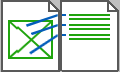
Document with comments linked by lines on
separate pages

Document with comments linked by lines on
same pages

Comments only
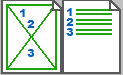
Document with comments numbered on separate pages
Page Size: Set the size for the comment summary pages.
Font Size: Set the font size for comment summary text - small, medium or large.
Comment Type: Specify which comments to print: All comments or Only currently displayed comments.
Sort Type: Specify the order for summarized comments. Author, Date, Page, or Type. Page means the order of comments on the page; it is the usual choice when comments are linked. When you specify comments numbered on separate pages, any order displays well. Type means call-outs, text boxes, drawing objects, stamps etc. are grouped.
Page Range: Specify the range of pages you want to print with comments.
Link Line: Set the color and opacity of the link lines between the document and comments.
Include pages without comments. Specify whether to print or exclude pages with no comments.
Click OK. A temporary PDF file 'Summary of Comments on [original file name]' is generated to show your document with comments in the defined presentation style. Save it if desired, under the offered name or a different one.
Click Print to specify options in a usual Print dialog box.