Scanner settings: Rotation
Select the rotation of the new form to be scanned using the Rotate front and Rotate back arrows in the Scanner settings dialog.
In some situations, it can be advantageous or necessary to rotate a form during scanning. To do this:
-
Note the direction in which the forms will be fed into the scanner.
-
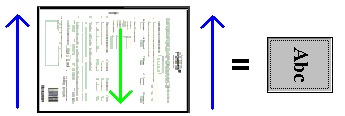
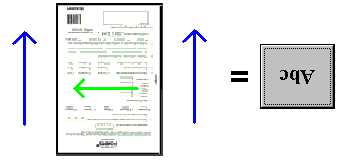
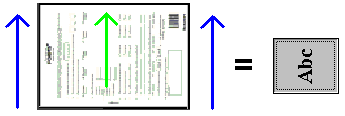
To orient the resulting scanned images in a normal upright position, click Rotate front the appropriate number of times so that the text on the button matches the flow of the text on the form as it is fed into the scanner. The top of the button always represents the side of the form that will be fed into the scanner. Examples.
In this case, the paper size is still A4, since this is how the form is to be displayed on the screen.
Rotating images for two-sided forms
You can rotate the back and front of two-sided forms individually. However, the settings must either be the same or the direct opposites (that is, differ by 180 degrees).
If the rotation of the front and back pages of a form definition is different, then the value of Rotation in the Form information dialog shows the rotation of the front page, followed by an asterisk.
If the front is A4 portrait and the back is A4 landscape format, read about rotating the image after scanning.
Related topics
Scanner settings: Paper size and orientation
Scanner settings: Overview
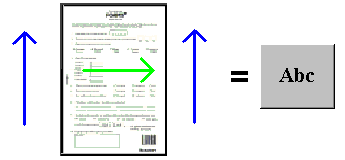
 or
or 
 or
or 