Below is an example of validating field values via a connection table.
A mail order company sells two products: trousers and shirts.
Valid trouser sizes are 48 to 58, while valid shirt sizes are 36 to 44. Therefore, which sizes are valid depends on the product number. In this case, a connection table is needed to tie in the correct validation table.
The form for ordering the products contains fields called Product and Size. Three tables are needed to handle the validation of the Size field: a product number table (ProdNo), a trouser size table (TrouserSize) and a shirt size table (ShirtSize).
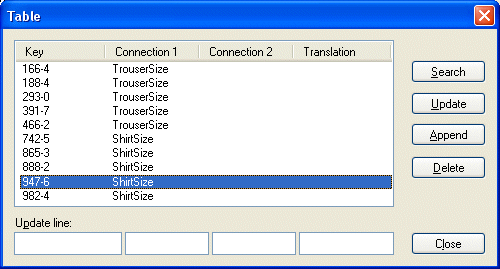
ProdNo contains valid product numbers for both trousers and shirts in the Key column. For each valid product number, either TrouserSize or ShirtSize is typed the Connection 1 column.
Creating a connection table to lead FORMS to the correct size validation table depending on which product is ordered.
The TrouserSize and ShirtSize tables contain all valid sizes for trousers and shirts in the Key column.
As the Size field is the dependent field (one whose value depends upon the value of another field), indicate the name of the connection table when you define or edit the Size field.
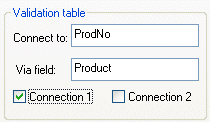
ProdNo is the connection table, so ProdNo is typed next to Connect to in the Advanced dialog. Since the value of the Product field controls which of the two size tables is to be applied, Product is typed next to Via field. Finally, Connection 1 is selected since tables listed in the Connection 1 column of ProdNo are to be used for validating Size.