Access the Application events dialog or an Events page. It contains a list of all event handlers defined for the context you accessed it for and is empty the first time you access it.
Click Add to open the Event details dialog. Specify the details of your event handler in the Event details dialog.
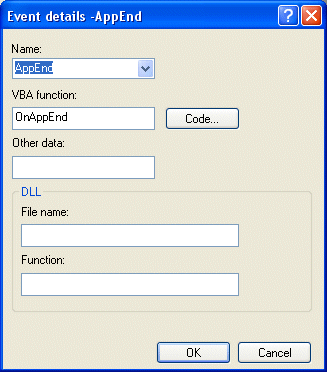
Choose the predefined INVOICES event for which you want to create an event handler from the Name box.
Only events from the current context are visible in the Name box. For example, when you access the Events dialog from the Single item profile dialog, the Name box only contains events that can occur during field processing.
Likewise, when you access the Application events dialog, you see all events that can occur in INVOICES. You can also see events that are related only to the application itself and not to fields, invoices, etc. Application-specific events have the prefix "App", for example AppCanClose and AppStart.
Specify any VBA function to be called, the name of a DLL and DLL function, or both.
In the Other data edit box you can specify any data which you want INVOICES to make available to the VBA code or DLL. Think of this as parameters to be passed to the event handler, though the semantics differ from the ordinary way of specifying parameters.
When a VBA function is specified, click Code to edit VBA source code in the Visual Basic window.