PROCESSIT Translation Workbench

All texts used in the PROCESSIT interface can be translated or edited using the Translation Workbench interface.
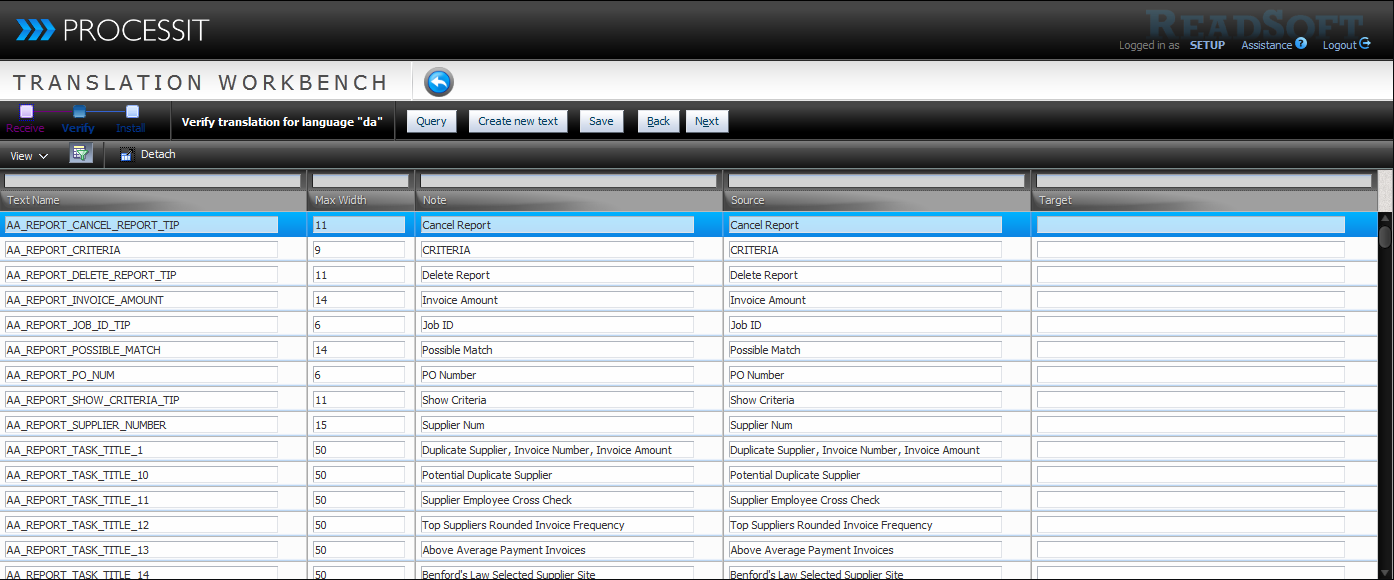
Translation Workbench
Export, import and edit user interface text translations.
Update interface text definitions to fit specific company context and standard terminology.
You gain access to the Translation Workbench via the Translation Workbench button in the Console Worklist.
Access Translation Workbench is restricted to certain users.
Interface Translation Procedure
- Export translation file
- Receive translation via file
- Manual translation
- Install Language: Update text directly in PROCESSIT. Generate insert script for language.
Export translation file
- Open Translation Workbench and click Export.
- Select the target language for the translation file.
- Click Export Language.
- Save the generated .xlf file.
Base language for exported translation files is English.
Receive translated language file
- Click Receive in the Translation Workbench interface.
- Select the .xlf translation file you wish to import.
- The file is validated to ensure translation compability.
- The number of translation units refers to one unit per single interface text.
- Click next to view the imported values in the interface for verifying translation.
- You can edit any text that might still require corrections.
- Click Next to continue to install language.
Edit translation manually
- Click Manually in the Translation Workbench.
- Select the language you wish to edit.
- Edit text to meet your requirements in the Target column.
- Click Create new text to create a new interface text.
- Click Next when you are done to continue to install language.
New texts are not used in the user interface.
Installing language
Update text directly in PROCESSIT use the text values in the current PROCESSIT installation.
Generate insert script for language generates an installation script.
All existing texts for a language are overwritten when installing a language.
It is recommended to export backup of existing value prior to installation.
Edit text
Use the Translation Workbench to manually edit text.
Export Language
Use the Translation Workbench to export one or more language files.
Import Language
Use the Translation Workbench to import a language file and install a language set.
The actual language used on a cliet machine depends on the operating system and browser settings.