PROCESSIT Console Worklist
Log in to PROCESSIT via [server]:[port]/processit/faces/Console
The Console Worklist is the central console window for accessing all tasks and modules. The task list is presented in a table structure with columns describing the tasks.
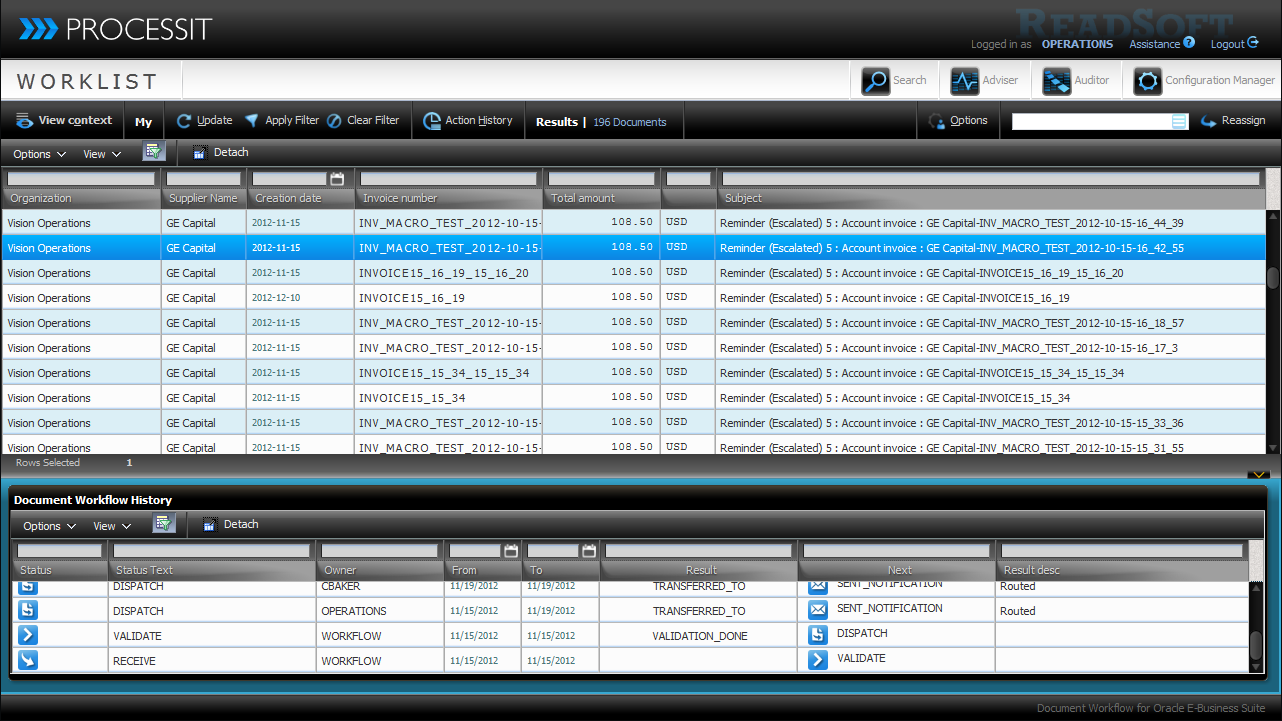
Worklist Features
- Task Access: Double-click to enter a task.
- View Context: Define the shown tasks - Own, all or by task type.
- Filter Options: Update, apply or clear the filter query fields.
- Action History:View action notifications and workflow messages.
- List Options: Export the current list view to Excel.
- List View: Show, hide or rearrange columns.
- Reassign: Reassign selected tasks.
- Columns: Rearrangable, resizable & sortable.
Access Modules
 Search: Document search
 Adviser: System monitoring and invoice reprocessing
 Auditor: Document workflow activity details and audit trails
 Configuration Manager: Applicatio behvior setup and configuration
 Translation: Interface translation workbench
 Customization: Customization workbench
Access permissions are based on Role Maintenance setup.
Options menu
 Reassign Rules: Access Reassign Rules setup
 Create Invoice: Access Create Invoice (Key from image)
 Recurring Invoices: Access Recurring Invoice Setup
 Shared WorklistView Shared Worklist settings
 Document Workflow History: Workflow trail for the selected task
 Document Change History: Attribute change histoty for selected task
Access permissions are based on Role Maintenance setup.
Worklist Indicators
 Urgent invoices are marked and shown at the top of the list.
 Potentially Missed Invoice Discounts are indicated after urgent invoices.
Email Notifications
- New tasks and reminders are sent via email.
- Predefined users receive specific notification types.
- Notifications grant access to Console Worklist and Task details.
- Contact person not valid notification example (Error notification)
Reassign Rules
Reassign Rules lets you transfer all your tasks for a specified period.
You can create and manage any number of reassign rules.
- Open Reassign rules via the Options menu in the Console Worklist.
- Click Create rule.
- Specify the rule settings.
- Select to delegate or transfer tasks.
- Click Add rule.
- Rules can be deleted and edited by clicking the rule name.
if enabled, you can delegate your user approval authority along with the task.
Create Invoice
Create an invoice by uploading an invoice image, fill in all invoice data and submit the invoice for standard workflow.
- Navigate to the Console Worklist
- Click Options
- Select Create Invoice
- Upload an invoice image
- Supply invoice header data
- Create invoice lines
- Submit the invoice to the workflow
Recurring Invoice Template & Schedule
Recurring invoices
- Create invoice templates for common recurring expenses.
- Define schedules to perform approval processing before the physical invoices are received.
- Late scan the invoice image when the actual invoices are received.
Creating an invoice template
- Click New Template.
- Supply data for all mandatory invoice header fields.
- Provide at least one invoice line.
- Click Get Supplier information.
- Select a supplier site
- Click Save
- Click Return
- Click the name to modify an existing template.
Provide an invoice number in the New template based on PROCESSIT invoice field. The Invoice Template window is opened with prefilled values pertaining to the selected invoice.
Creating Schedules
- Click New schedule.
- Select the Invoice Template to use in the schedule.
- Supply Schedule details: Frequency, Date from and Date to.
- Click Save.
Enable schedule
- The column Job contains a control button to start and stop the schedule job.
- The column Enabled shows the job status.
- Click the Play button in the column Job to start the job.
- When the job is running Template, Frequency,and dates are not editable.
- Click the Stop button in the column Job.