PROCESSIT WebLogic Installation
The WebLogic server is ...
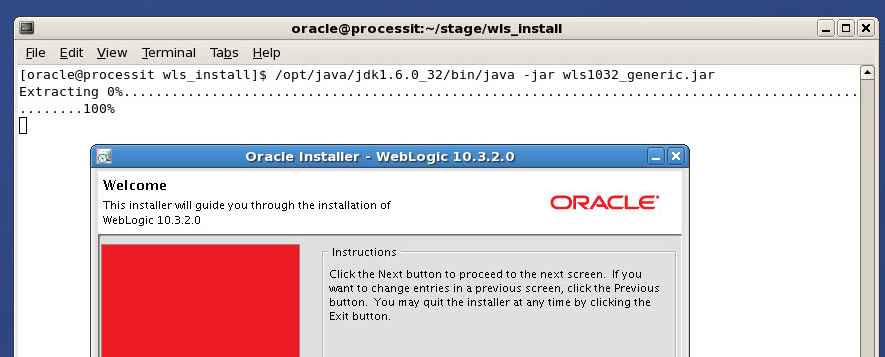
Launch the installer java application.

Once the installer is initialized, you get a welcome window.
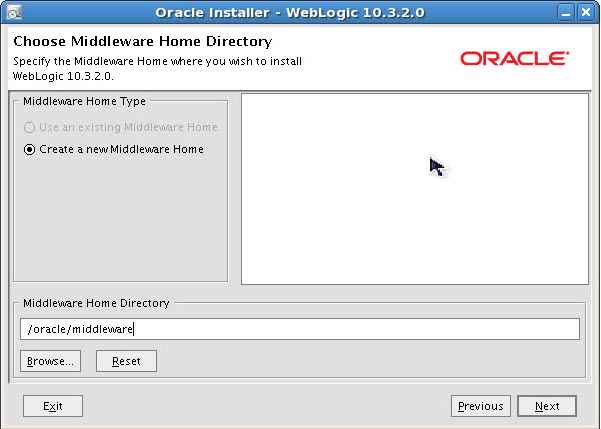
Select Create a new Middleware Home for the installation and specify directory location.
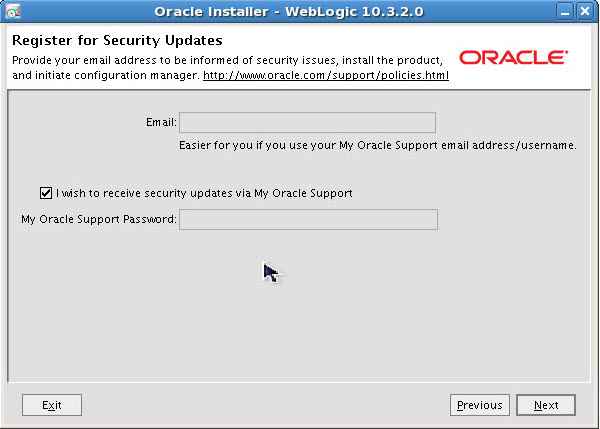
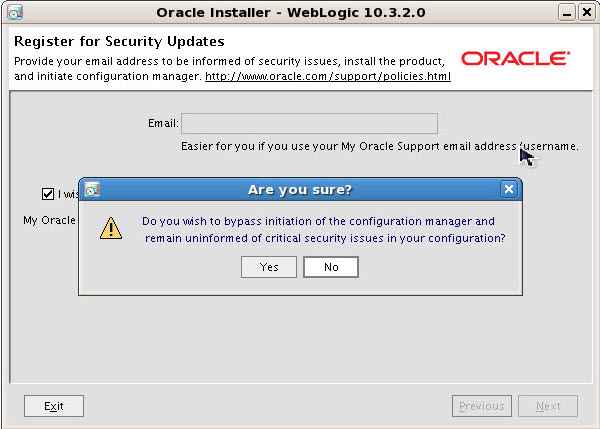
Uncheck the I wish to receive security updates ... checkbox.
Click Yes to the email address warning.
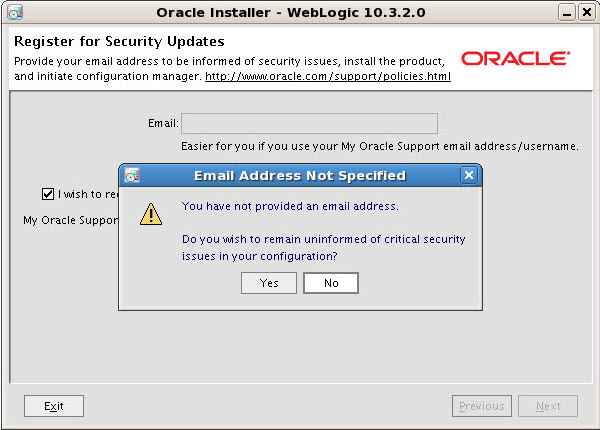
Warning dialog returns to the Register for Security Updates dialog. Leave the checkbox checked and the email address blank.
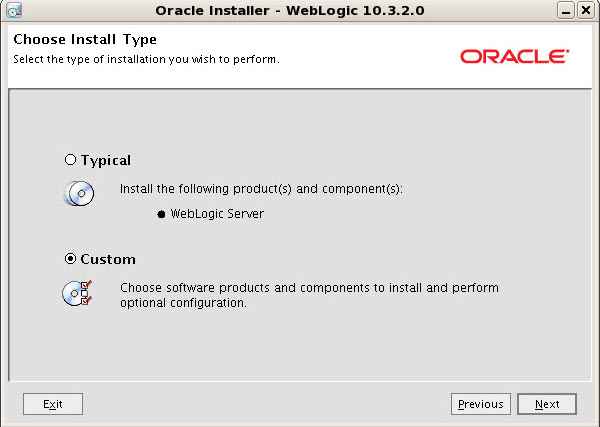
Select Custom installation.
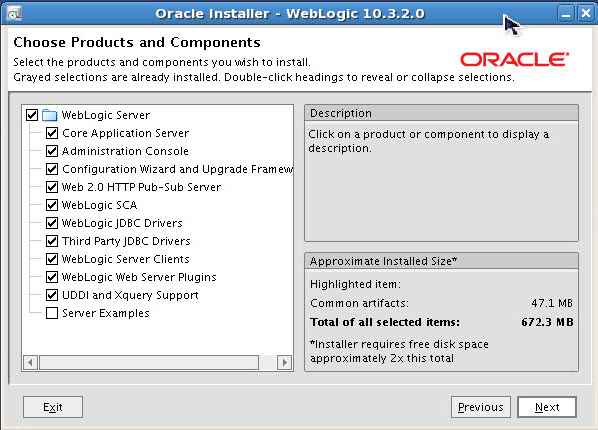
Select to install all components, except server examples.
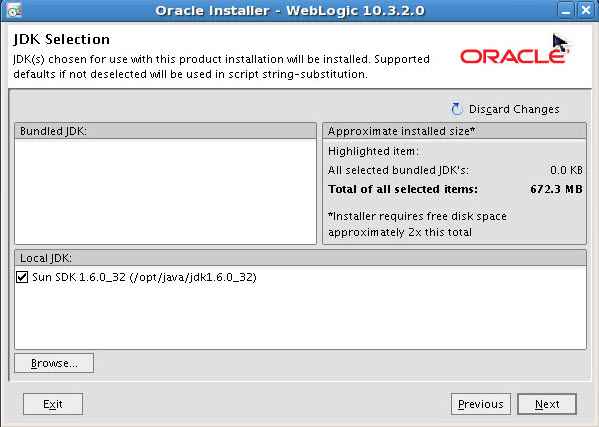
Select the JDK utilized to run WebLogic.
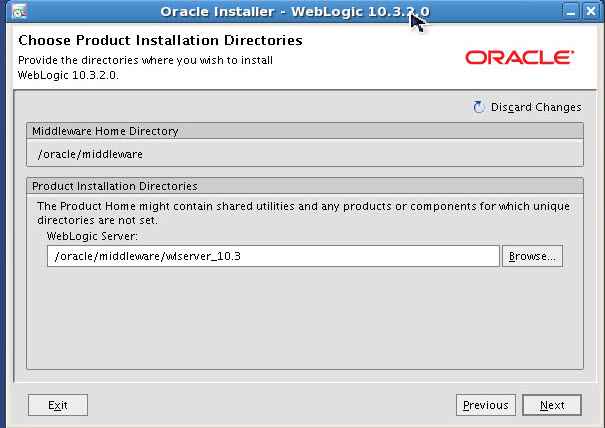
Browse and select or type the Installation directory.
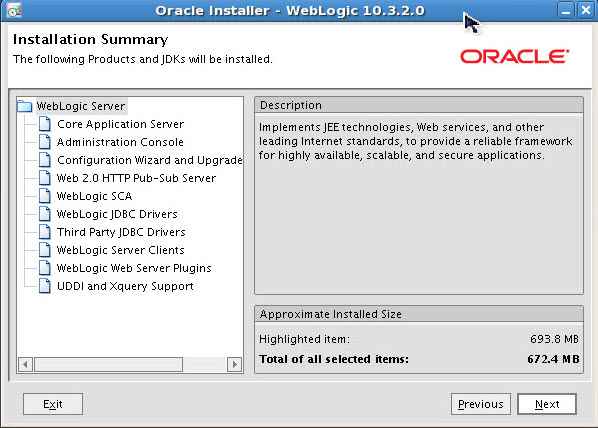
You receive an installation summary review.
Click Next to start the installation.
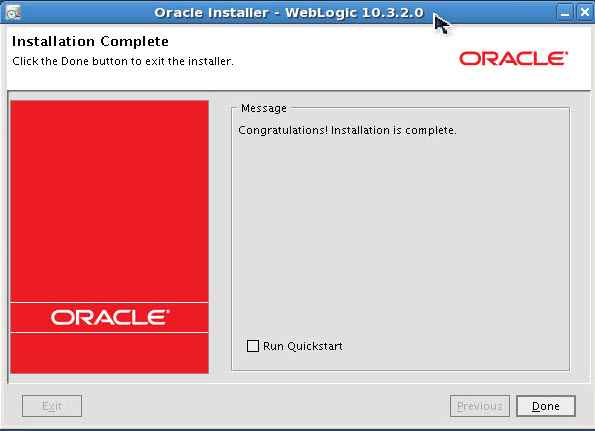
You are notified when the base installation is complete.
Do not Run Quickstart at this time.
Initialize the ADF library installation.
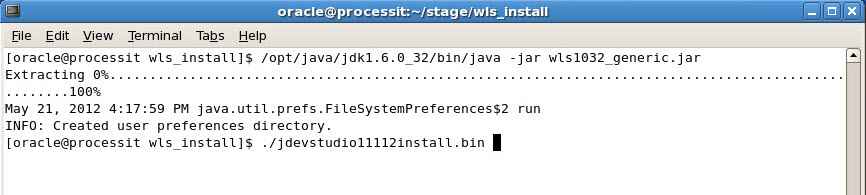
Once the installer is initialized, you get a welcome window.
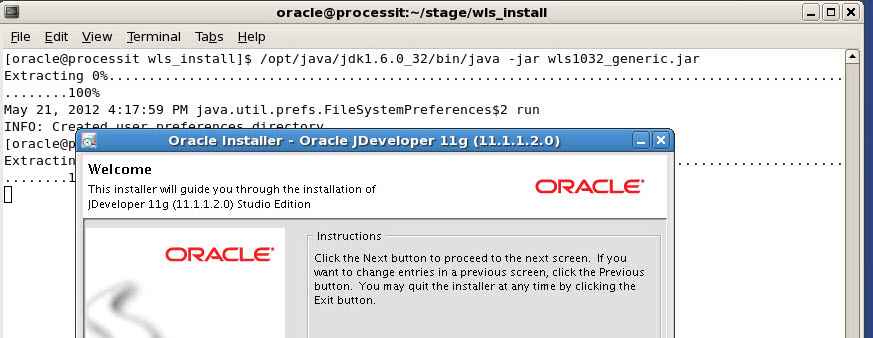
Select Use an existing Middleware Home to use the directory created during WebLogic installation.
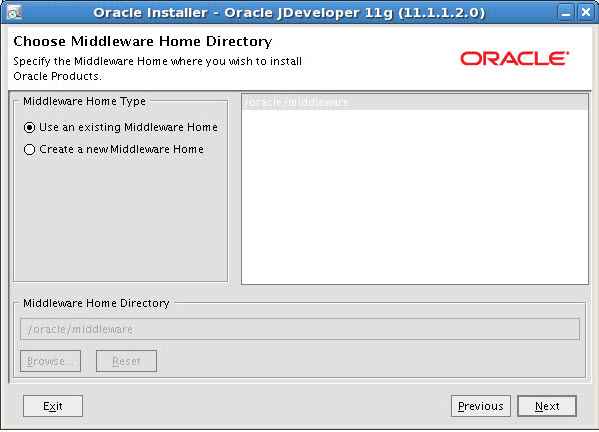
Unselect jDeveloper studio to only install the Application Development Framework Runtime.
Select the appropriate JDK.
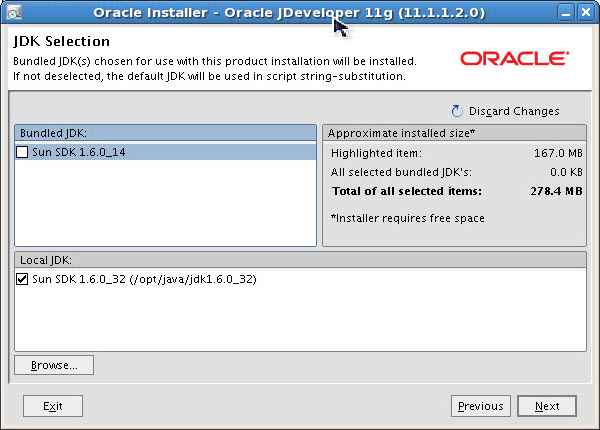
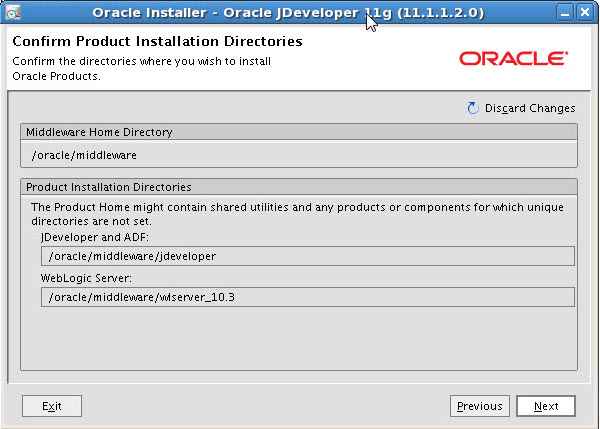
Confirm installation directories.
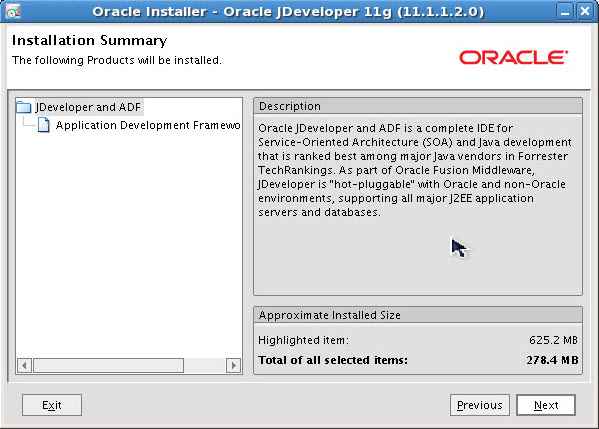
You receive an installation summary review for the ADF installation.
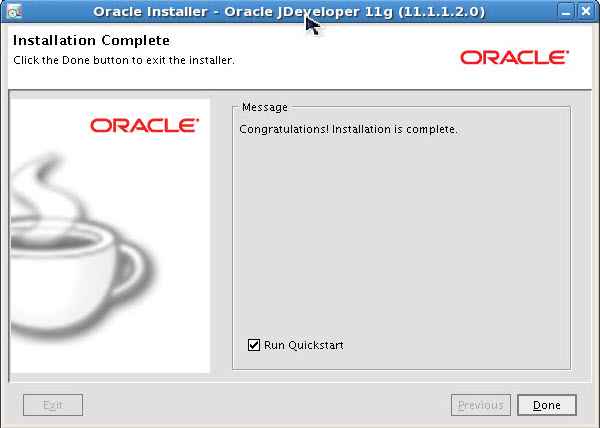
You are notified when the ADF installation is complete.
Select to Run Quickstart now.
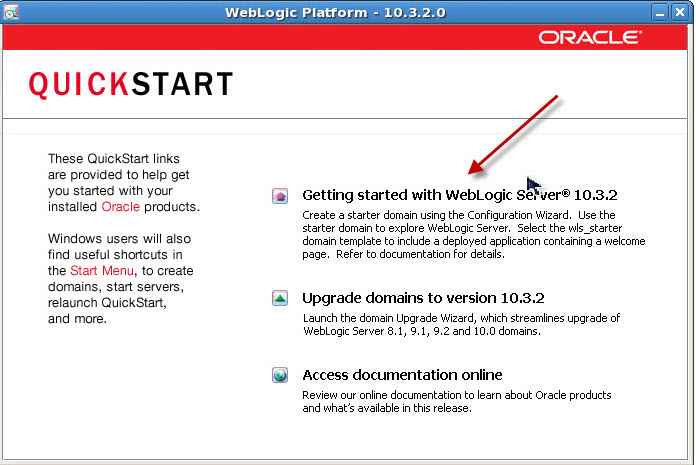
Click Getting started with WebLogic Server 10.3.2 .
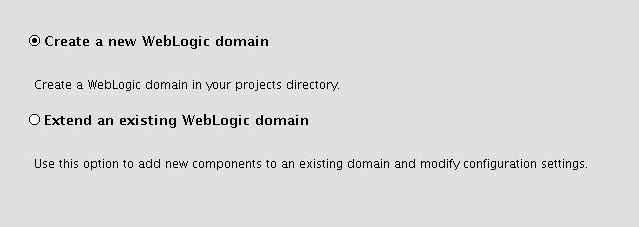
Select to Create a new Weblogic domain.
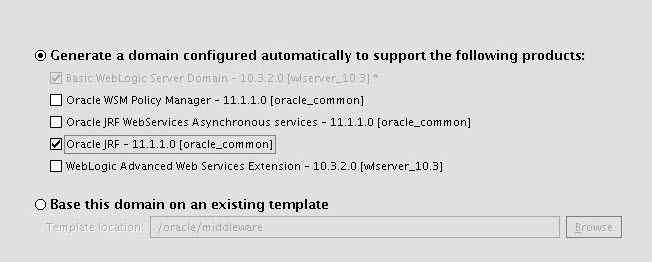
Select Oracle JRF - 11.1.0.
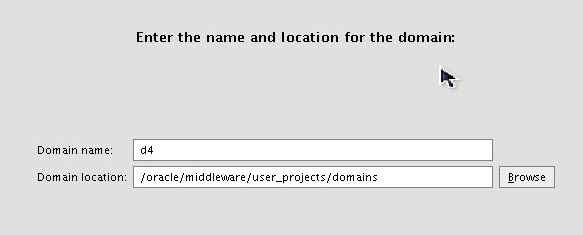
Specify d4 as the domain name.
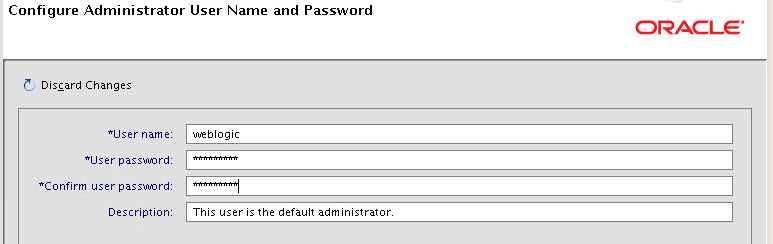
Provide a user name and password to configure the WebLogic domain manager account.
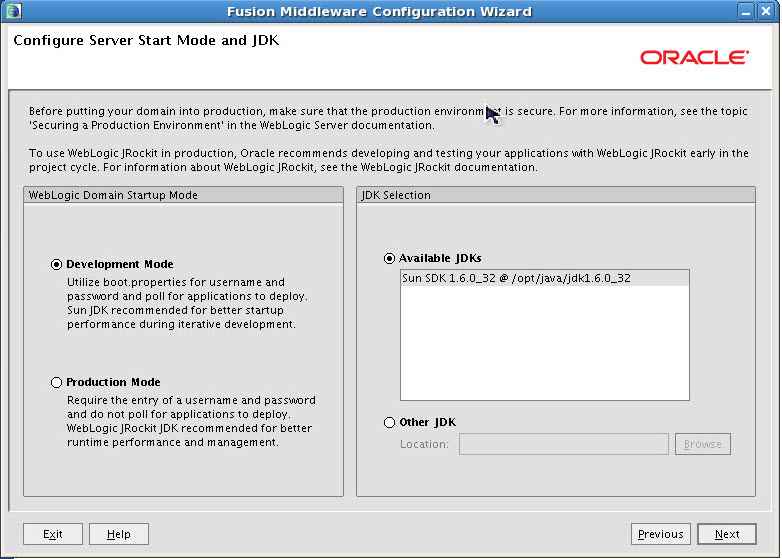
Select Development Mode to ensure a faster startup, easier startup configuration, and more debugging information.
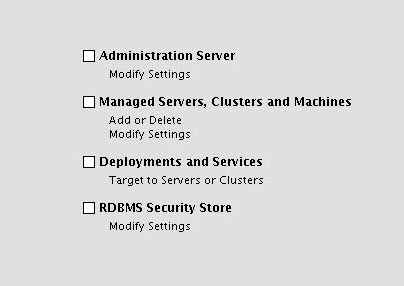
Click Next. No optional configurationis required.
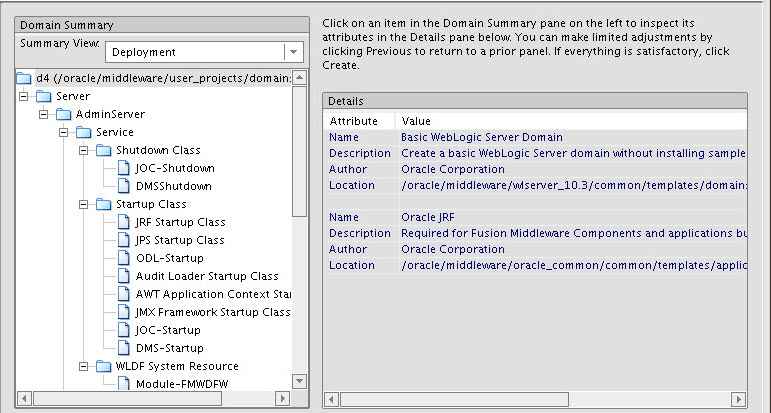
You receive an installation summary review.
The domain is created.
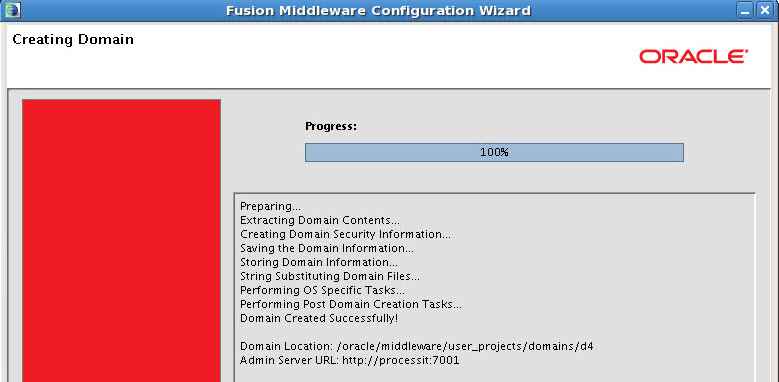
Change your location to the bin directory for the newly created domain.
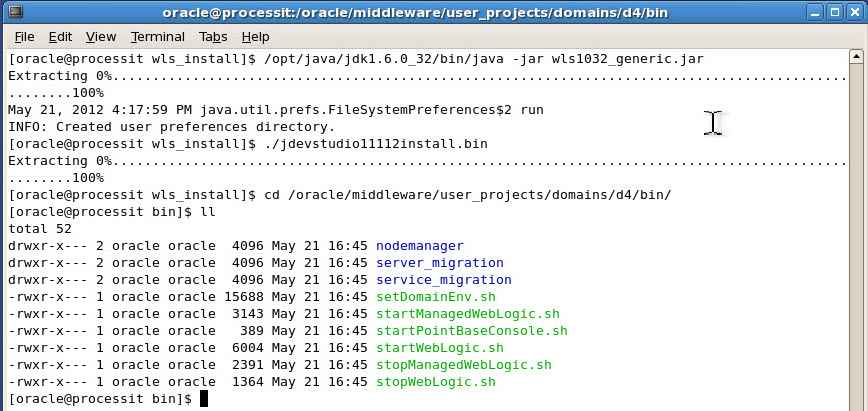
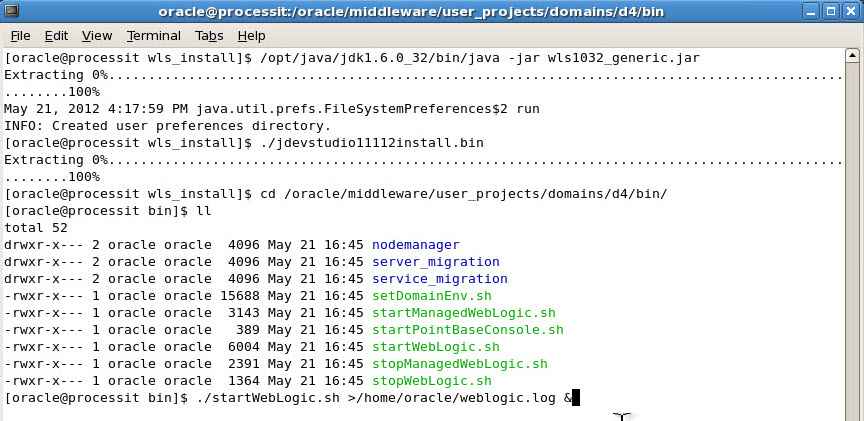
Start WebLogic
The startWebLogic.sh script starts the admin server.
/home/oracle/weblogic.log
The final & starts WebLogic in background mode.
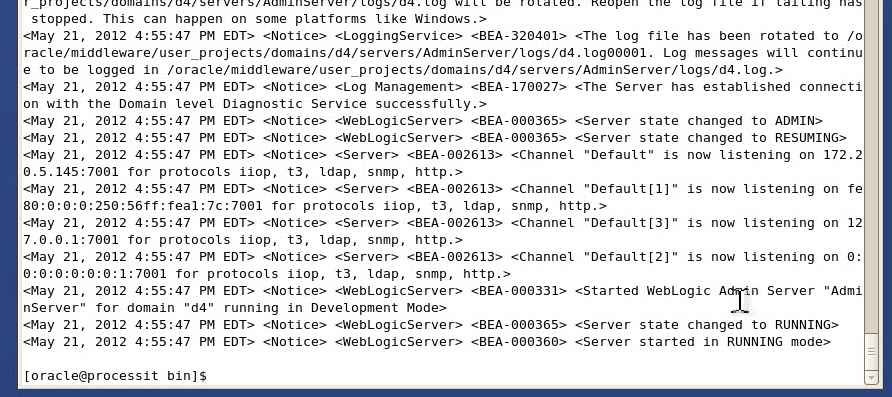
Log contains messages that have been redirected from standard out (stdout)

In the log, you can view when the server is in running mode.
Verify that you can access the WebLogic interface via a browser session.
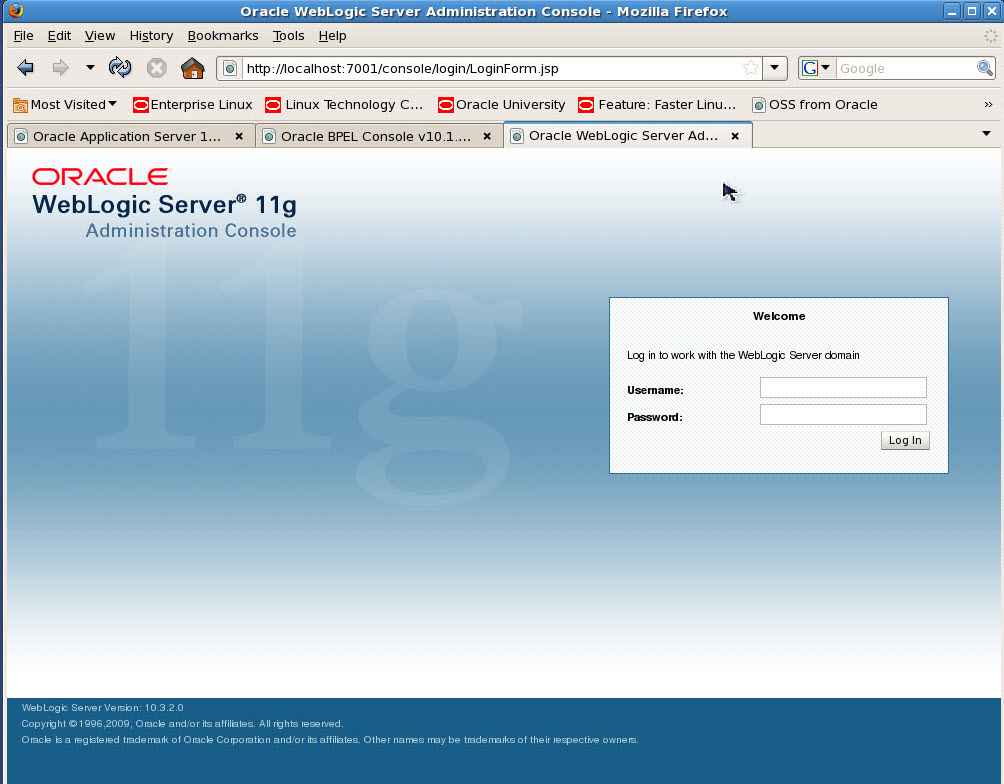
Installation Complete