Setting up a report to display in the Reports plug-in
Use this procedure to configure details of a report so that you can view it in XBOUND. (A few reports are included with your XBOUND installation. See Report Manager plug-in: Reports for details.)
Note: Reports must first be configured using SSRS Configuration Manager and SSRS Report Manager. Please refer to XBOUND Installation Guide for instructions.
The reports are published in SSRS. You can create a structure of folders and sub-folders there, and then specify the path to the desired reports as described below.
Using the XBOUND Management Center, open a console containing the Report Manager.
In the pane, expand and select .
Click (
 ).
The dialog is displayed.
).
The dialog is displayed.Type a name for the report.
Specify the report location (the URL of the WebService).
Example of : http://ServerName/ReportServer or localhost.
Specify the path to the desired report.
Example of : /ReportPath/ReportName
Select if the report is to be executed by your account.
Alternatively, select and then specify the , , and of the user account that should run the report.
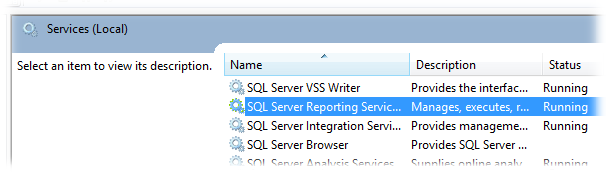
If there is a connection problem, ensure that SSRS
is installed and that the Windows service started on the report server.
( Show
me.)
Show
me.)
Now you can view the SSRS-based reports.