Add a Drop-Down List to a table column
In a table with multiple rows, allow a user to change the content of a row using a drop-down list in the table column.
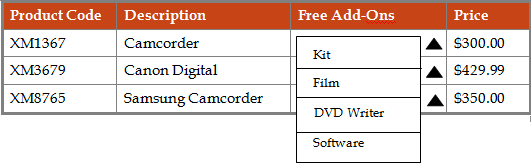
The following example shows a list of digital camera products. Each
digital camera has more than one free add-on associated with it. After the user
selects a camera, they can select the free add-on from the related drop-down
list.
To use a drop-down list, store the information in a previously defined database, .NET Method, or Web Service call.
For example, when creating a Staff Location Details table, enter the location details for each Staff member. Office location details appear in the Location table of the database. Map the Location column of the Staff Location Details table to the Location table of the database.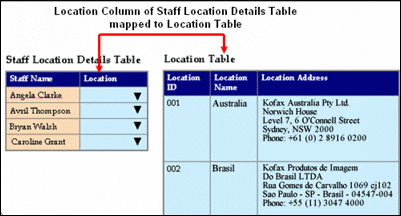
At runtime, when you add a row to the Staff Location Details table and enter location, the drop-down list is populated with the contents of the Location table. You can then select the location for a specific staff person.
For example, if Bryan Walsh works in the London office, select London from the Location list.

- On the Extended Properties page of a Table, click Columns.
- On the Data Type list, select String.
- On the Column Type list, select Drop-down.
- Click Configure.
-
Configure the drop-down control in a table to use either
Static, or
Dynamic content, or to
use
Lookups.
-
To use dynamic data in a drop-down list in a table column, create and consume a .NET Method, Web Service, or DB Query action.
-
To use static data, enter a name and value for the drop-down list item and click Add
 . Create as many items as required.
Note If the dynamic data set for drop-down list is not populated, the static data specified for the list appears.
. Create as many items as required.
Note If the dynamic data set for drop-down list is not populated, the static data specified for the list appears. -
To use predefined lookups, click Lookups and consume the lookup to use.
-
- Click Close.
- Click Save.