
Set up a new workflow
Begin setting up your workflow for tracking the status of enhancement requests.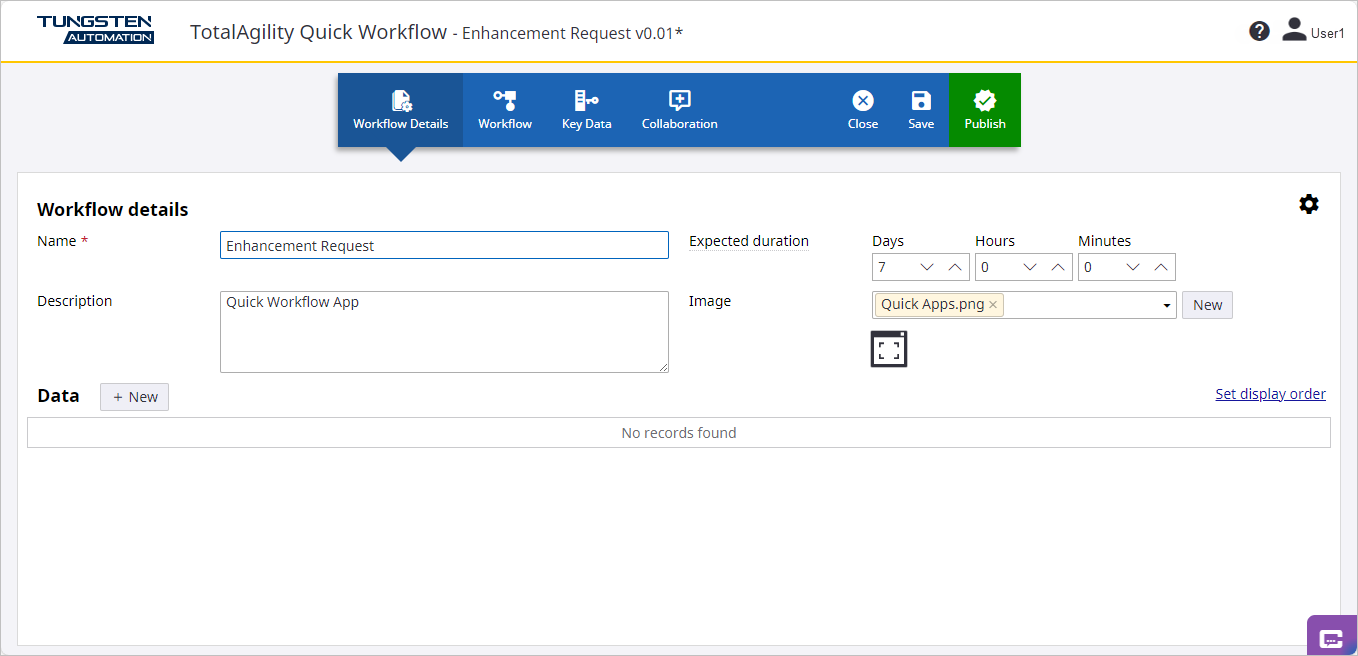
- In the Name field of the Workflow Details screen, enter "Enhancement Request."
- By default, the description is provided in the Description box. You can change the description as needed.
- In the Days field, enter 7 to allow the workflow to be completed within one week.
-
By default, an image is provided in the Image box, however, you can change the image by selecting an existing image
from the database or upload a new image.
-
To select an existing image, on the Image list, select the image.
-
To upload a new image, do the following:
- Click
New
The Upload images dialog box is displayed.
-
On the Category list, select the category for the new image.
-
Click Browse and select the image file to upload, or drag the file from your system to the Images box.
-
If any of the files already exists, you can choose to overwrite the existing file by selecting Overwrite existing files.
-
Optional. Provide a Description for the image, such as "Company workflow images. "
-
Click Save to upload an image.
-
Once the file is uploaded, click Finish.
The uploaded image is saved to the database and appears next to the title in the TotalAgility Workspace.
- Click
New
-
Next, define the data to be used within the workflow. Continue to Define data.