
Instead of navigating through the menu-submenu structure, you can use button-type tools with direct access to the same functions. Tools are grouped into named toolbars and a set or subset of these toolbars forms the Main Toolbar, placed in the upper part of the program window.
Hover with the pointer over a tool to see its name. You can undock any toolbar to drag it into your working area. Once a tool is selected, as a rule, it remains active until you select another one.
To customize toolbars
Choose View > Toolbars, or right-click in the toolbar area for a shortcut menu, and customize your toolbars as follows:
Toggle specific toolbar names to display or hide any of them in the Main Toolbar.
Select Reset Toolbars to restore pre-defined settings.
Click Hide Toolbars to hide all toolbars.
Select Show Button Labels to identify all, some, or none of the buttons with their names.
Select Customize Toolbars to include or exclude specific tools within a toolbar.
Click a down arrow symbol to the right of a button to open a drop-down menu. E.g., click the arrow next to the New PDF button to display a set of options for creating a PDF document.
Toolbars specific to PDF Viewer:
Toolbars with more general functionality:
Edit Toolbar
View Toolbar
Zoom Toolbar
Edit
Tools from left to right:
1. Undo recent actions down to a certain depth.
2. Redo recently undone actions.
View
1. Go to View > Navigation Panels to open the Navigation Panels displaying the selected item.
2. Go to View > Organizer Panels to open the Organizer Panels displaying the selected item.
Zoom
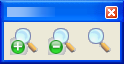
Tools from left to right:
1. Zoom in (+) on the image
2. Zoom out (-) on the image.
3. Zoom dynamically. Move cursor up to zoom in, down to zoom out.