The Administration module: Supervision tab
Use this window to monitor the system (view current system status, processed document statistics) and to reallocate resources if necessary.
The left pane gives you access to the objects listed below. The right pane displays the contents of whatever you select in the left pane.
|
Use the settings in this section to specify how the system is supervised as a whole. (Only available if using multiple runtime systems) |
|
|
|
These headings have the same functionality here as in the tab. Use them to manage the users and user groups that are in the system. (Only available if using multiple runtime systems) |
|
Multiple runtime systems |
If multiple runtime systems are used, only those solutions that are included in the separate runtime systems are listed under them. |
|
|
Displays tables used in system in the right pane. Tables can be created manually or imported in the form of text files. You can then use them to validate field values and to translate field values. |
|
Displays solution overview information |
|
|
|
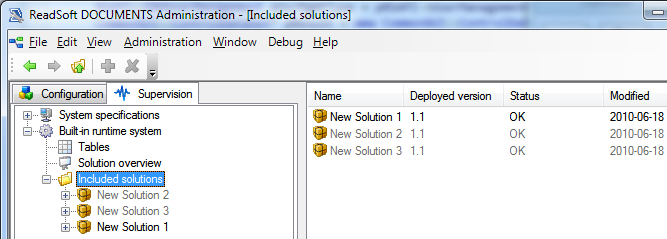
All the solutions included in the In order to see and edit solution settings on the tab, a user must have Administration rights to access the Administration module and the tab, and must either be assigned to run at least one production task in the solution OR have rights. Otherwise, the solution is |
|
The versions of each solution that is deployed to the |
|
|
The documents, and their statuses, currently found in the production database. |
|
|
Information on queues used for solutions found in the production database. |
|
|
Search filters and table displaying the documents in the system that match the filter criteria. |
|
|
Five categories and filters that you can use to view all significant production events. To begin recording events in the system audit trail, select in the dialog. |
 unavailable and grayed out