Document view (two-page)
When you are inspecting or verifying documents using the Production module, this view displays a full image of the thumbnail in focus and the next page, including any fields the pages contain ( see example). When you select a thumbnail, the thumbnail and its corresponding page in the document view both have blue-green borders. If you select more than one thumbnail, the first thumbnail selected is active, or current. The two-page view always shows the current page plus the subsequent page.
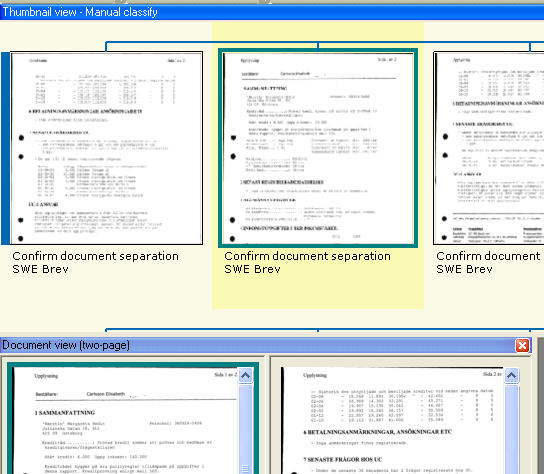
A thick blue bar on the left/right side of page indicates that it is the first/last page of a document, and a thick dark red bar indicates that this is the first/last page in a compound.
When a page is double-sided, the border of a front/back page is open on one side.
The two-page view is helpful for manual classification during Inspect to more easily see if the two pages belong to the same document, for example.
To get a better view of both pages, you can:
-
Select > to clearly display the fields that were extracted.
-
Select > to clearly display which fields were used to classify the documents.

Changing how the Production module looks when you verify documents
Changing how the Production module looks when you inspect documents