Deleting documents
Using the Administration module to delete documents
-
Search for the documents you want to delete.
-
Select the object(s) by clicking the far left column in a row, like this:
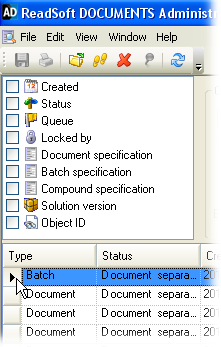
-
Right-click the selected objects and select . If a batch or compound is selected, all of its members are deleted.
If you want to delete all documents, see Clearing database content.
Deleting invoices
If you are processing invoices in an invoice solution that uses Invoice modules, you can (instead of the above procedure) delete invoices using Invoice Verify or using Invoice Manager ( dialog).
Note: If you delete an invoice
that is already extracted, the corresponding image file is not deleted
from the image file server. (For more information about this, see Image
location in an invoice solution.)
For details about what happens to deleted invoices, see Document instances and statuses in an invoice solution.