To ensure that barcodes are interpreted correctly, the designers of the code check for errors on several levels:
The lowest level is made up of start/stop-signature bars.
In the second level the code contains a symbol that must satisfy a formula to be acceptable.
A check digit or sum is placed at the end of the code in the third level. (FORMS removes this digit from the output.) Some older barcode types lack check digits.
Generally speaking, the newer barcode types are better and safer.
For more information, see Optimal design of barcode fields.
If an error is detected (for example, if a checksum or symbol is incorrect or start/end bars are missing), the total result for the field is considered to be invalid, and the field value is represented by an asterisk (*) during verification.
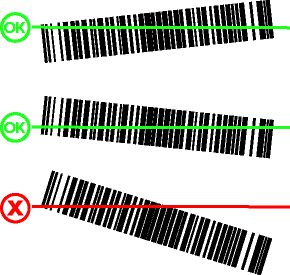
Barcodes do not have to be perfectly straight on the form. However, it must be possible to draw a horizontal line (relative to the bottom of the page) through the barcode that intersects the entire barcode. (Example.)
FORMS imposes limitations on the length of certain barcodes. In addition, there are limitations in the interpretation of certain barcodes. See Barcodes supported by FORMS for more information.
Note: Your format specification for the barcode field is not used during interpretation. It is used as an extra check after interpretation.
Ensure that the form definition does not include an actual barcode. Normally a blank form is used to set up the form definition. If there is a barcode in the barcode field as you define it, then you must erase the barcode. The general procedure is:
Deactivate the form definition.
Delete the barcode field definition.
Erase the barcode from the field area.
Redefine the barcode field.
Save and reactive the form definition.
See Editing an active form definition and Erasing marks from forms if you prefer more detailed instructions.
When interpretation of barcodes is poor, it is normally because the bars are not wide enough. Therefore, first try scanning the forms using a higher resolution or (if possible) increasing the width of the bars.
Using a scanner’s built-in image enhancement functions can affect interpretation. Try turning all image filters off.
Adjust the scanner’s light and contrast settings to different values to see which work best.
Use the Check barcode button in the Field dialog to check whether the barcode is easier to recognize.
Important: If there is a barcode on the form as you define it (normally a blank form is used to set up the form definition), then you must erase the barcode. Otherwise, the barcode will not be interpreted. Follow the instructions in Erasing marks from forms.
The printing can be of low quality. Try changing the printing equipment.
There are initialization file settings that improve the interpretation of barcodes in many cases. For more information, look up "Barcodes" in the index of FORMS INI File Help (a separate help file that describes initialization files that are used with FORMS).