Fast-verifying unknown characters
Unknown characters are individual uninterpreted characters in a field, both those that FORMS was unable to recognize and any characters you selected as incorrect during mass verification.
Unknown characters are handled differently in the fast verify mode than the other field statuses and error types that you can fast-verify.
How the characters are displayed
-
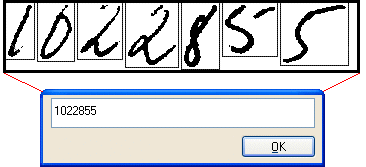
FORMS combines up to seven unknown characters from different areas of the same form (or from several forms, if you use the buffering function) and strings them together on the screen, separated by blue frames.
-
Uppercase letters of the alphabet, lowercase letters and digits are always grouped separately.
-
If a character could be either a digit or a letter, FORMS does not show it in the fast verify mode, but in its proper context.
-
The dialog is empty, and you simply type what you see. This allows you to enter unknown characters very quickly, without moving from field to field.
-
(Show me what it looks like.)
What the Verify operator does
The dialog is empty, and you simply type what you see, unless you see:
|
Overlapping characters
|
Characters with a line that would seem to connect them horizontally, are sometimes interpreted by FORMS to be a single character. You can turn a single character into two by typing both with a plus sign (+) in between two characters as you enter the correct data. (Show me what it looks like.)
|
|
One character interpreted as two
|
If FORMS has interpreted a single character as two, delete one of them by typing a minus sign (-) in its place.
|
|
Characters you cannot recognize
|
Because characters are shown out of their context in the fast verify mode, occasionally it is impossible to recognize them. You can skip such characters for the time being by typing a comma (,). FORMS shows you the same characters again later, in their proper context.
|
When you fast-verify unknown characters, you cannot delete entire fields. Instead, insert the minus sign in place of each character to be deleted.
Related topic
Verifying interpretation errors