
Validation tutorial
This tutorial demonstrates how to create a plug-in that validate fields using Microsoft Visual Basic 6.0. In this tutorial you will:
- Create a DLL that subscribes to a ReadSoft Invoices event.
- Connect the plug-in to ReadSoft Invoices via Eilocal.ini.
Create an ActiveX DLL project
-
Create a new ActiveX DLL project using Microsoft Visual Basic 6.0.
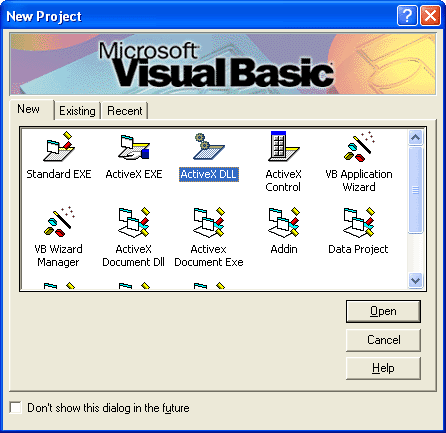
- Rename the project to "myValidation" and rename the default class module to "clsServer". You will use these names later when you add the plug-in to Eilocal.ini.
-
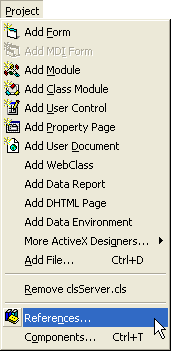
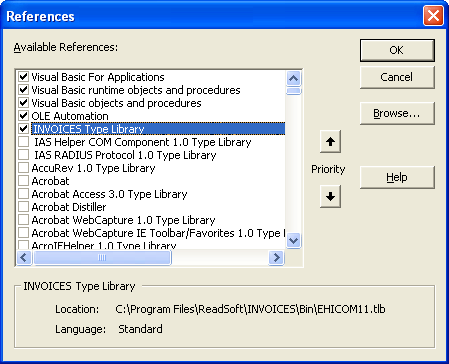
Add a reference to the ReadSoft Invoices type library.
The class code
The myValidation plug-in has these functions:
- Connect: Connects to a ReadSoft Invoices module and subscribes to the AppStarted event in the Manager module.
- OnInvoiceComplete: Contains code for validating invoice fields.
- ConfigurePlugin: Determines what happens when the Configure button is clicked in the Extension programs dialog in the Manager module.
- Disconnect: Releases memory allocated by the plug-in.
-
Copy and paste the code below into the clsServer module.s
Option Explicit ' Declare a reference to the Application object Private objEHApplication As EHICOM.Application Public Function Connect(objEHIApp As Object, sIniFile As String, sIniSection As String) As Long Set objEHApplication = objEHIApp ' Save the application object for future references ' Setup the subscriptions Select Case objEHApplication.ModuleType Case eiManager Case eiScan Case eiInterpret objEHApplication.Subscribe Me, "InvoiceComplete", "OnInvoiceComplete" Case eiVerify objEHApplication.Subscribe Me, "InvoiceComplete", "OnInvoiceComplete" Case eiTransfer Case eiOptimizer End Select Connect = evtOK End Function Public Function ConfigurePlugin() As Long ' Called by clicking the Configure button MsgBox "No configuration is available for this plug-in" ConfigurePlugin = evtOK End Function Public Function OnInvoiceComplete() As Long On Error GoTo OnInvoiceCompleteException ' Get a reference to the current invoice, ' since we will be using that object frequently. Dim objInvoice As Invoice Set objInvoice = objEHApplication.CurrentInvoice ' Get references to all the fields you need. ' Note that the following lines might throw an exception ' (caught by the error handler) if the fields do not exist. Dim objNetField As InvoiceField, objVatField As InvoiceField, objTotalField As InvoiceField Set objNetField = objInvoice.Fields("Net_Amount") Set objVatField = objInvoice.Fields("VAT_Amount") Set objTotalField = objInvoice.Fields("Total_Amount") ' Validate net + vat against total ' We use the "Val" VB function to convert the string value to a numeric before ' performing any arithmetic operations. ' This function requires decimal char to be a point (.) ' A better way would be to use the DisplayString property of the field, ' and then use the information found in Eiglobal.ini (DisplaySettings) ' to convert the string correctly. If (Val(objNetField.Value) + Val(objVatField.Value)) <> Val(objTotalField.Value) Then ' Total does not match net + vat. Warn the user if in Verify. If objEHApplication.ModuleType = eiVerify Then MsgBox "Balance not zero, captured total does not match calculated total" End If ' Set validation error on one of the fields (we do not know which one is incorrect). objTotalField.Status = eiFieldValidationError End If ' Return evtOK OnInvoiceComplete = evtOK Exit Function ' Error handler OnInvoiceCompleteException: ' Only display a message if in Verify. If objEHApplication.ModuleType = eiVerify Then MsgBox "Internal error:" & vbNewLine & Err.Description End If OnInvoiceComplete = evtError End Function Public Function Disconnect(objEHIApp As Object) As Long ' Release memory Set objEHApplication = Nothing ' Return evtOK Disconnect = evtOK End Function - Save the project.
- Build the DLL and copy it to ReadSoft Invoices's Bin folder.
Add the plug-in to Eilocal.ini
In order to use the plug-in, it must be specified in Eilocal.ini. The sample below shows a typical Manager plug-in section with the HelloWorld plug-in highlighted.
Manager
[Plugins::eimngr]

Plugin1=Common

Plugin2=Manager

Plugin3=DBAdmin

Plugin4=myValidation

[eimngr::Common]

Name=Common Dialogs

Type=COM

SupportIDispatch=TRUE

Classname=ReadSoft.INVOICES.GUI.Extensions.Plugin

[eimngr::Manager]

Name=Manager Dialogs

Type=COM

SupportIDispatch=TRUE

Classname=eimngrdlg.cserver

[eimngr::myValidation]

Name=myValidation

Type=COM

SupportIDispatch=TRUE

Classname=myValidation.clsServer
After you save Eilocal.ini, you can run an Interpret or Verify job to see the results.
Microsoft Visual Basic automatically registers DLLs when you make them from the File menu. If you want to use a
plug-in on another computer, you must register the DLL on that computer.
Related topics
Migrating Tungsten ReadSoft Invoices customizations to recent operating systems