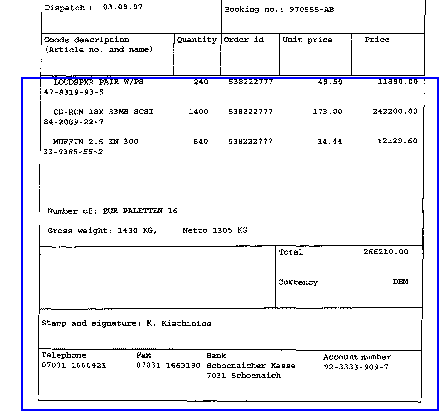
Display the page of the invoice where the line items start. Use the zoom buttons to show the entire page.
Click the button if it is not already selected for you. 
Click and drag a frame around the area on the invoice where you expect to find all the line items. The line item field profiles you defined in Manager appear in the Line item learning dialog.
Draw the boundary starting just above the first line item. End it just below the last possible place on the page where line items may occur. Draw the sides of the boundary outside the area where line items can appear. Example: