Changing the appearance of the XBOUND Management Center
You can adjust the appearance of the Management Center as described below.
Hiding the Console pane
The pane is displayed on the left side of the screen. This pane contains a list of the plug-ins that are available in a console.
To hide it, deselect > or click the (
 )
button at the top of the view.
)
button at the top of the view.
Switching to and leaving full screen mode
In full screen mode, the Management Center console, toolbars, and menus are hidden. The loaded plug-ins take up the entire screen.
To switch to full screen mode, select > or press .
To leave full screen mode, click (at the top of the window, in a yellow box) or press .
Undocking console windows
Undock a single window by dragging its tab from the navigation bar.

Redock the window by double-clicking in the window's title bar (where the red asterisk is in the below screenshot).
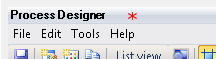
You can also redock all windows by selecting > .
Changing the color theme
To change the color theme in the Management Center:
Select > or click the corresponding button (
 )
in the toolbar.
)
in the toolbar.In the dialog, select the desired color scheme.
Click .