Kofax SignDoc Standard 2.1.0 - Online Help
Sign document(s)
On this page users get an overview of documents included in the signing package. The recipient selects a document for signing.
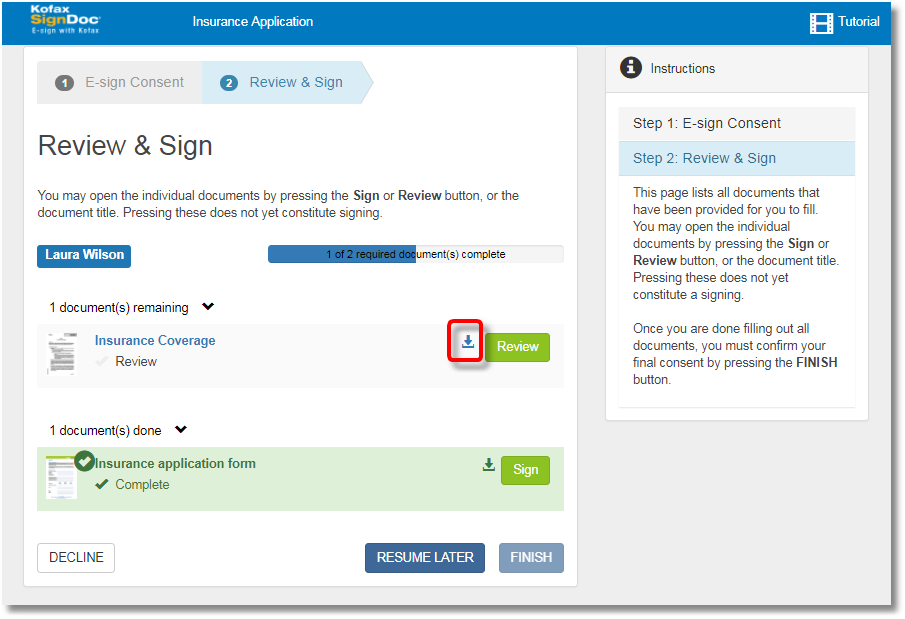
For each document the status information Complete, Action required or Review is shown . Clicking one of the action buttons Sign or Review of the row will open the document.
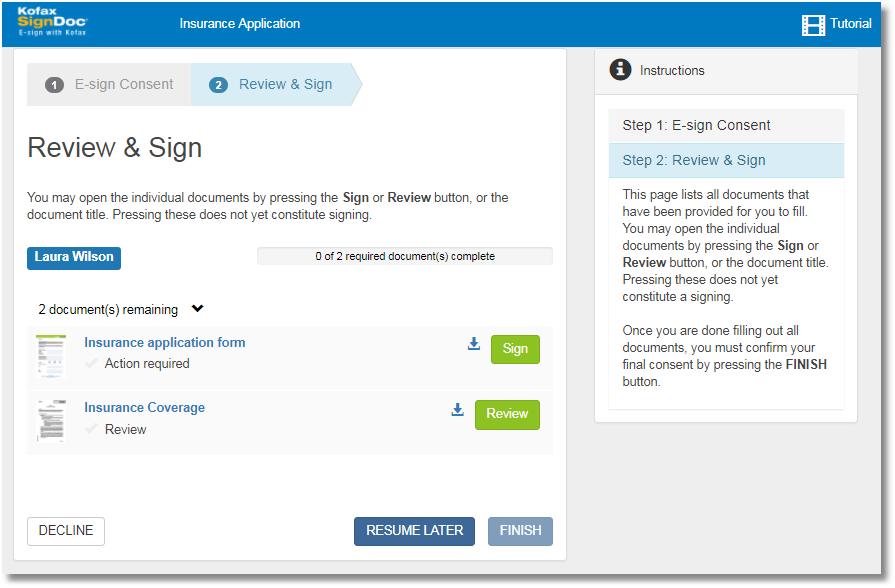
Clicking the RESUME LATER button all changes are saved without the user finishing the package.
The FINISH button is only enabled, if all required fields of all documents of the signer are completed and/or all documents have been reviewed by the reviewer. Once a user has finished they can no longer edit the documents in the package.
The finished documents are shown in the upper area of the page.
Note If the document is opened for reviewing the recipient is not allowed to sign or to fill other editable fields.
All pages of the document are displayed in a continuous paging view.
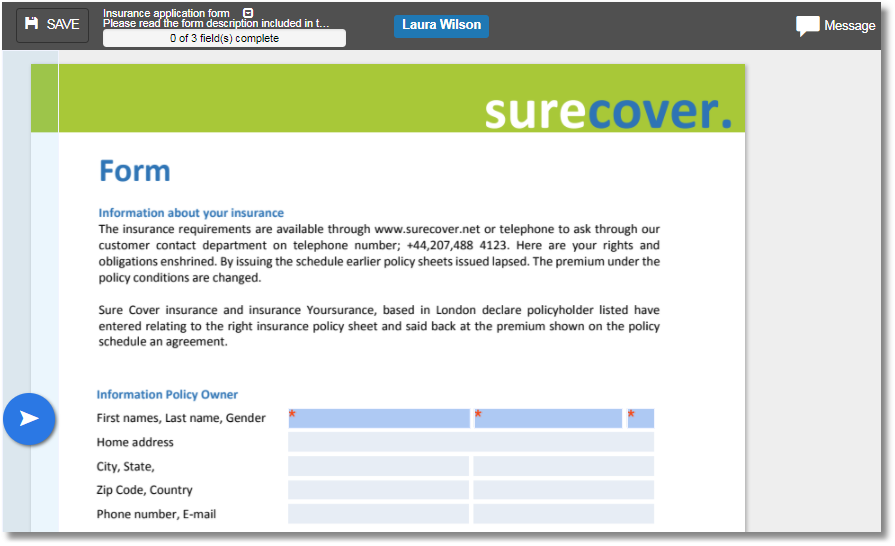
In the header you can see the title and description of the current document.
If a document message has been set, a message icon is shown.
Documents may have form fields that recipients need to complete. Fields in the document are shown with a blue background. Required fields are marked with an asterix. Users can click the fields to fill them in.
A form filling guide is displayed on the left side of the page to assist navigation to the required fields of the document. On mobile devices this guide is shown in the toolbar. The guide will point users in the direction of the next required field. You can also click the guide to automatically scroll there.
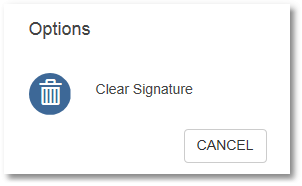
To sign, click in the signature field and follow the instructions. You can also remove any signatures added by clicking again in the signature field and clicking Clear Signature.
If the Signer certificate required option is enabled (see Signer certificate required), a client certificate will be requested the first time you sign a field in any of the documents. This certificate will be used for all subsequent digital signatures for the current signer unless removed.
After the signer certificate is available to the signing session a new icon will be visible in the toolbar.
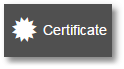
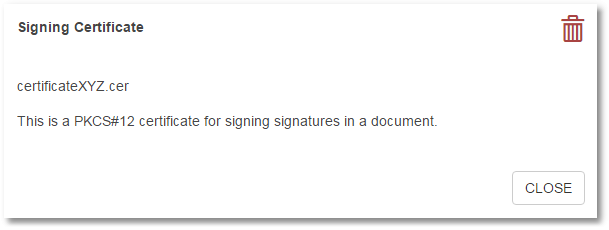
Clicking the icon will display information about the certificate. From this dialog you can also remove the certificate from the signing session
After clicking the icon  a message will inform you that the Client Signing certificate has been removed and a different certificate may be applied to new signatures.
Three methods are available to sign a document: signature, photo capture or click-to-sign.
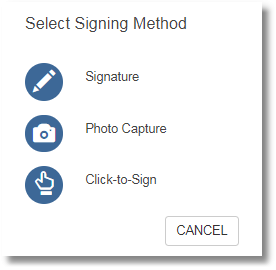
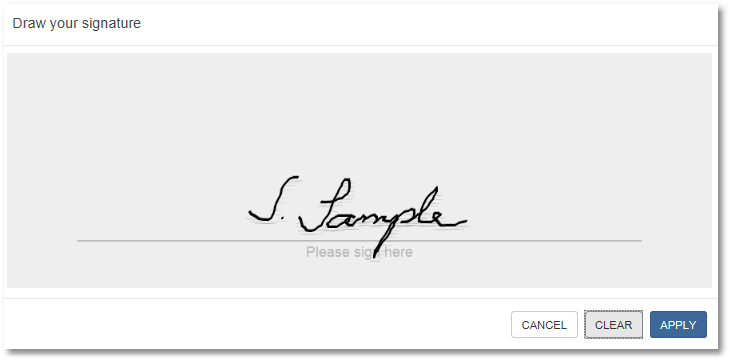
1.Signature: sign with your mouse or signature pad.
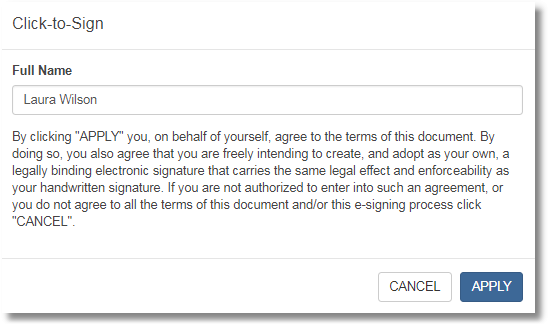
2.Click-to-Sign: sign by typing your name.
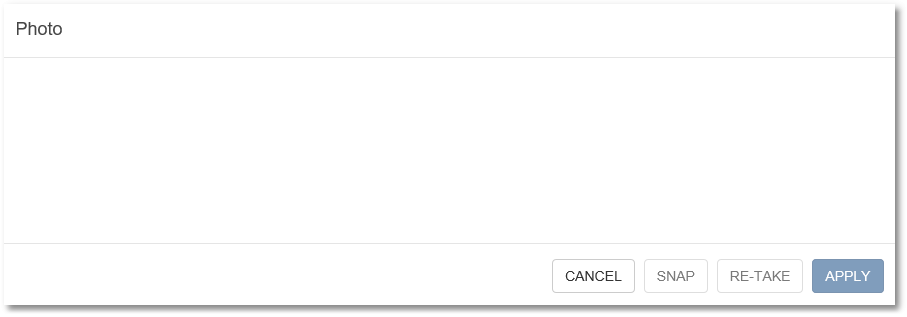
3.Photo Capture: use your device’s camera to take a picture to sign with. To take a picture click the SNAP button. If you would like to take the picture again click RE-TAKE. Once you are satisfied with the picture click the APPLY button.
You can also remove any signatures added by clicking again and pressing Clear Signature.
Note The availability of the signing options depend on how the document was prepared.
Once you are done editing or reviewing the document click the SAVE button to save your changes and return to the previous page.
Download your documents
To download your documents, click Download icon:
After you have finished filling or reviewing all your documents, click the Download All button to save all of your completed documents as a zip file:
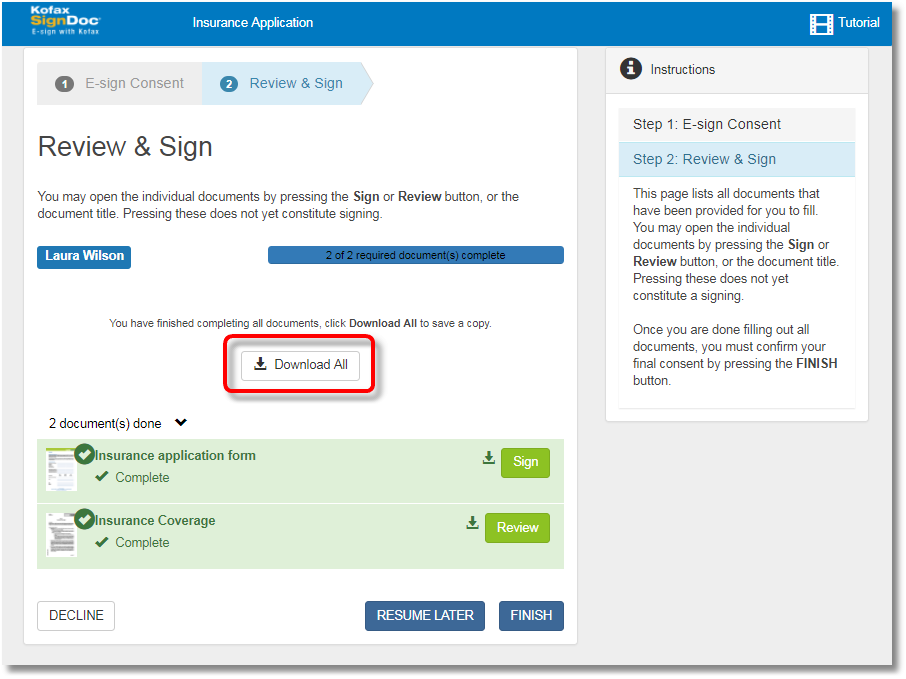
When all documents are completed and the user is returned using the SAVE button to Review & Sign page then the FINISH button is highlighted and the recipient can finish the view and sign process.
Note Recipients can select the FINISH button only when all required actions for them for all documents are done.
Clicking the FINISH button SignDoc Standard guides the recipient to the Completeness & Thank you page.