Kofax SignDoc Standard 2.1.0 - Online Help
View package details
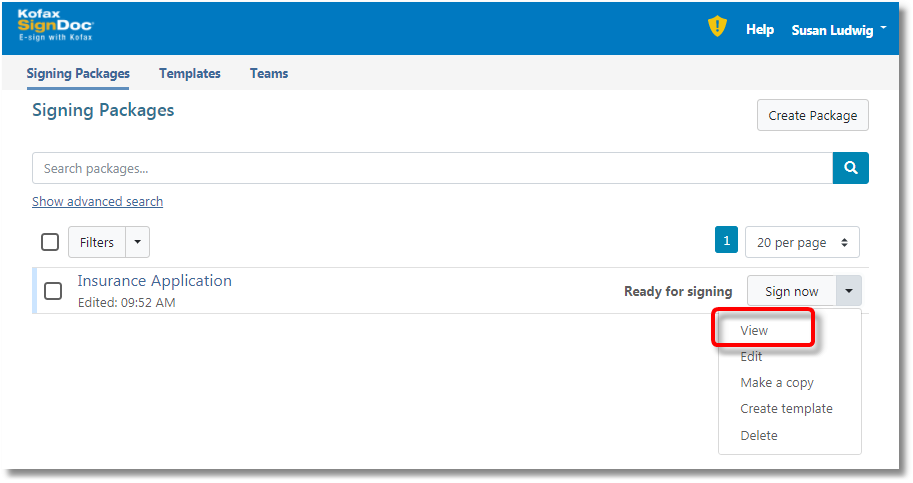
A user can view the details of a package when selecting View on the Signing Packages page for a dedicated package.
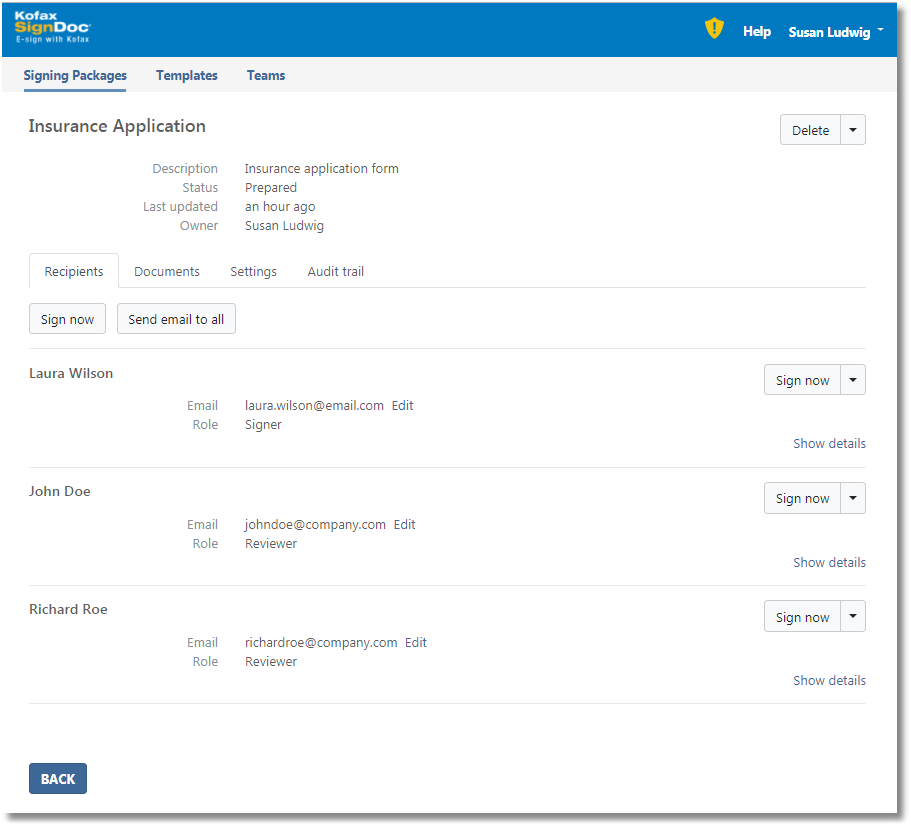
The page shows:
•General package information
•Recipients information
•Documents information
•Signing package settings
•Audit trail table
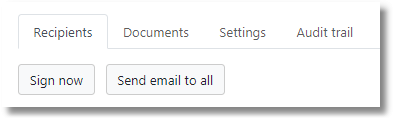
In the Recipients tab a user can start the Sign now process, see In-person signing session chapter for a detailed description.
With Send email to all a user is able to resend an invitation to all recipients to start the signing session for a signing package.
For a selected signer Sign now and Send email are available.

Clicking the Send email button the following dialog will be displayed:
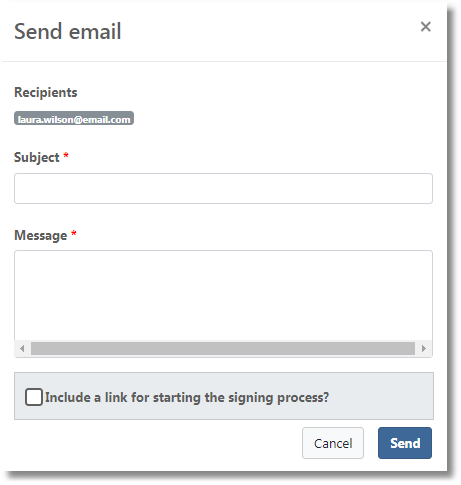
Changing the email address of a recipient is available by clicking Edit link for a required recipient.

The following form to edit email will be displayed:

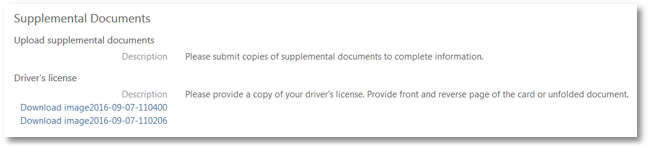
By clicking Show details advanced information is expanded including Certifications, Authentication and Supplemental Documents.
In Supplemental Documents section it is allowed to download supplemental documents, which were uploaded by a recipient.
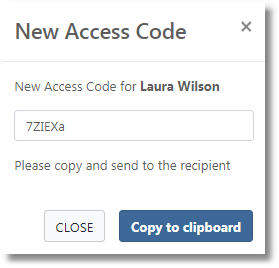
User can regenerate an access code for a specified recipient if authentication method is Access Code for the recipient:

By clicking Generate new Access Code link, the dialog with new generated access code will be displayed:
If authentication method is external authentication for a recipient, the corresponding provider name is displayed:

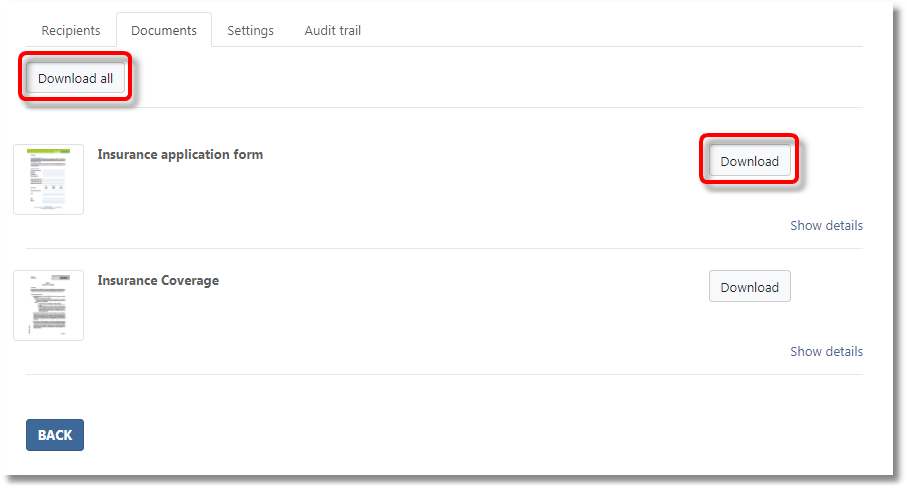
In Documents tab a user can download documents (all or a selected one):
In Settings tab user can check notifications, audit trail settings, reminders.
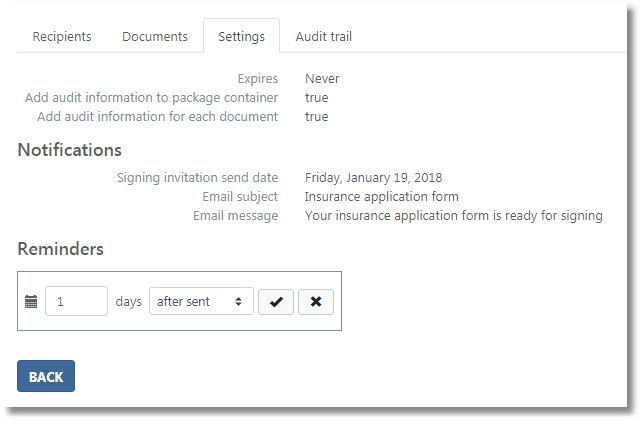
Reminders can be set to
After - number of days after the send date when the reminder email will be sent
and also
Before - number of days before expiration date when the reminder email will be sent
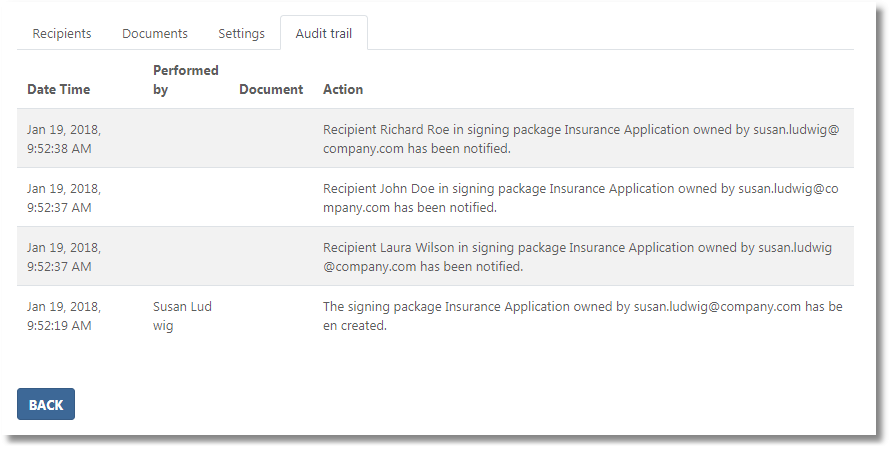
Audit Trail tab has a table with audit trail of a signing package: