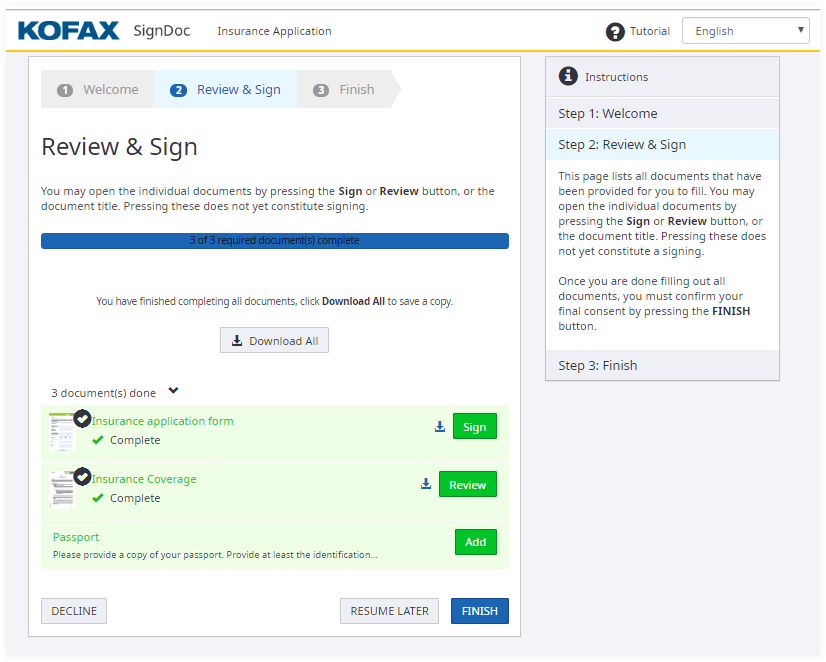
Review and sign documents
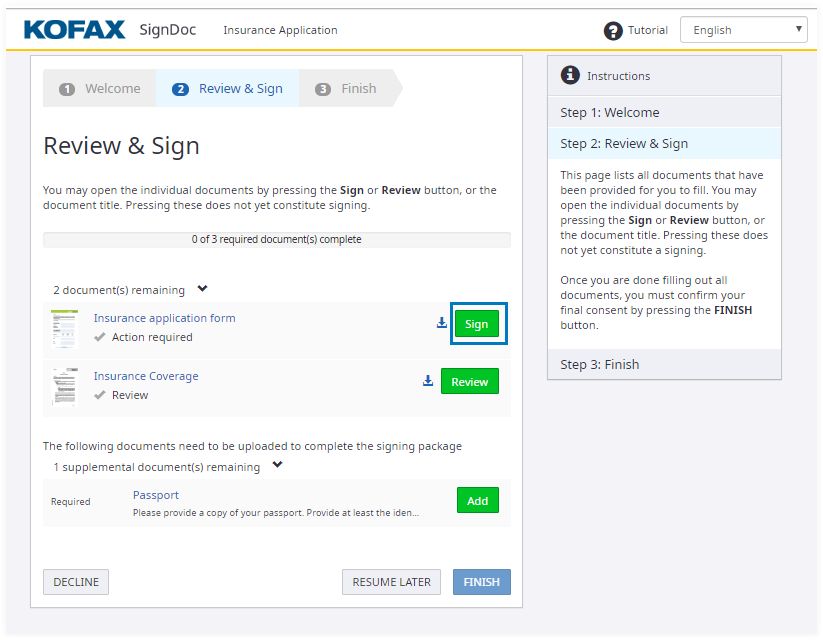
Now you are ready to review and sign the document. This view will display all documents that require your attention. Go ahead and click Sign to open the document.
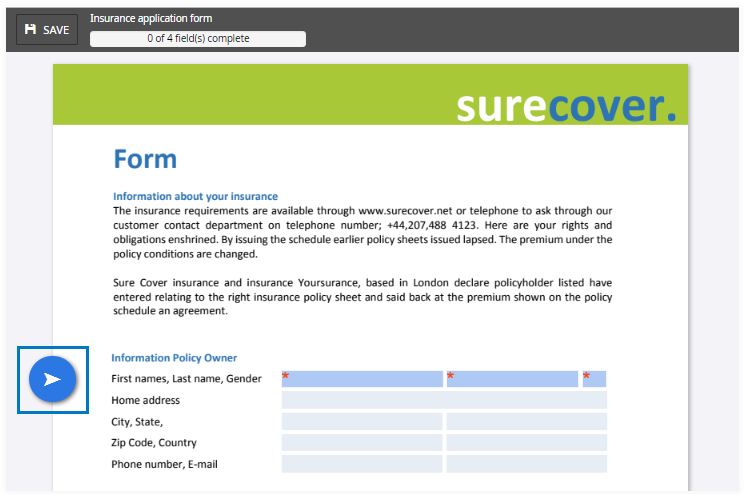
You can review the document here before signing. While scrolling the arrow on the left will always guide you to the next signature filed that requires your attention.
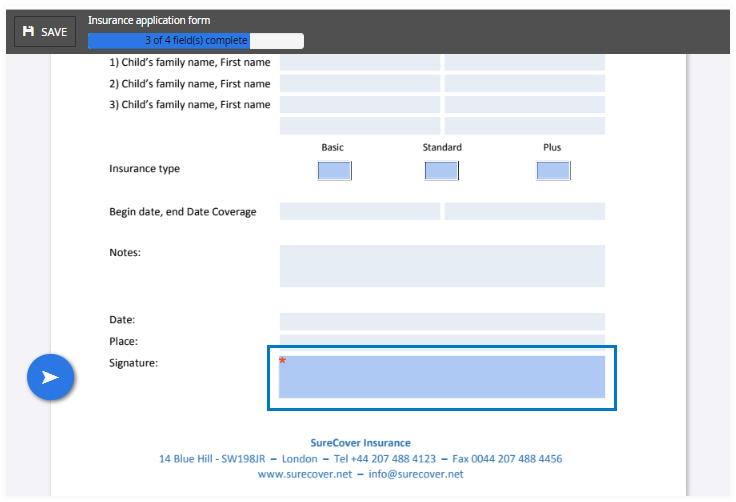
Click the signature field when you are ready to sign.
Depending on how the document was set up, you may be asked to select a signature type. In this help we'll demonstrate by signing a handwritten signature. To do this select the signing method Signature.
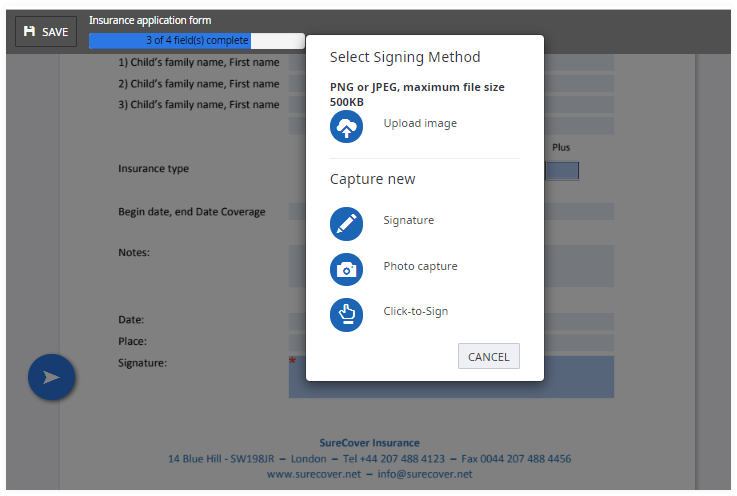
Tap the signature field or hover your mouse over.
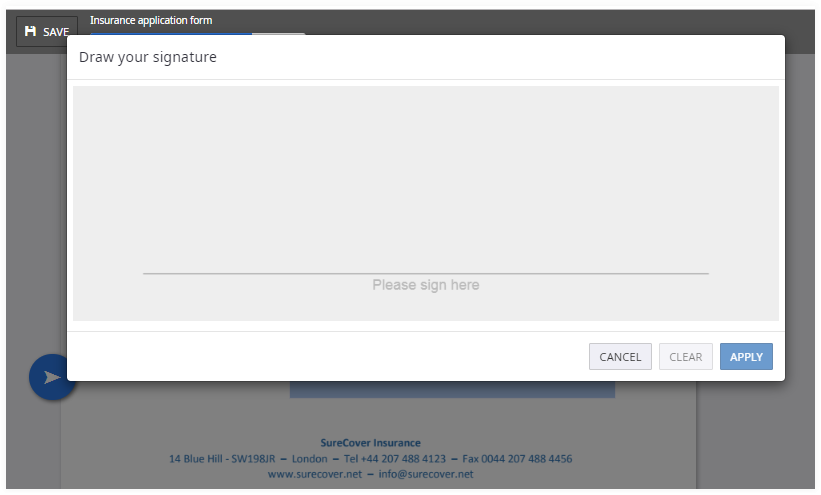
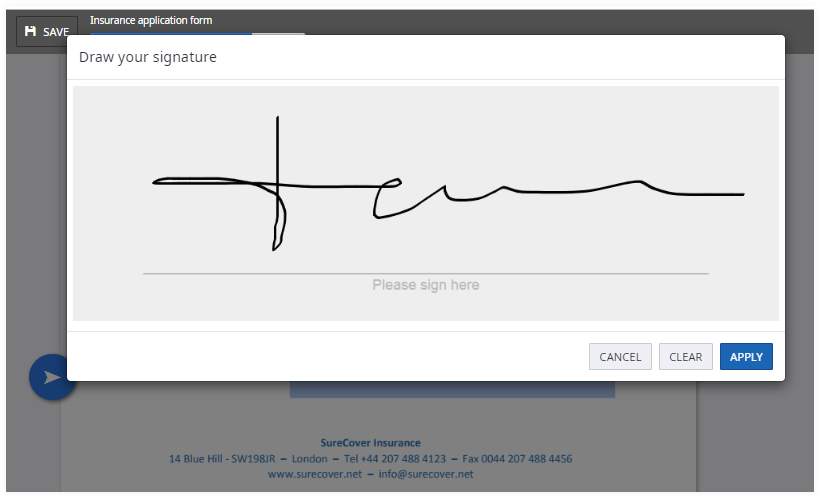
Click APPLY. This will place the signature in your document.
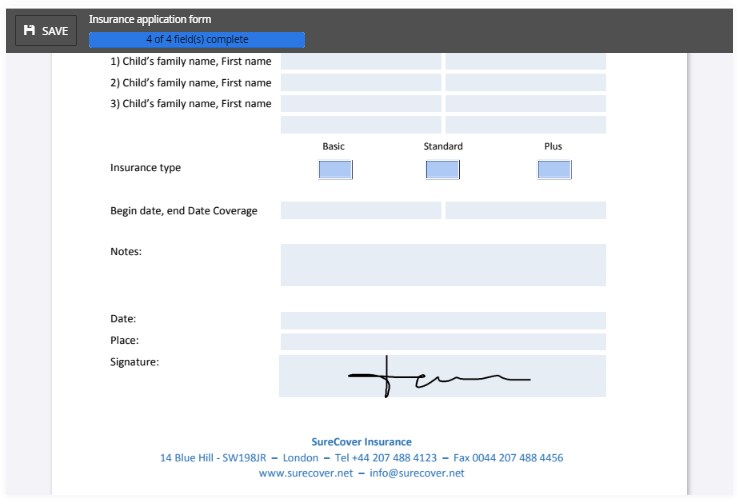
The signature is placed in the document. Now click SAVE to return to the document overview.
Add supplemental documents.
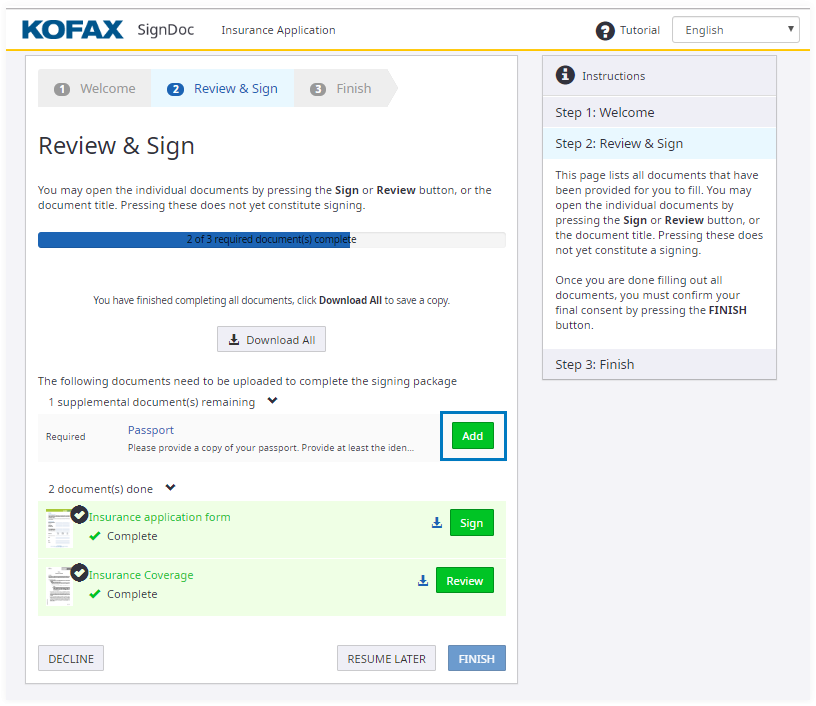
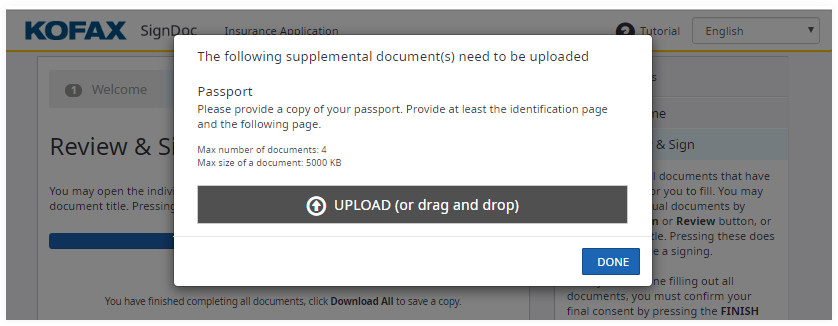
Upload the files.
The signing process is now complete. You can download the copy of your documents if you wish. Click FINISH.