Review and sign documents
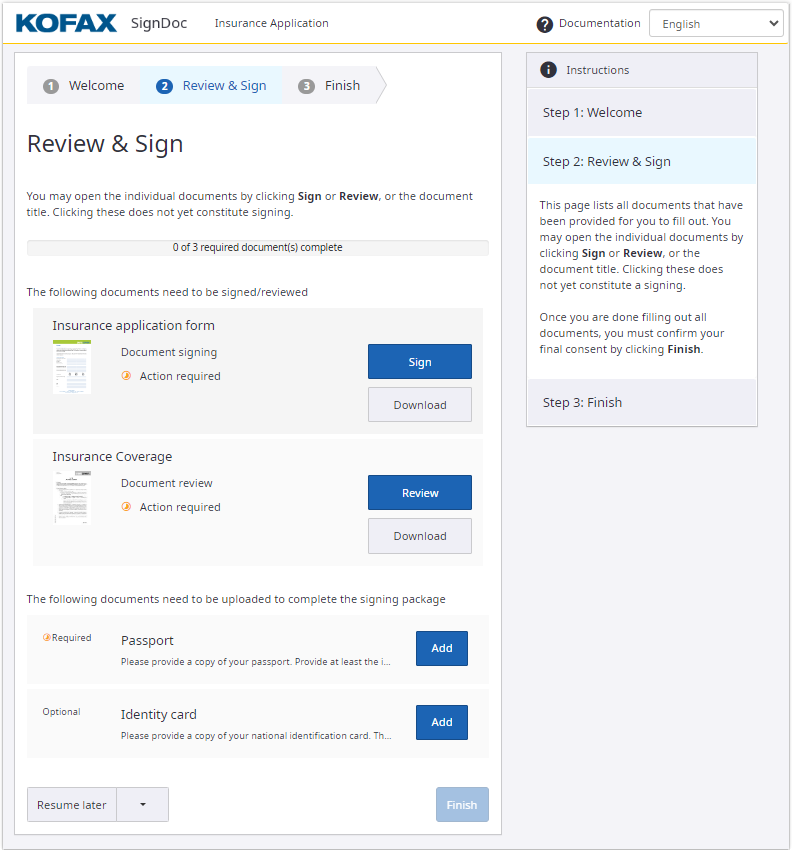
Now you are ready to review and sign the documents.
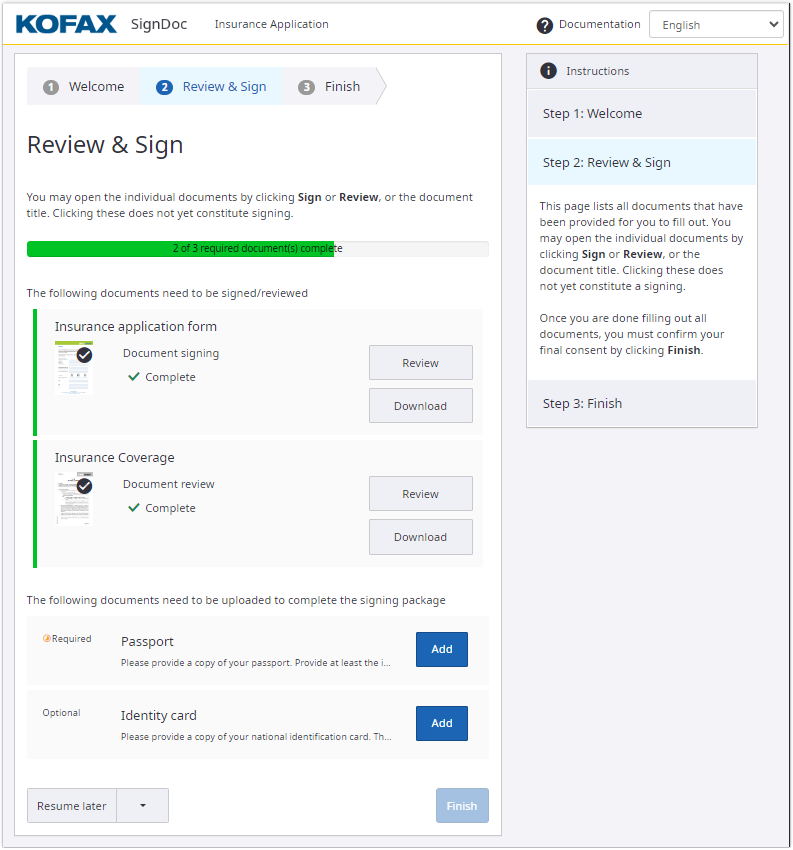
Each document is provided with:
- Name of document
- Document thumbnail
- Action type requested from you (review or sign)
- Status of action (action required or complete)
- Buttons indicating available actions (blue color of button together with the required status indicates action that is
obligatory)
-
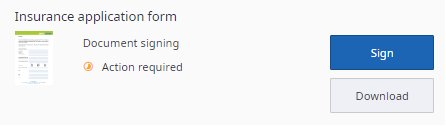
Click
Sign or
Review to open the document.
-
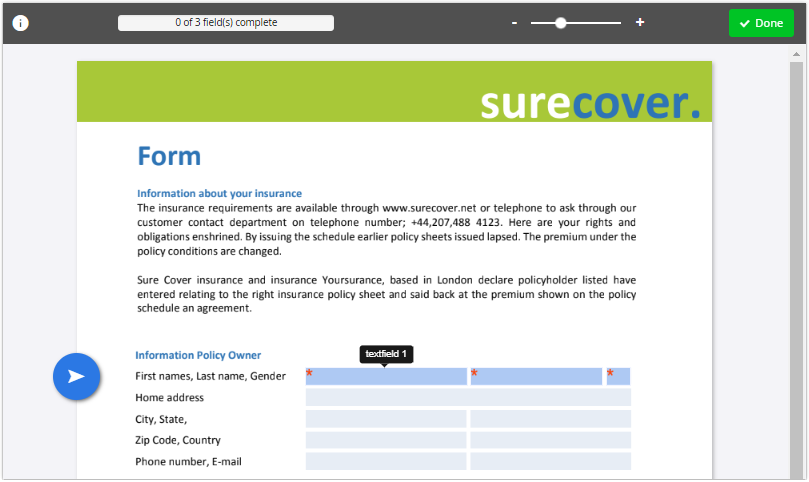
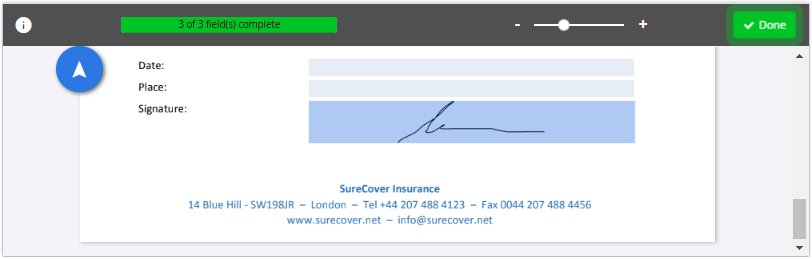
You can review the document here before signing. While scrolling, the arrow on the left will always guide you to the
next signature field that requires your attention. If you use a mobile device for signing, the
Next button navigates you.
-
Fill the fields with required information. If fields are marked with a red star, they are obligatory to be filled. For
information about the types of fields and signing-related details see
Sign documents in the
SignDoc Standard Help. If you are requested to sign with TSP see
TSP signature in the
SignDoc Standard Help for more information.
-
When all the required actions are finished the
Done button starts pulsating. Click it to return to the document overview.
-
After you finish signing the document you will see the
Complete status label. The button label also changes from
Sign to
Review indicating that your signing process for this document is completed.
-
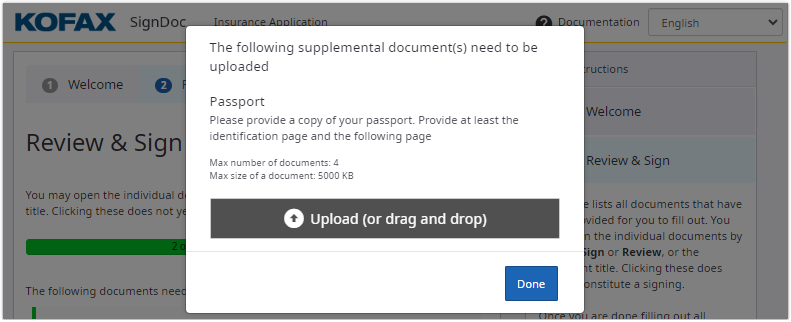
Add supplemental documents if they are requested. Supplemental documents that are marked as required are obligatory to
be uploaded.
-
Upload the files. Please pay attention to the maximum number and maximum size of the requested documents. For more
details see
Supplemental documents in the
SignDoc Standard Help.
-
You can optionally download copies of your signed documents either by clicking
Download for chosen document or by clicking
Download all for downloading all the documents at once.
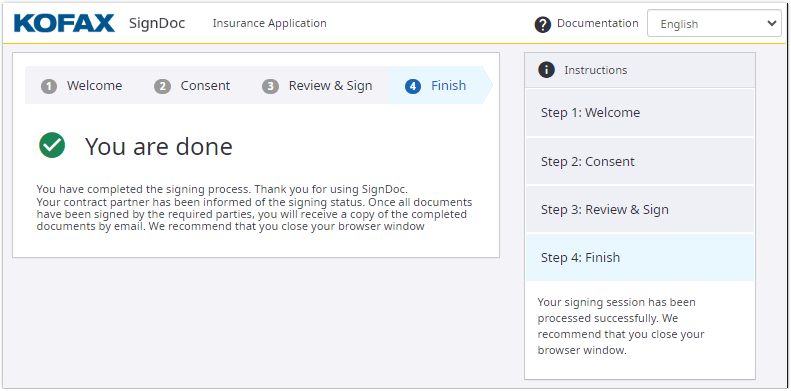
The Finish page shows that the signing session has been processed successfully.