Add activities to the case definition
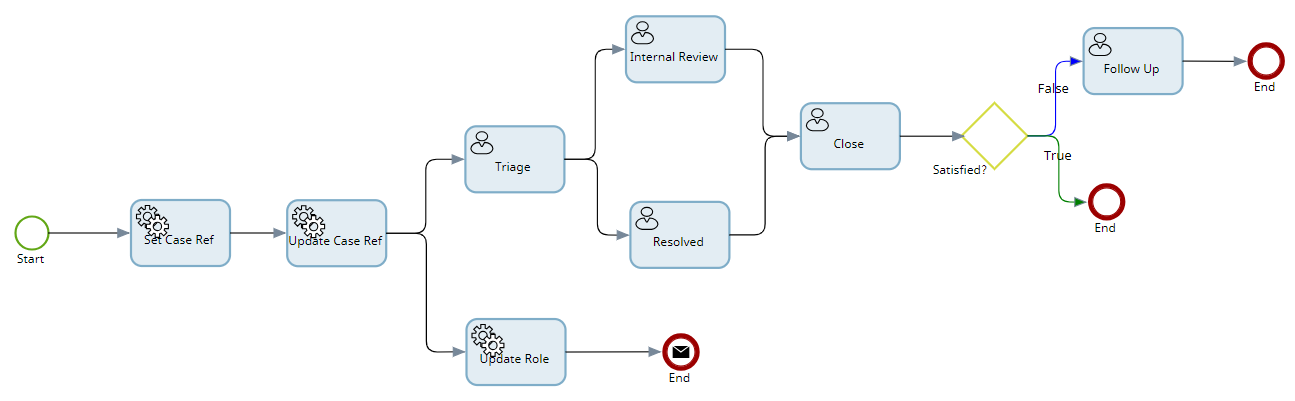
Add the following activities to perform the steps required for the Incident case process.
|
Name of the activity |
Purpose |
|
|---|---|---|
|
Activity 1 |
Set Case Ref |
Creates the case reference. |
|
Activity 2 |
Update Case Ref |
Updates the case reference. |
|
Activity 3 |
Update Role |
Updates the external role with the ID of the occupant. |
|
End node |
End |
End node for the Update Role activity. |
|
Activity 5 |
Triage |
Allows you to triage the case, set type and severity, and select the issues to be resolved. |
|
Activity 6 |
Internal Review |
Allows you to review the case if is taking a while to resolve. |
|
Activity 7 |
Resolved |
Allows you to review the case when all issues are resolved, before notifying the occupant. |
|
Activity 8 |
Close |
Allows occupant to close the case if satisfied. |
|
Decision |
Satisfied? |
Allows occupant to indicate whether satisfied or not. |
|
Activity 10 |
Follow Up |
If not satisfied, the Incident Management Team follows up and then closes the case. |
|
End node |
End |
End node for Decision. |
|
End node |
End |
End node for the Follow Up activity. |
Use the icons mentioned in the following table to create the case definition.
| Icon | Description |
|---|---|

|
Start node. |

|
Use this icon to link the nodes. |

|
Use this icon to delete the selected icon. |

|
Use this icon to add an activity node. |

|
Use this icon to add a decision. |

|
Use this icon to add an annotation. |

|
Use this icon to add an attachment. |

|
Use this icon to add an End node. |
-
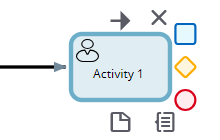
On the process, click the
Start node, and the satellite menu appears.

-
Select the activity icon and enter
Set Case Ref as the name of the activity.
-
Repeat the process from the appropriate node to add other nodes.
Once the activities are added, the case definition looks similar to the following map.