Checking your XBOUND licenses
XBOUND Installation Guide describes how to install the XBOUND License Service, how to apply a preliminary license file, and how to request and load a permanent license file.
There are different types of licenses:
A volume license counts pages. (Front page + back page = two pages.) These two types of volume licenses are sometimes combined:
Annual volume license: A specific annual volume is purchased. Each year on the purchase date, the volume is automatically reset to the initial value, regardless of how many pages were processed.
One-time volume license: A specific volume is purchased without an expiration date. When the volume is used up, a new license must be purchased.
Non-volume license: This type of license is purchased once and is always valid (regardless of the volume and time).
If a license file has been successfully loaded, you can use this procedure to check the contents:
Using the XBOUND Management Center, open a console containing the License Information plug-in.
The lower right pane displays the license information in three levels. Click
 to
display the next level of information.
to
display the next level of information.Optional:
There are two different ways to view the details, depending on what information you want to see or sort by. Click (
 ) to switch between
them. Change the sort order of the data by clicking the column headers.
) to switch between
them. Change the sort order of the data by clicking the column headers.The default view and (licenser and whether the file is temporary or permanent)
, , and
, , , , , and
The alternate view and
and
, , and (total license volume granted and total remaining volume)
Note: The upper part of the list shows volume licenses. Each activity counts the processed documents and changes the respective license counter. Below that is a list of non-volume licenses. If the license is present (), the plug-in can be used.
Optional: To save your license information to an XML file (which is required when you request a permanent license file from ReadSoft), click the button:
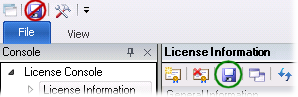
A PDF file that summarizes the current license status (consumption status) is also generated.