
Get started
This section describes how to start the Document Converter Configuration utility, and the main UI elements.
-
You cannot modify the default parameters in this utility in an Azure environment. You can only use KFXConverter for document conversion.
-
The configuration using this utility has to be performed on each Transformation Server separately.
Start the Document Converter configuration utility
To start the Document Converter Configuration utility, on the Windows Start menu, select . The Document Converter Configuration window is displayed.
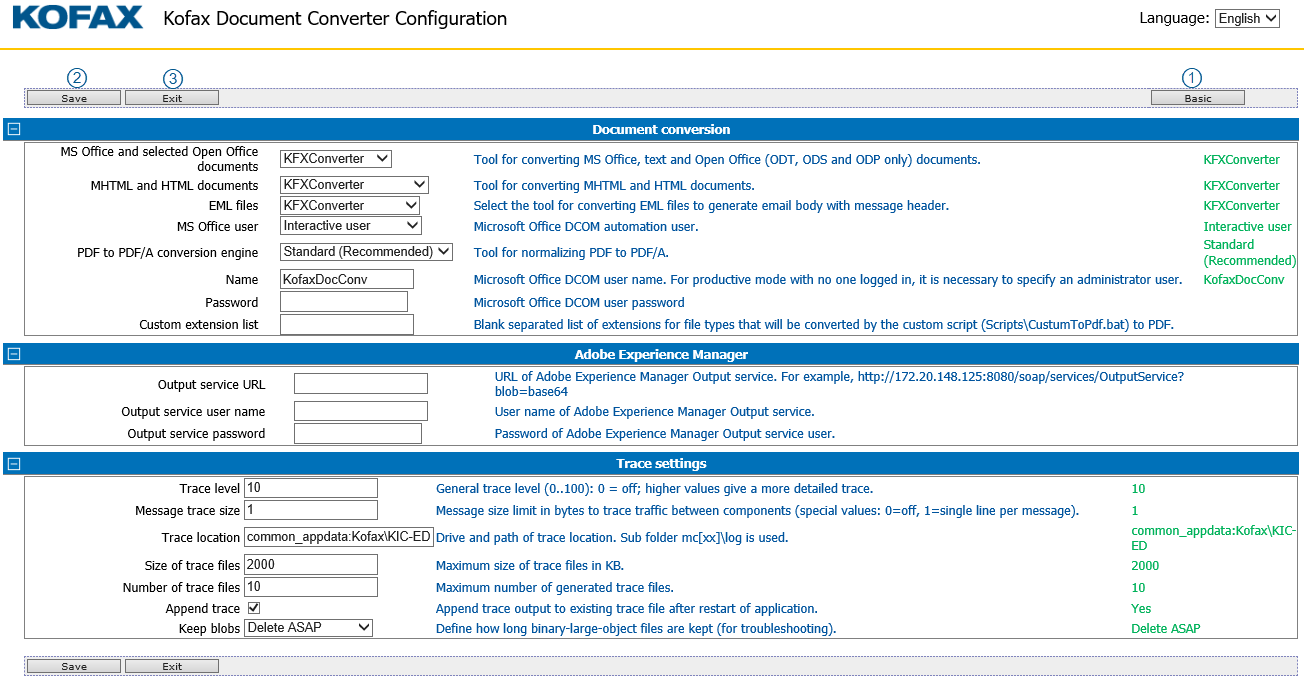
User interface elements
|
1 |
Advanced/Basic |
Toggle between Advanced and Basic buttons to display or hide advanced configuration settings. In an Azure environment, the document conversion only uses the default configuration settings; you cannot configure the settings. Basic configuration settings are grouped under the following tab: Advanced configuration settings are grouped under the following tabs: Use the
Expand
|
|
2 |
Save |
Saves the configuration and closes the configuration utility. The Configuration saved ok ! window is displayed.
|
|
3 |
Exit |
Closes the configuration utility without saving. |
 and the
 buttons to expand and collapse tabs.