
User interface
As the Folder Configuration Editor web application starts, it displays a simple user interface.
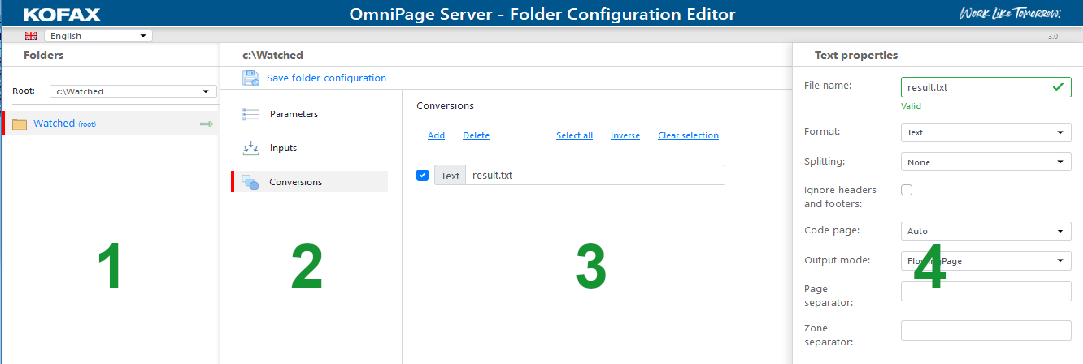
| Language menu (at the top-left corner) |
Select the language of the user interface. |
| Folders bar (marked with 1) |
This bar lists available root watched folders and subfolders. Select the preferred root folder in the Root list. |
| Assets bar (marked with 2) |
This bar shows the assets of the root selected in the Root list. The assets are arranged in groups and clicking on a group expands the content to the right pane.
|
| Details pane (marked with 3) | This pane belongs to the asset category selected in the assets bar, displaying asset-specific parameters. |
| Properties bar (marked with 4) |
Folder Configuration Editor uses this bar to displays the properties of the conversion format selected in the details pane. |