
How to start a subscription
You can start a subscription in two ways:
-
This is the case if the trial expired or the subscription was canceled.
The tenant is deactivated
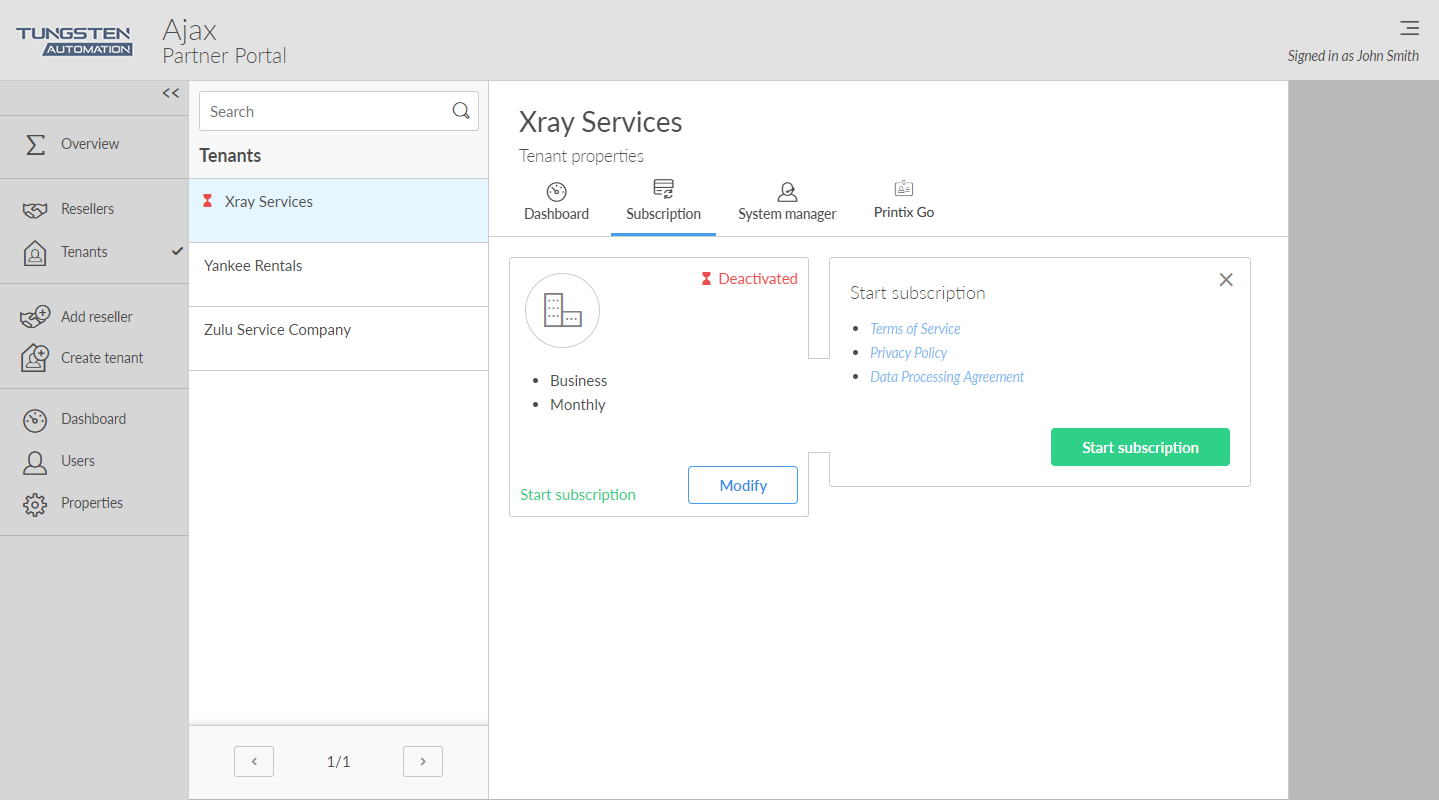
- Open the Tenant properties.
-
Select the
Subscription
 tab.
tab.
- Select Start subscription, then select Start subscription in the box that appears.
- Optionally, select Modify to change the plan and/or set the subscription start date.
The tenant is still in trial
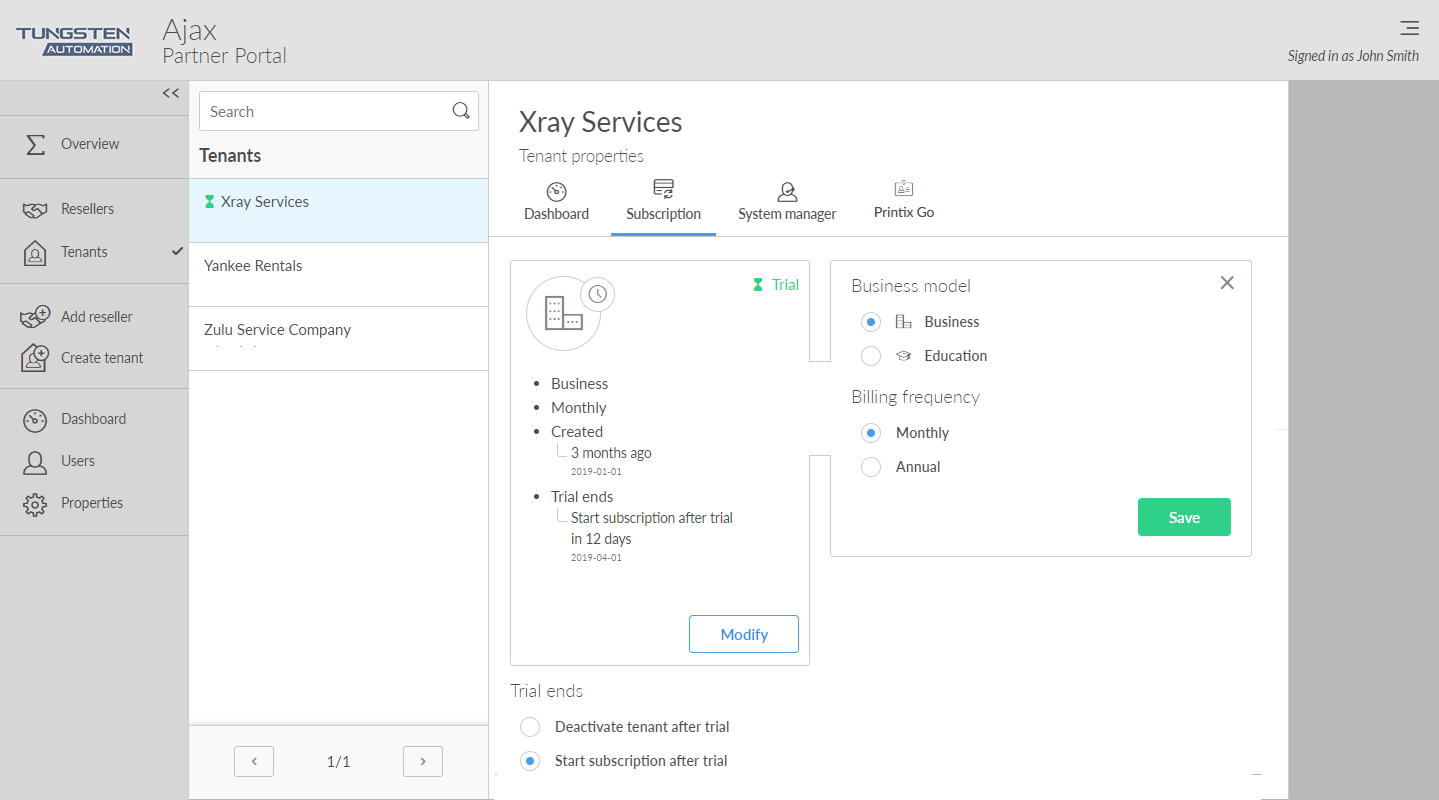
- Open the Tenant properties.
-
Select the
Subscription
tab.
- If the trial has not ended, select Start subscription after trial.
- Optionally, select Modify to change the plan and/or set the subscription start date.
Change the plan
- Select Modify to change the plan.
-
Choose the plan you want:
-
Business model
-
Business
-
Education
-
-
Billing frequency
-
Monthly
Monthly is the default setting and the tenant will be added as a line item to the partner's monthly aggregated invoice.
-
Annual
If a customer prefers to purchase with annual upfront payments, the partner can order an annual subscription. The invoice is afterwards distributed to the partner through email.
-
-
Requirements
-
Users (Required for a Business+Annual plan)
Enter the number of users to access the Printix service.
-
Staff (Required for an Education plan)
Enter the number of administrative staff to access the Printix service. Students are free.
-
-
-
Select
Save.
Changes to the subscription take effect immediately or after the trial. If the billing frequency is Monthly, it will be reflected on the next invoice. If the change is on an Annual subscription, a new invoice is sent to the financial contact.
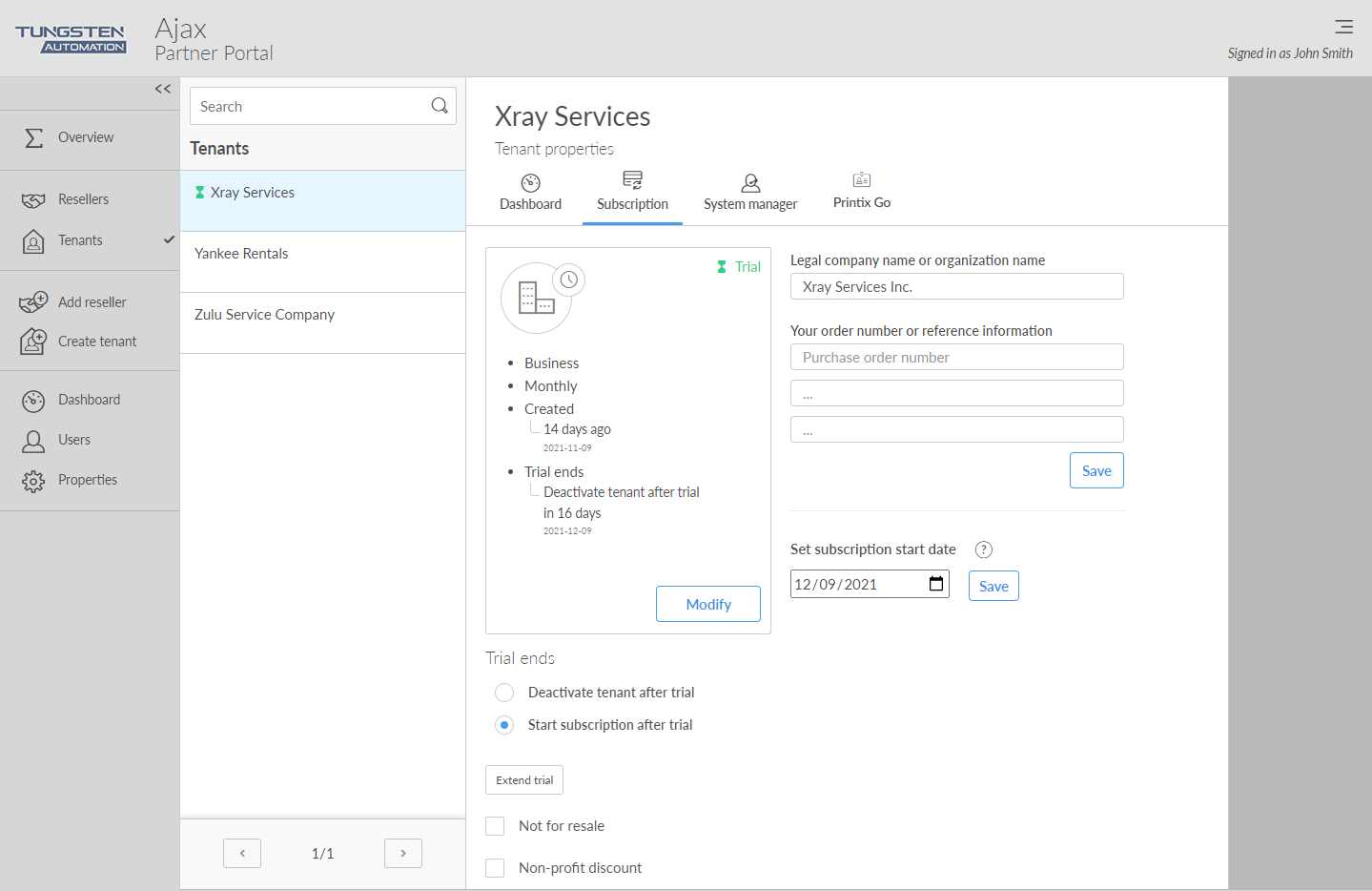
Set subscription start date
-
Optionally, set a
subscription start date of your choice.
If not selected, the subscription automatically begins after the trial period ends. Only dates after the end of the current period are eligible.
- Select Save.