Verifying fields or table cells
Depending on the validation status, a control is highlighted with a colored border (for fields) or a background color (for tables):
Red: The field is invalid and/or needs to be checked.
Green: The field is valid.
Gray: The field has not been validated.
Changing the field or pressing triggers validation of the document, and focus moves to the next invalid field or cell.
You can also use with arrow keys to move around within tables in your input form.
If the field or cell is empty, the default value is loaded (this value is configured in the Validation Designer).
Depending on how business rules and controls were configured, you may be able to press to cycle between different fields (with or without having changed the field value). More information:
If a business rule contains two or more fields to be validated,
and if those fields each have their own control,
and if focus is in the control of an invalidated field
... then you can press to move to the next (in tab order) control for the business rule. If focus is already in the last control, pressing takes you to the first control of the business rule. Example:
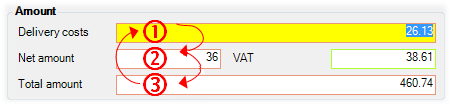
If applicable, fields are reformatted according to the settings specified in the Validation Designer. This reformatting takes place after you press .
The image viewer loads the image that shows the interpretation result of the first invalid field or table cell.
You can press and click in an image. If data was collected from that part of the image, it is highlighted in yellow and focus shifts to the corresponding part of the input form.
Hold down the key and click a word in the image to save the extracted data to the selected field.
Or use , click and drag to outline an area and apply the value contained in it. See Using rubberbanding for more information.
Error messages are displayed and highlighted in yellow in the image viewer.
Note: You cannot change a field or table cell when in restructuring mode. You can see whether this mode is enabled by looking at the toolbar:
 = enabled
 =
disabled
=
disabled
When you are done working in Verification, save the root document.
Inserting extra lines of text in multi-line text fields or table cells