Rescanning an image using Mobile Rescan
If the quality of scanned documents is not sufficient, replace them by rescanning them using Mobile Rescan as described below.
Tip: Other methods are described in Rescanning images: Overview.
With Mobile Rescan, rescanning can be seen as three shorter processes:
Using Verification, send the image to the mobile application for rescanning.
Using a mobile device, open the Mobile Rescan application, photograph the document and submit it.
Optional: Using Verification, check the rescanned image.
The Mobile Rescan process
step must be included in the XBOUND process.
A process that includes all three parts  could look like this,
for example:
could look like this,
for example:

A process rule is used to route root documents with "ToRescan" images to the Mobile Rescan step. Another process rule is used to route root documents with "Rescanned" images to the second Verification step.
Limitations
Rescanning is possible only for JPEG images.
Mobile Rescan is available as an iOS application. At this time there is no Android application.
Use this procedure
Using Verification, send the image to the mobile application for rescanning:
Select the image to rescan.
Select > .
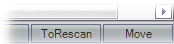
The dialog is displayed. Type a request or explanation, or click to accept the default request. "ToRescan" is displayed in the status bar in the bottom right corner of the window:
Continue processing the root document, if desired. Save and close as usual.
Using a mobile device, open the Mobile Rescan application, photograph the document and submit it:
Open the Mobile Rescan application.
In the first screen, specify the connection information and tap .
The second screen displays the processes in which there are images to rescan. Tap a process.
The third screen displays the jobs in which there are images to rescan. Tap a job.
The job details are displayed, including the request or explanation entered in step 3 above.
These buttons are also displayed:

Optional: Tap (or swipe to the left) to view the original image.
Tap the camera symbol (
 ).
).Tap and take a new picture of the document.
Alternatively, tap and select an existing image.
Check that the new image is better than the original one or fulfills the request. Tap and (or swipe left and right) to switch between them.
Optional: Tap and adjust the brightness and contrast of the new image.
Tap to submit the new image and close the rescan request.
The job is automatically deleted from the job list.
Optional: Using Verification, check the new image:
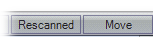
Select the image that was rescanned. You can see "Rescanned" in the status bar in the bottom right corner of the window:
Continue processing the root document, if desired. Save and close as usual.
The entire root document that contains the image to be rescanned proceeds to the Rescan step.
When you are done working in Verification, save the root document.