Thumbnail view
This view displays thumbnail images of the documents:
-
To assure image quality during scanning. (To make sure that scanner lamps are working properly and the feeder does not tilt the images.)
-
To re-order, merge, or split documents during Inspect.
-
To view document statuses to see what needs to be done next.
Visual information
Thumbnails provide information about the documents being processed.
-
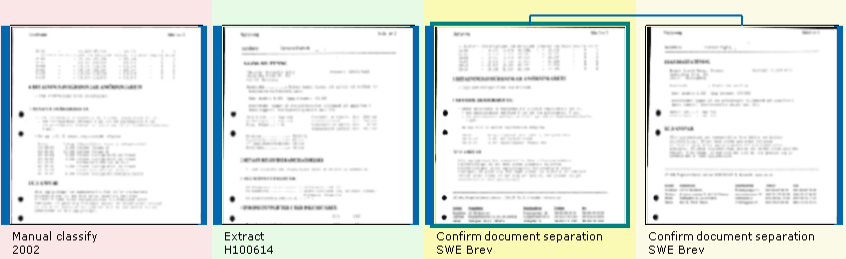
The thick blue bar on the left/right side of a thumbnail indicates the first/last page of a document.
-
The first line of text under the thumbnail displays the document status, and the second displays the document type. If a page is an appendix, the word "Appendix" is also included in the information under the thumbnail.
-
The background color indicates the document’s state:
-
-
Green – the document is ready for the next activity.
-
Yellow – the document needs to be confirmed.
-
Red – the document needs to be edited manually, because an automatic activity failed (document classification, for example).
-
-
A blue-green border and a darker background color indicates which document is currently being processed
-
Blue brackets (on the tops of images) show which pages belong to a multi-page document.
-
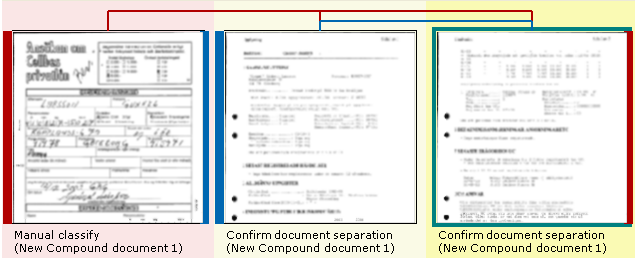
 Dark red brackets (on the tops of images) show which documents belong to a compound document.
This compound document contains two documents: the first document has one page, and the second document has two.
-
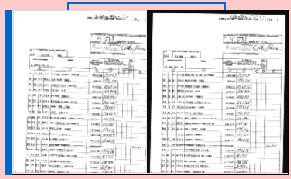
Double-sided pages are displayed as a single unit, with no space between the front and back pages. They are moved and grouped as a single-sided page. For example, if you select a document where the last page is double-sided and select , both the front and back page are moved to the next document.
-
You can adjust how the thumbnails are displayed, for example you can choose how many rows of thumbnails you want to see.
-
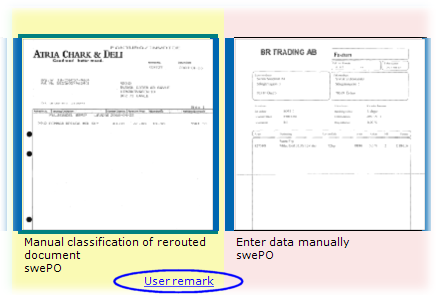
If you are processing invoices and users have added remarks to invoices, you can see this. (
Show me.)
Using keyboard shortcuts in the Production module
Changing how the Production module looks when you verify documents