Verifying check box fields
When check box fields are processed, the appearance of these fields in the Field list in the Production module is slightly different than with other fields.
To verify check box fields:
-
Look in the and compare the fields found, with the .
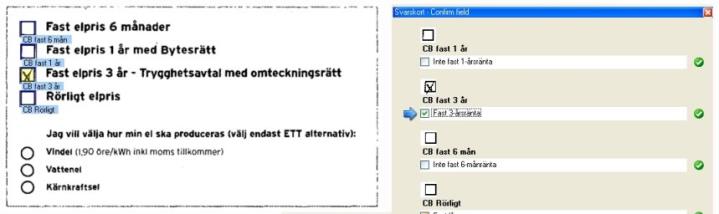
In the example above, one check box was filled in, and in the the filled-in box is light yellow. The displays images of the extracted boxes along with the field name. Here, a check mark appears in the filled in box while all other boxes remain unchecked, as none of these other boxes were filled in.
-
If a check box field is correctly captured, press .
-
If a check box field is incorrectly captured, in the , click the check box (not the image) to place or remove a check mark from the box. : If specified in the Administration module, the text next to the field changes depending on whether the check box field is filled in or empty.
-
If a field cannot be found on the document, the field does not exist, or is missing. This is different from an empty field.
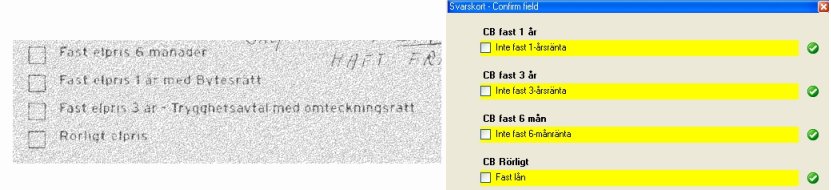
In the example above, the check box fields could not be found, due to the large amount of noise in the image (shown to the left). In the , all the check box fields are highlighted bright yellow, indicating the fields could not be found on the document and are missing.
To create a missing check box field, simply click in the check box in the .