Enable a plugin for a specific account
If only one specific account should have the ClamAV scanner enabled, you will have to configure the plugin for that specific account.
Add the plugin to be configured for a specific account to the load list
This step does not differ from the one shown above. It has to be performed by a server administrator.
Open the Administration Center, log in as a server administrator and then click System settings.
Click the General section below the Plugins category and change the Plugin load list setting by adding the class name to the comma delimited list:
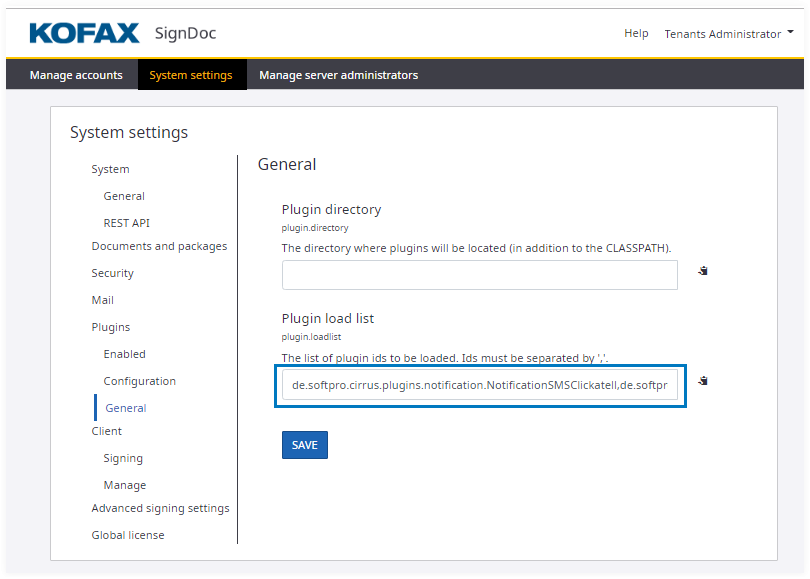
After adding the name to the list, save the setting. Give the application 10 – 30 seconds to reload the plugin list. You will have to refresh the Administration Center to show the new settings.
Enable and configure the plugin for a specific account
Enabling the plugin for a specific account can be done by either the server administrator or an account administrator.
The server administrator will use the Administration Center, similar to the example for Enable a plugin globally, but will edit an individual account setting instead of the global settings for all accounts.
The account administrator can use the Manage Client to perform the same operation.
Log into the Manage Client with account administrator credentials.
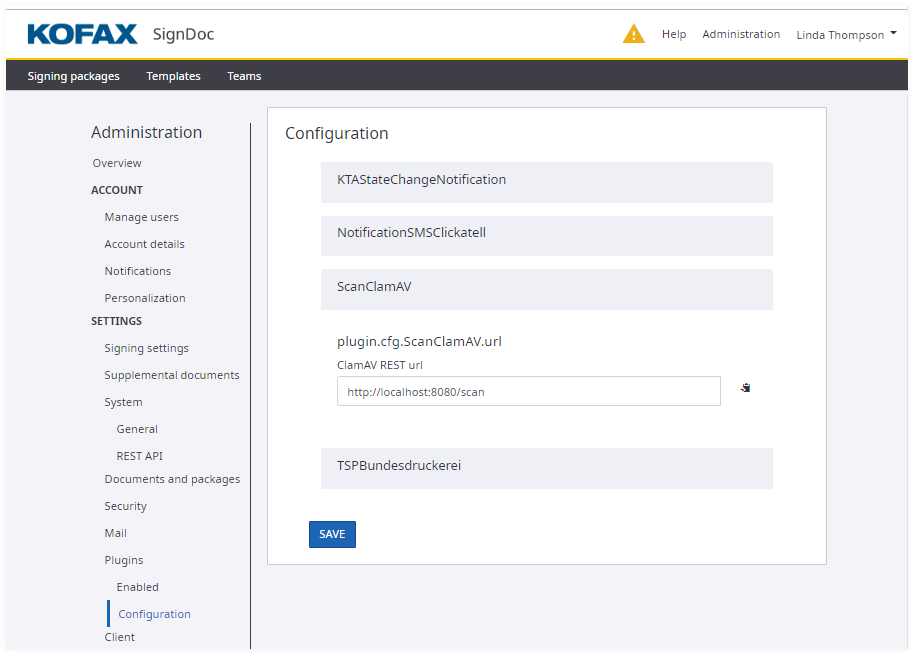
Go to the Administration section and find Plugins, Configuration. Find the ClamAV URL setting and point it to the ClamAV server you are running. Save the setting.
Change to the Enabled section and enable the plugin by sliding the switch to on, then save the setting.
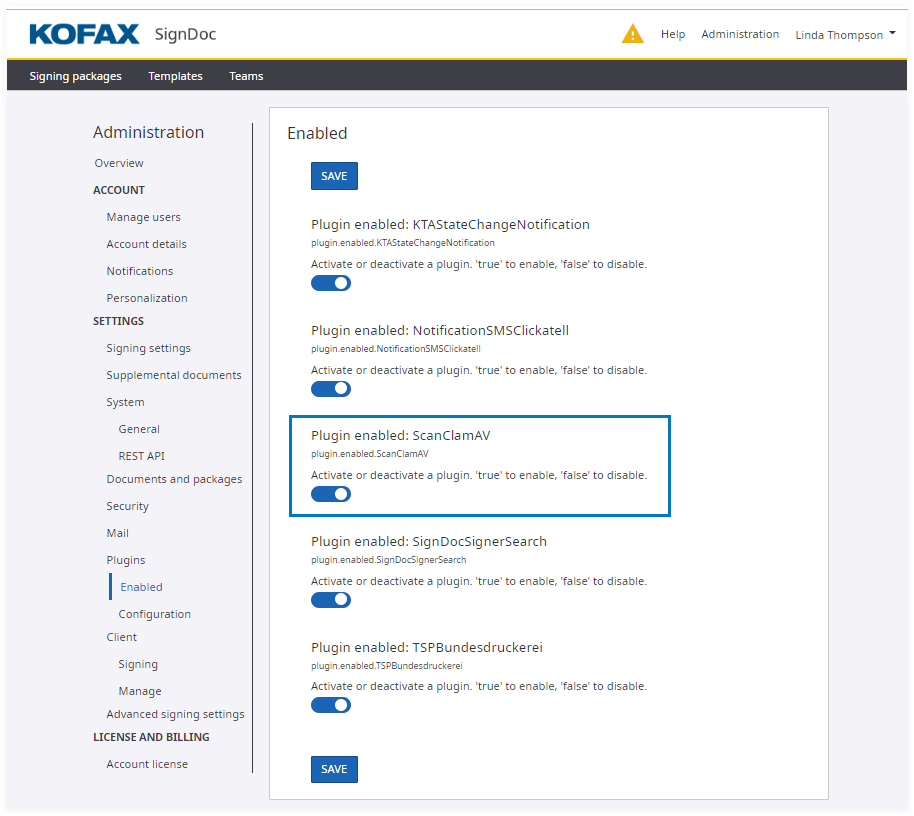
The plugin will be loaded and will be available for the account you configured only.
To make the plugin available for a different account you will have to log in as an account administrator for the other account and repeat the process. You can use different settings for different accounts. In case of the ClamAV plugin, different accounts can use different ClamAV scanning servers.