
First log in to SignDoc Standard
An account administrator invites users to
SignDoc Standard. As a user, you receive an email with
the request to provide a password. The email contains your User ID and may contain your account ID. Click the
Set password link and set your password in a browser. After that you’ll be
redirected to SignDoc Standard landing page.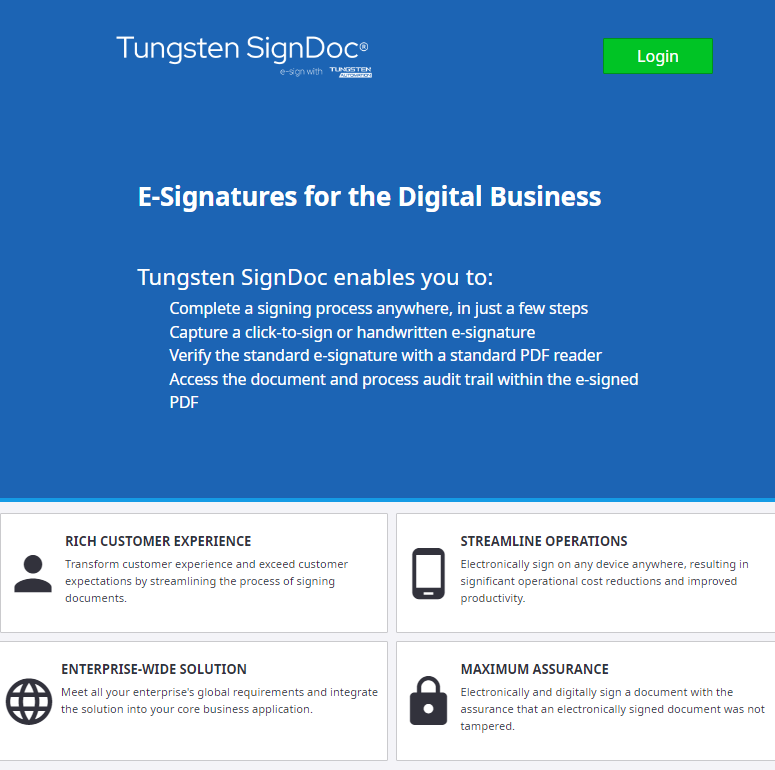
In case the portal page is disabled by a system administrator you are taken directly to the login page.
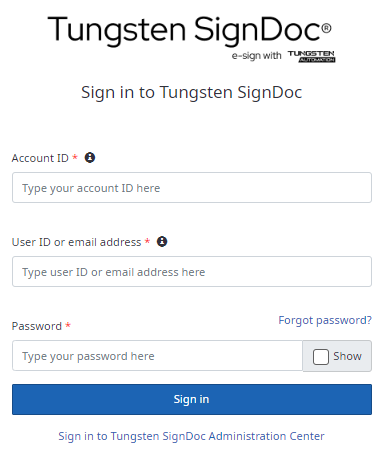
Type your user ID or email address. Then enter your password and click Sign in.
In some instances, the application prompts you to enter your account ID. It is provided in the invitation email.
Preset account mode
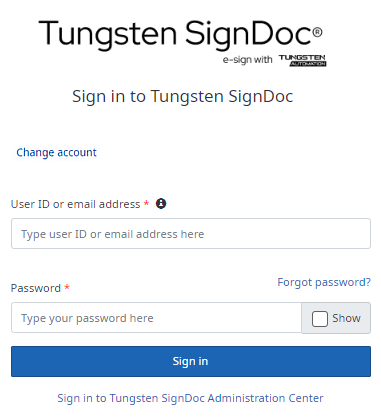
When the prompt for entering the account ID is not visible the application runs in preset account mode. In this mode the corresponding account is preset in the application, and you don't have to care about the account ID. Nevertheless, you can switch from the preset account to another one by clicking Change account. In this case the login page displays the prompt to enter an account ID.
Log in with account ID
Log in without account ID (preset account mode)
-
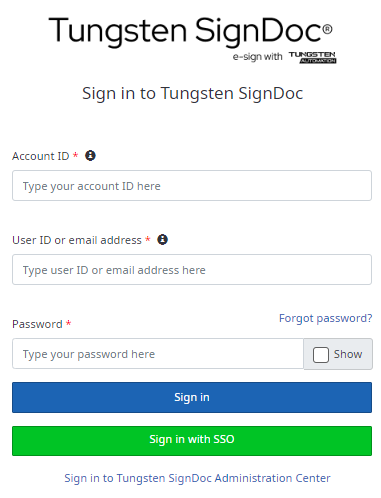
When Single Sign-on (SSO) is configured in your system you can directly log in by clicking Sign in with SSO
Header
The header is placed at the top of the application.
Being an account administrator, you can find the following elements in the header:

- Logo (can be customized for an account)
- Link to the Help page
- Link to the About dialog
- Link to the Administration page
- User name as a drop-down list with the following links:
- Link to Preferences (depending on the view, it may be hidden)
- Link to Log out
- Navigation panel (selected page is highlighted):
- Link to the Signing packages page
- Link to the Templates page
- Link to the Teams page
- Link to the Statistics page
Being a user or team manager, you will find the following elements:

- Logo
- Link to the Help page
- Link to the About dialog
- User name as a drop-down list with the following links:
- Link to Preferences (depending on the view, it may be hidden)
- Link to Log out
- Navigation panel (selected page is highlighted):
- Link to the Signing packages page
- Link to the Templates page
- Link to the Teams page