
Configure Auto KV Export plugin
- From the Batch Class Management page, select your batch class and click Open.
- Go to .
-
Add the
AUTO_KV_EXPORT plugin to the list of
Selected Plugins. This must be before
CLEANUP.
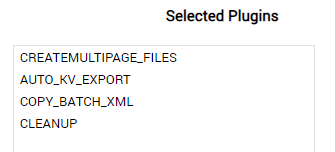
- Click Deploy to update the workflow.
- Go to .
-
Configure the plugin according to your requirements.
Reference the table below for descriptions of the configurable properties.
Configurable property Description Auto Export Enabled
This switch enables the plugin. Set to True to enable.
Enabled DLF List (or Batch Class Relative path to list)
Use this field to configure the list of index fields that should be monitored during validation. There are two available ways to list the index fields:
-
List of index fields separated by the pipe character ( | ).
If only one field is listed, it must be terminated with a pipe character ( | ). -
Enter the relative path to a text file that lists each index field line by line. For example: scripts-config\mydlflist.txt
Rules Filter Value DLF Name
Use this field to configure the rules to be filtered by a specific value, such as the Vendor ID, GST ID, or IBAN. To create a filtered rule, enter the name of the index field by which the rule should be filtered.
Leaving this field blank will create rules without a filter.Rules Database Path
This property defines the location of the database rules. There are three available ways to configure this property:
- Leave the field empty to use the default location of [Batch_Class_Folder]\auto_kv_extraction\auto_kv_rules.db
- Enter a path relative to the batch class folder. For example, \scripts-config\mydatabase.db
- Enter an absolute path. For example, C:\Folder1\mydatabase.db
-