
Correct an invoice in a workflow
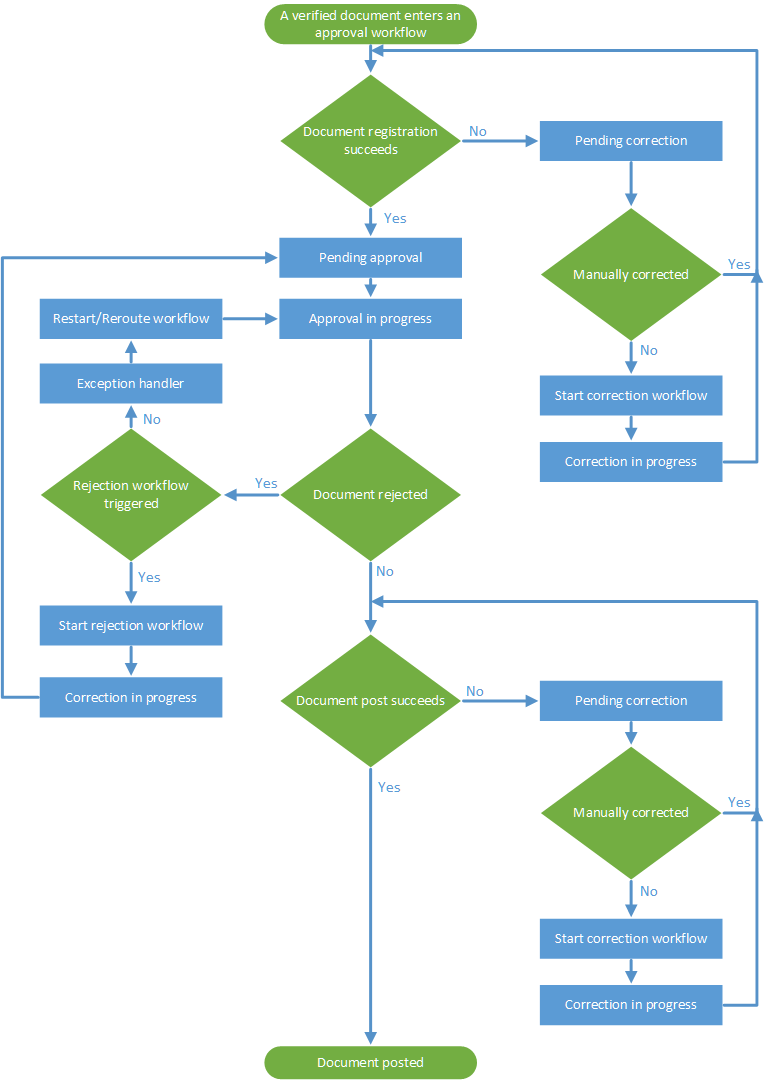
Throughout the approval process, invoice information is sent to the target financial system. This occurs, for example, when an invoice is registered in the financial system directly after it is verified. If the target system rejects the invoice, for example, during registration or posting, it must be corrected and is considered pending correction. You can also correct invoices with other statuses, such as Document delete failed. You must have the correct privileges to correct an invoice.
- Navigate to the document list view, select an invoice that is pending correction, and select Start.
-
Use the document view to do any of the following:
- Correct the errors that are listed on the Invoice tab. Note that you can edit the
invoice data, which is normally read-only during the approval process. You cannot override validation rules during a workflow step. If you receive a validation error while processing a document in a workflow, correct the error to proceed.
-
Send the invoice to a correction workflow.
Select to display a dialog that you can use to choose a workflow. -
Delete the document.
Select to delete the document. If the document status is Document delete failed, you can select Retry delete to try to delete the document from the target system again.
-
Send the invoice back to verification by selecting .
- Correct the errors that are listed on the Invoice tab. Note that you can edit the
invoice data, which is normally read-only during the approval process.
- If you chose to correct the invoice in step 2, select OK after you make your corrections.