
AP Essentials Connect for PROCESS DIRECTOR AP
Learn how to set up and use AP Essentials Connect for PROCESS DIRECTOR AP.
Tungsten AP Essentials Connect is a program you can install on a local computer to perform a number of tasks, such as uploading documents to AP Essentials. It is an alternative to uploading documents using the web interface in AP Essentials. Using AP Essentials Connect, you can upload documents automatically, reducing the effort of uploading documents one by one.
AP Essentials Connect runs as a service in the background, so it is not necessary to start a program each time you want to upload documents. Instead, you simply move the files you want to upload to the folders you specify during the installation setup.
AP Essentials Connect can be beneficial if you want to:
- Upload large numbers of documents.
- Automate the process of uploading documents.
- Download output data from AP Essentials.
- Automatically register supplier documents in external systems.
Note that the user interface for AP Essentials Connect is currently only available in English.
Before using AP Essentials Connect with PROCESS DIRECTOR AP, complete the following steps.
- Verify that you meet the system requirements and install AP Essentials Connect.
- Create a customer account as described later in this topic.
- Configure AP Essentials Connect for PROCESS DIRECTOR AP as described later in this topic.
Create a customer account
To use AP Essentials Connect, ensure that your account in Tungsten AP Essentials is set up correctly.
After you create a new customer account, verify the following:
- You cannot specify PROCESS DIRECTOR AP as a target system if Workflow services are enabled.
- To send invoices to PROCESS DIRECTOR AP, ensure PROCESS DIRECTOR AP is specified in the target system service () for the account.
- Ensure that you add at least one buyer. The
External ID (External reference ID) of each buyer
must match a company code in PROCESS DIRECTOR AP. You can add additional
buyers if your organization has more than one buyer. If you add a new buyer to the system after you configure Tungsten AP Essentials Connect, you must run the configuration wizard again and specify the new upload locations.
After you create a customer account with appropriate services and buyers, you are ready to install Tungsten AP Essentials Connect.
Configure AP Essentials Connect for PROCESS DIRECTOR AP
Configure optional dialogs that can appear, depending on the services that are enabled in Tungsten AP Essentials:
- Configure settings for uploading documents.
- Upload master data. You can only choose one of these methods. Although it
is possible to choose both, conflicts will occur.
- Via local file upload.
- Via the master data service, which imports master data from PROCESS DIRECTOR Accounts Payable.
- Configure settings for exporting to PROCESS DIRECTOR Accounts Payable.
When a new version of the PROCESS DIRECTOR Accounts Payable integration is released, you must run the configuration wizard again to ensure you have the latest version. Simply select the Configure button, select through the wizard until you reach the end, and select Save. It is not necessary to change any settings in the wizard.
Latest release date: April 8, 2024
Import master data via the master data service
Importing master data using the master data service differs from uploading master data as described earlier. When you select Master data service in the setup wizard, master data is imported directly from PROCESS DIRECTOR AP. When importing the master data, CorporateGroupID elements in PROCESS DIRECTOR AP master data are mapped with the external IDs of buyers in Tungsten AP Essentials. Master data is only imported for buyers that match a CorporateGroupID.
Configure settings for exporting to PROCESS DIRECTOR Accounts Payable
If PROCESS DIRECTOR AP is specified as a target system, you can use Tungsten AP Essentials Connect to automatically export invoices to PROCESS DIRECTOR AP.
-
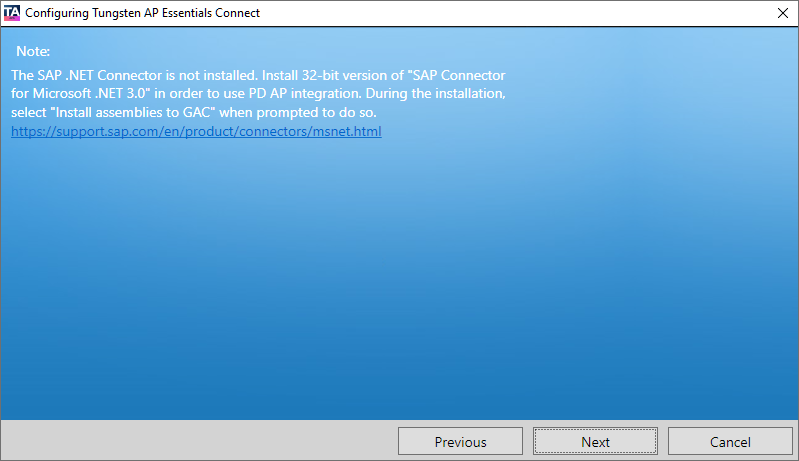
If prompted to do so, install the SAP Connector for Microsoft .NET 3.0
(NCo 3.0), and ensure that you select Install assemblies to GAC during
the installation.
Microsoft Visual C++ 2010 Redistributables must be installed before installing SAP Connector for Microsoft .NET 3.0. You must install the x86 version of Microsoft Visual C++ 2010 Redistributables. The x64 version is incompatible with the integration.
You must install the latest 32-bit (x86) version of SAP Connector for Microsoft .NET 3.0 (NCo 3.0). The x64 version and the NCo 3.1 version are incompatible with the integration. These are requirements of SAP S/4 Hana 2023.
-
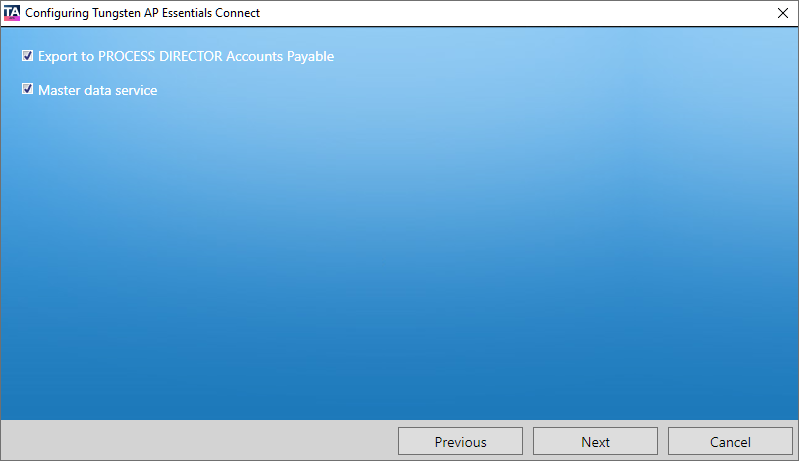
Select Export to PROCESS DIRECTOR
AP and optionally select Master data service to map the CorporateGroupID elements in
PROCESS DIRECTOR AP master data with external IDs of buyers in Tungsten AP Essentials.
Export to PROCESS DIRECTOR Accounts Payable Turns on the integration between Tungsten AP Essentials and PROCESS DIRECTOR AP. Master data service Turns on master-data import from PROCESS DIRECTOR AP.
If you turn on this setting, you must configure the Supplier master-data file setting. Tungsten AP Essentials Connect imports the master data by regularly importing the file you specify in the Supplier master-data file setting.
Tungsten AP Essentials matches the CorporateGroupID elements in PROCESS DIRECTOR AP master data with external IDs of buyers in Tungsten AP Essentials. Master data is only imported for buyers that match a CorporateGroupID.
Setup for multiple customers
If you log in to Tungsten AP Essentials Connect as a partner administrator, you can configure settings for each customer that uses PROCESS DIRECTOR AP as the target system. This feature saves time by eliminating the need to log in to different accounts to configure multiple customers.
Use AP Essentials Connect with PROCESS DIRECTOR AP
After following the procedures, you are ready to use AP Essentials Connect in production.
Troubleshooting AP Essentials Connect for PROCESS DIRECTOR AP
Generic issues
If you have problems running AP Essentials Connect:
- Ensure that computers that run AP Essentials Connect have access to the URL below that corresponds to your location. AP Essentials Connect uses these URLs to install updates. After the August 2026 release, new
URLs take effect.
Current URLs Europe https://webeyeprod.blob.core.windows.net/onlineconnect/install/Deployment.manifest Asia and Australia https://webeyeprodasia.blob.core.windows.net/onlineconnect/install/Deployment.manifest North America https://webeyeprodna.blob.core.windows.net/onlineconnect/install/Deployment.manifest New URLs (effective with the August 2026 release) Europe https://connect-updates-prod-eu.readsoftonline.com Asia and Australia https://connect-updates-prod-as.readsoftonline.com North America https://connect-updates-prod-na.readsoftonline.com
You can select the links above to test if you have access. Select the links using the same computer that runs AP Essentials Connect. If you receive a 404 error, you do not have access.
- Ensure you can download the files that are listed in the page that is displayed when you select one of the links above. To do this, replace "Deployment.manifest" in the URL with one of the file names in the list.
- Log in to AP Essentials using the same computer that runs AP Essentials Connect to ensure you can connect to AP Essentials.
- If you use a proxy connection, ensure the settings are applied to the same user/account that runs AP Essentials Connect. By default, this is a local System account. To test this, access AP Essentials using a location above, then change the AP Essentials Connect user to the same Windows user you tested with.
Login issues
If you receive the message, "Name or password is incorrect (repeat logon)", it can be caused by using an exclamation point (!) in your password. Even if the login information works correctly using "SAP logon", the exclamation point can cause problems when using AP Essentials Connect.
To resolve this issue, try changing your password to a password that does not use exclamation points.