
Quick Capture user interface
When you log on to Kofax TotalAgility Quick Capture, the following default web page loads.
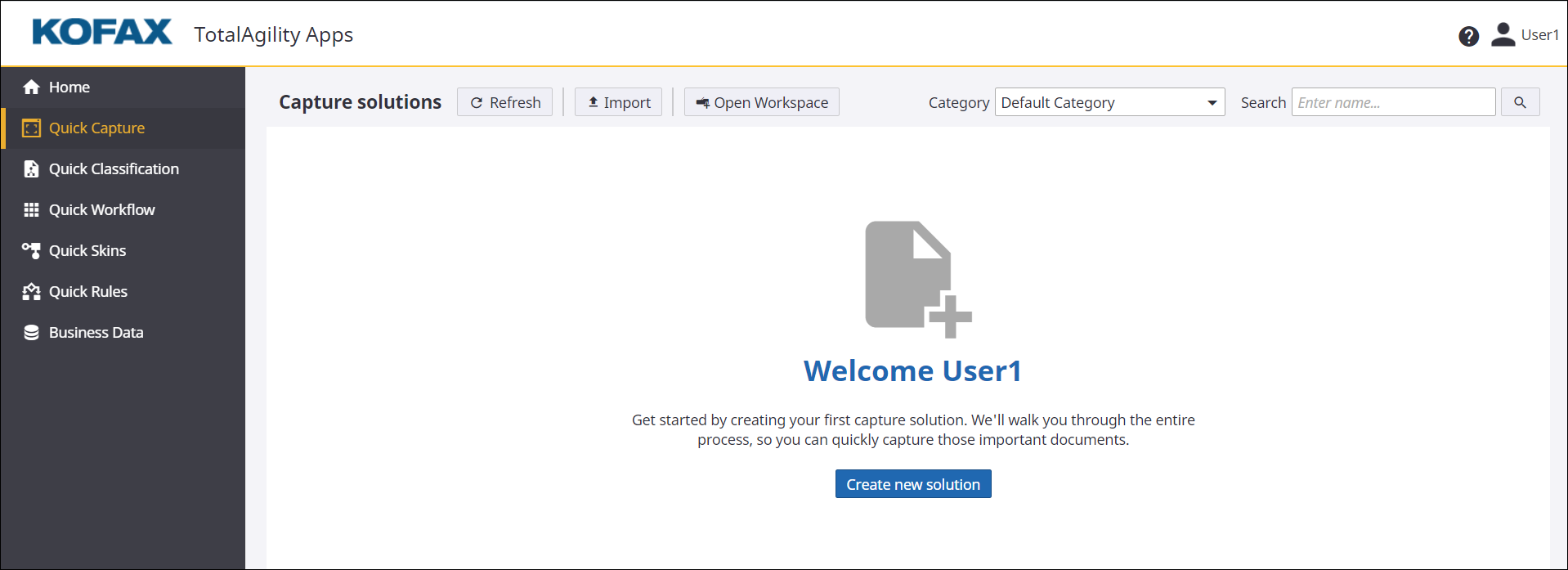
The initial view of Quick Capture includes a header, a navigation menu and a main page that displays what is selected in the menu.
- Kofax logo
-
The Kofax logo. Click this logo to return to the TotalAgility Apps Home page from anywhere in the application.
- Kofax TotalAgility Quick Capture
-
The application name.
- Logged-on user's name
-
Click to display the following options:
-
Profile: Allows you to edit your profile.
-
Logout: Logs you out of Kofax TotalAgility Quick Capture.
-
- Help button
-
Click to open the Kofax TotalAgility Quick Capture Help.
- Refresh button
-
Allows you to refresh the window and display the newly added or modified items.
- Import button
-
A Windows Explorer window is displayed so that you can navigate to and select an existing Quick Capture solution.
- Open Workspace button
-
The TotalAgility Workspace is displayed in a new tab for the logged on user.
- Category list
-
Displays the list of categories that the logged-on user has access to. The user's working category is selected by default.
- Search field
-
Lets you locate an item by name.
Enter the item name and click . Items belonging to the criteria are displayed. If no items related to search criteria exist, then an empty list is displayed. On clearing the search criteria, all the items from the working category are displayed.
- Create new solution button
-
Allows you to create a new solution.
When you already have existing capture solutions and open Quick Capture, the initial view displays the following buttons.
- New button
-
Allows you to create a new solution.
- Import button
-
Allows you to import a capture solution.
- Open Workspace button
-
Allows you to view solution in Workspace and start scanning. Refer to "Capture solutions" in TotalAgility Workspace Help for more information.
How to: