Finding and deactivating LDPs that are corrupt or learned the wrong document class
When using Knowledge Processing, occasionally you may find that certain document classes are often incorrectly classified. In such cases you can check the Knowledge Processing data and deactivate layout data points (LDPs) that are corrupt, are empty, contain very few words, or are connected to the wrong document class. You can also change the document class associated with specific LDPs.
Start Knowledge Processing Explorer by selecting menu > > > .
In the box, specify the ReadSoft Knowledge Processing Service host that is used.
Click above the list.
Under , systematically go through all of the document class, expanding each one and selecting each LDP. For each one:
A visualization of the LDP is displayed in the pane. Look at the text. (Ignore the color.) Is it a typical example of the document class? If not, deactivate the LDP by deselecting in the pane.
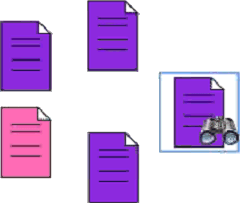
Unless you deactivated the LDP, look now in the pane. Here the icon with the binoculars represents the selected LDP, and icons without binoculars represent LDPs that are similar from the perspective of Knowledge Processing. Icons with a different color than the icon with the binoculars represent documents that were recognized as a different class.
 Example:
It is a good idea to check the LDPs that are represented by a different color: Click one (the pink one in the above example) to display it in the pane. If needed, use and to get a closer look.
If you can confirm that the two displayed documents are different class, then do nothing here. (You may need to define manual classifiers to differentiate the document class.)
If you see that the two displayed documents are actually the same class, deactivate the LDP associated with the incorrectly classified document (the pink one in the above example). To do this, right-click it in the pane and select . Often in such cases the Inspection operator manually classified that document as the incorrect document class.
Troubleshooting: Knowledge Processing mixes up two documents