You are here: Inspecting documents > Separating documents > Splitting and separating documents

Splitting and separating documents

If pages belonging to two different documents are grouped together as one multi-page document, you can split the document into two new documents by using Split before this page/Split after this page. This is part of the Inspect activity.

You can also select multiple, adjacent pages, in one or more documents, and split all of the pages into separate documents using Separate into one-page documents.

With either procedure, the resulting new documents have the status Confirmdocument separation.

  1. In the Production module's Thumbnail view, locate the pages you want to split and:

    • If you want to split before/after a page, select the thumbnail representing the last or first page of a document.

    • If you want split multiple pages into separate document, select all the adjacent pages to split. To select multiple pages, use Shift + ç or Shift + è. You can also hold down Shift and left-click.

  2. Select Current document and then:

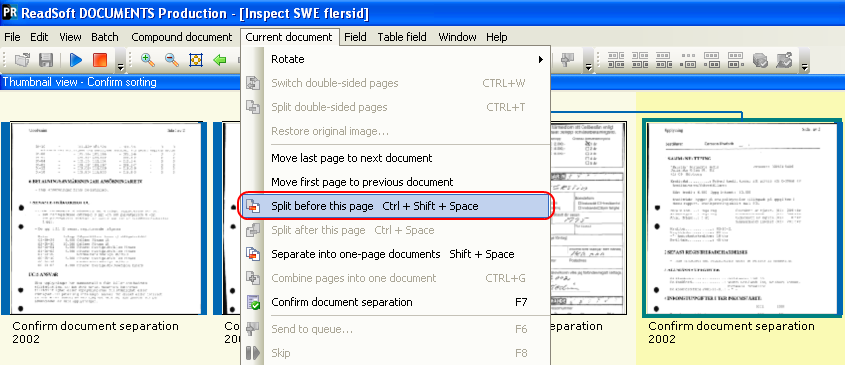
    • Split before this page/Split after this page. (ClosedExample.)

      Two documents are incorrectly grouped into one multi-page document. Select Split before this page to create two new documents. Each document receives the status Confirm document separation.

      You can perform operations in a variety of ways:

      • Select a menu command (shown below).

      • Click or on the toolbar.

      • Right-click a thumbnail.

      • Use the keyboard shortcuts Ctrl + Shift + Space for Split before this page and Ctrl + Space for Split after this page.


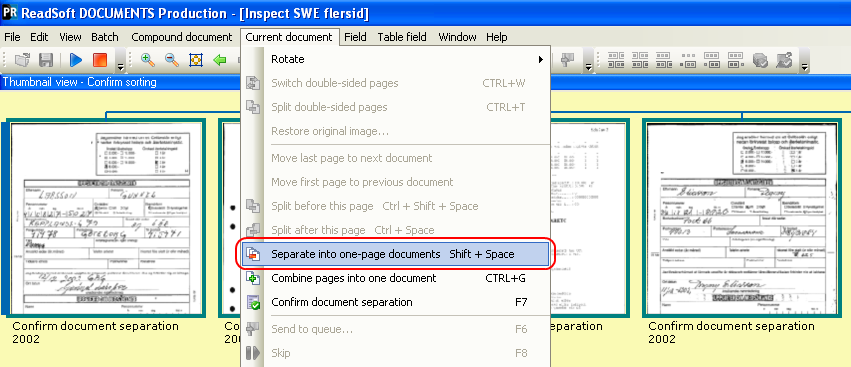
    • Separate into one-page documents. (ClosedExample)

      Several one-page documents are incorrectly grouped into one multi-page document. Select Separate into one-page documents and create new documents for every page. Each page that you selected (see previous step) becomes a separate document, and each receives Confirm document separation status.

      You can perform operations in a variety of ways:

      • Select the menu command (shown below).

      • Click on the toolbar.

      • Right-click a thumbnail.

      • Use the keyboard shortcut Shift + Space for Separate into one-page documents.

  3. Depending on your workflow you can:

    • Classify both new documents immediately. (See Classifying documents manually.)

    • Click both documents, one at a time, and select Current document > Confirm document separation.

    • Continue inspecting and splitting documents where necessary now, and confirm separation/classification documents later.
       

Note: No manual page separation is available for a document that has a front and a back page. These pages must remain together.

Splitting a compound document

Separating documents manually

Inspecting documents: Overview