Sections of the validation results
Description
1.
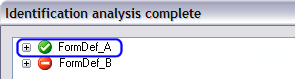
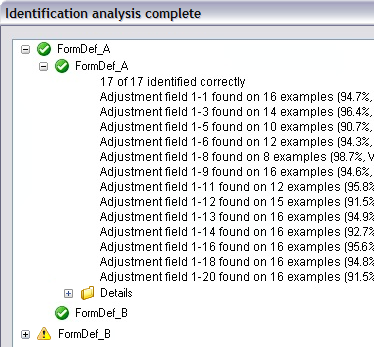
The first node in the tree contains the test results for using FormDef_A on both the FormDef_A and the FormDef_B examples. The green icon indicates that no problems were found with this form definition
2.
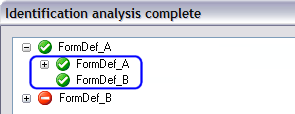
Expand the root node to find the results for testing the FormDef_A on the FormDef_A examples and on the FormDef_B examples. Green icons indicate that no problems were found.
3.
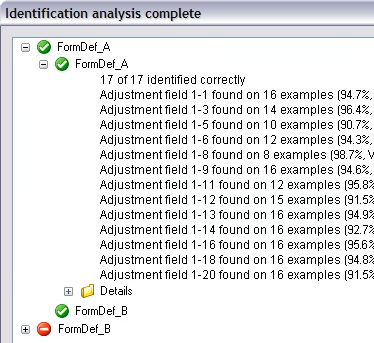
Expand the node for the FormDef_A examples to see that all 17 examples were identified correctly.
This is followed by a list of adjustment fields that were not found on all of the examples.This information is only provided for a form definition if flexible forms is specified in either the job or in the form definition itself to override the job.
If there were any problems, the list is followed by a Details folder, which contains a list of the image files where problems occurred and descriptions of the problems.
4.
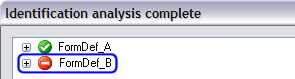
This node contains the test results for using FormDef_B on both the FormDef_A and the FormDef_B examples. The red icon indicates that problems were found.
5.
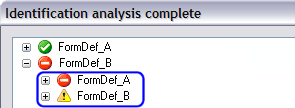
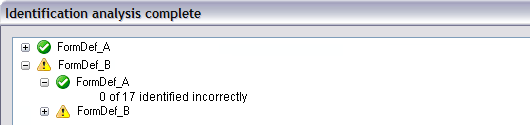
Expand the root node to see the results. The red icon in front of FormDef_A indicates problems. The yellow icon in front of FormDef_B indicates that not all examples were identified as FormDef_B.
6.
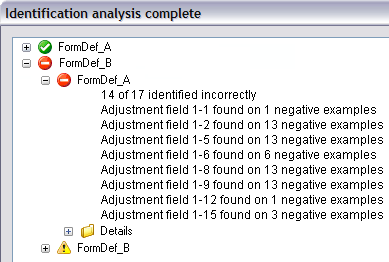
Expand the FormDef_A node to see:
-
The number of identification problems.
-
Statistics for the individual adjustment fields, i.e the number of negative image examples (FormDef_A examples) on which each FormDef_B adjustment field was found. This information is only provided for a form definition if flexible forms is specified in either the job or in the form definition to override the job.
Note that FormDef_B adjustment fields 1-2, 1-5, 1-8, and 1-9 were found on a significant number of FormDef_A image examples, causing the incorrect identification.
Adjustment fields not found on any of the negative examples are not listed.
The list is followed by a Details folder, where you can find details on the identification method, which adjustment fields were found, and information about multiple hits.
7.
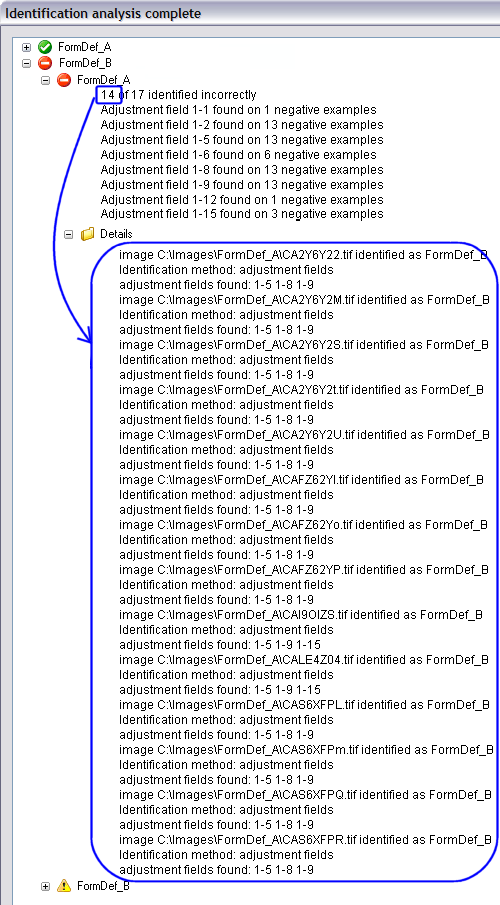
The Details folder lists the 14 examples in the FormDef_A folder that were incorrectly identified using the FormDef_B form definition. (The list applies not just to the the item that you expand to see the information, but lists all misidentified images.) Information provided for each image:
-
The entire path to the image.
-
The identification method used.
-
The three adjustment fields used to identify the image.
The information of interest
In this case we are interested in:
-
The FormDef_B adjustment fields that caused each negative image example to be identified incorrectly—in this case 1-5, 1-8, 1-9, 1-15.
-
Which FormDef_B adjustment fields were found in the negative image examples—in this case 1, 2, 5, 6, 8, 9, 12, 15. (Only if flexible forms is specified in the job or form definition.)
-
Which (if any) FormDef_B adjustment fields were found on a substantial number of negative image examples. In this case, you can see in the previous row (row 6) of this table that FormDef_B adjustment fields 1-2, 1-5, 1-8, and 1-9 were all found on 13 of the FormDef_A images. This is too many.
To improve the identification accuracy:
-
Close the Identification analysis complete dialog.
-
Close the job description.
-
Using Manager, open the FormDef_B form definition.
-
Double-click each of the adjustment fields that are causing the problem (1-5, 1-8, and 1-9) to open the corresponding Field dialog.
-
On the Standard tab, change the Usage setting to Adjustment only.
-
Re-open the job description and check identification again to see how the changes affected the identification accuracy (see "Validation results after making changes" below to see the results for this example).
8.
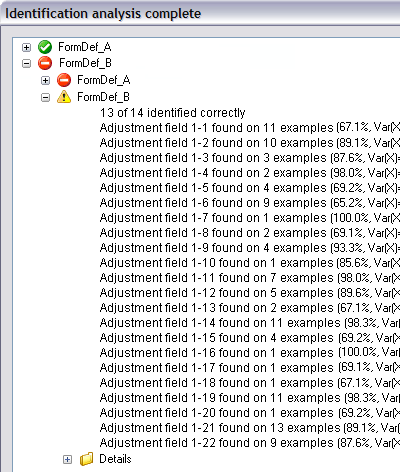
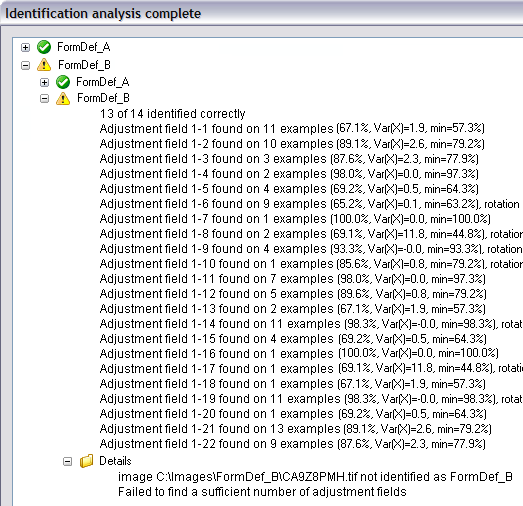
Expand the yellow FormDef_B node to find the summary of the results from testing the FormDef_B definition on the FormDef_B examples.
One of the examples was not correctly identified.
The adjustment field statistics show you how many positive image examples contained each FormDef_B adjustment field. This information is only provided for a form definition if flexible forms is specified in either the job or in the form definition to override the job.
9.
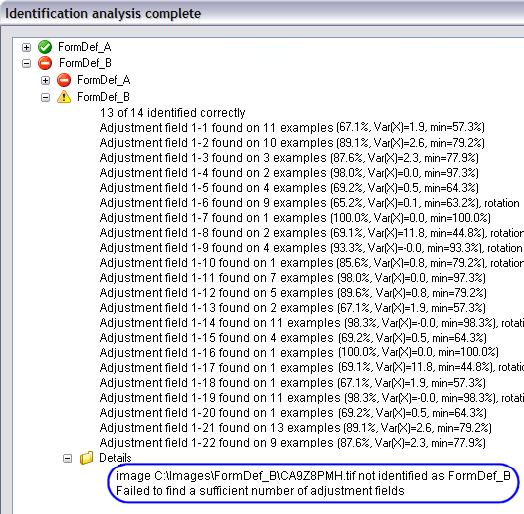
The Details folder level lists the unidentified examples, in this case the one example found in the FormDef_B folder that could not be identified by the FormDef_B form definition.
To fix this, first try adding new or modifying existing adjustment fields and checking the identification again. If that does not work, create a new form definition using this image. This involves defining all fields of interest and new adjustment fields.
Then add the new form definition to the job.