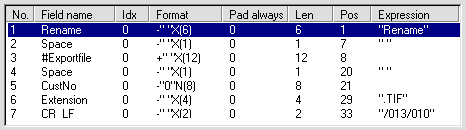
Create an archive transaction description as shown below.
-
Instead of CustNo, use the name of the field whose value you want to use to name the file.
-
Use #Import instead of #Exportfile if you are importing image files to FORMS rather than exporting them, or replace #Exportfile with #Fieldfile if it is image files containing field images that you want to rename.
Close the Transaction description dialog and specify a name for the transaction description when prompted.
In your Transfer job description, specify the archive transaction description and the transfer file (which you will use as a batch file). It is usually most convenient to place the batch file in the same directory as the image files.
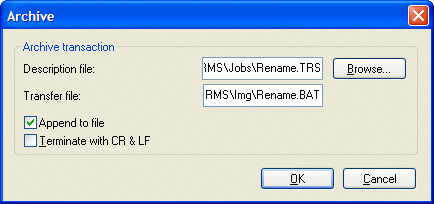
Select Append to file in the Archive dialog. This allows you to send data from multiple Transfer sessions to the same batch file.
Deselect Terminate with CR & LF, because you already specified in the archive transaction description that each line is terminated in this way.
Click OK to close the Archive dialog.
Click OK to close the Job description dialog and save the Transfer job description.
After you run the Transfer job, execute the batch file that was created (Rename.bat in this example). All image files are given new names based on a field value. In this example, each file name is changed to the customer number found on the form it contains.
It can be convenient to create an icon for the batch file and place it in the FORMS group folder. Other users can then simply double-click the icon to run the batch file after transfer.