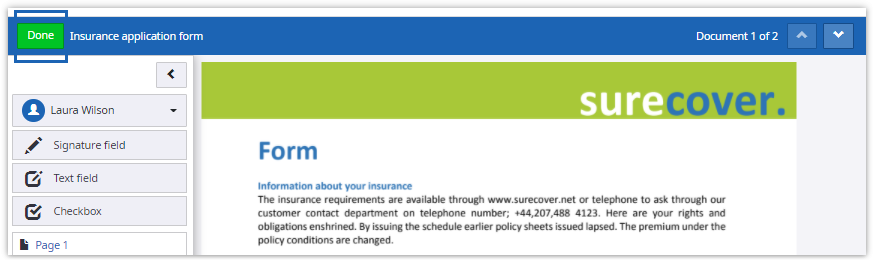
Prepare documents
You add fields to the document to collect information from signers.
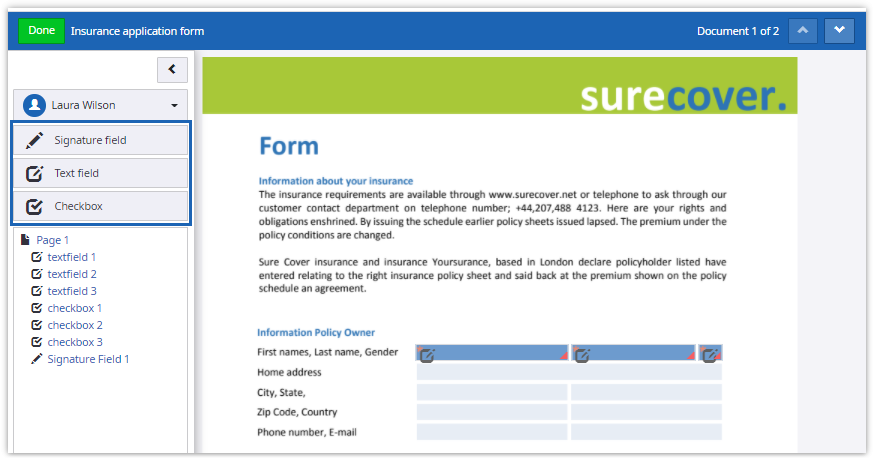
Select the signer and add fields by dragging them from the panel into the document body. The following fields types can be added:
- Signature fields
- Text fields
- Check boxes
Fields can be moved by dragging and resized using the field edges. A field can be deleted from the field properties panel.
Field properties
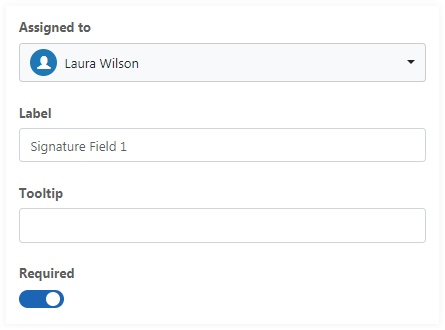
Basic properties for all field types:
- Assignment to a signer
- Label for the field
- Tooltip text
- Setting the field as required
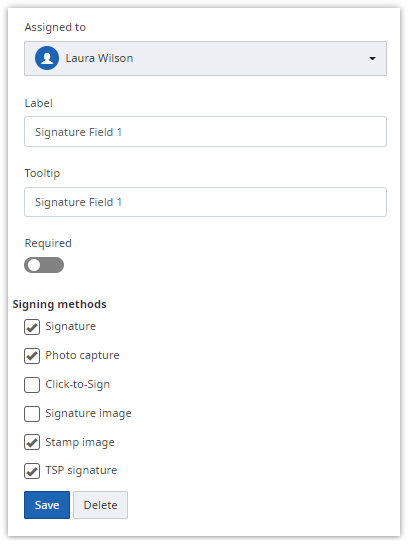
Signature field
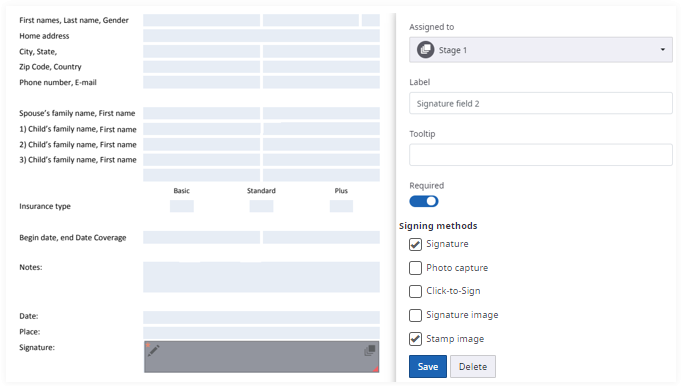
The following signing methods are selectable in addition to the basic properties:
- Signature (see also Handwritten signatures)
- Photo capture
- Click-to-Sign
- Signature image
- Stamp image
- TSP signature (only visible if a TSP provider is configured for the signer which supports signing a signature field with a TSP signature)
A
SignDoc Standard
user can limit the available methods or leave them to the signer to select.
Text field
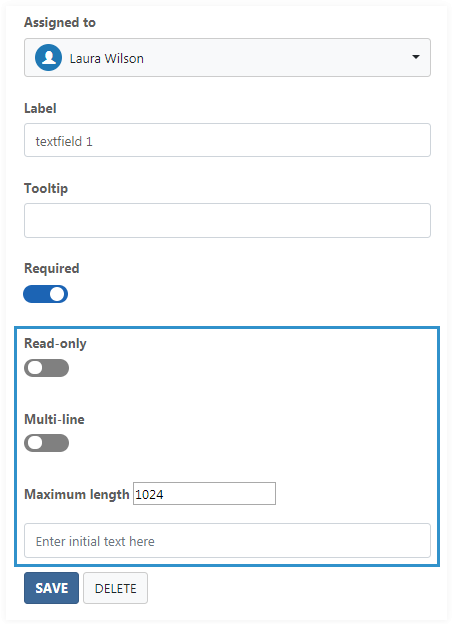
Use text fields to collect user text input. In addition to basic properties, you can also set these options:
- Set field as read-only
- Single or multi-line
- Maximum length
- Set the initial field text
Check box
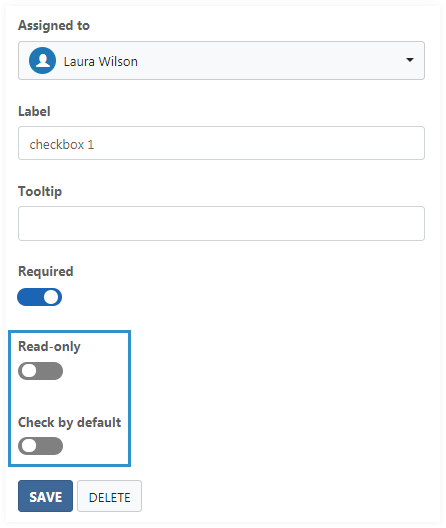
In addition to basic properties, you can also set these options:
- Set field as read-only
-
Set whether to check the field
Assigning fields to a stage
When the routing option Complete in custom order is used, fields can be assigned to an existing stage. Fields assigned to a stage can be signed by all signers of the stage. Once such a field is signed it can't be signed by any other signer anymore. When all required fields are signed the stage is completed and any remaining signers are skipped.
Please note that when a required field is assigned to a stage, it is only required for the last signer of the stage. For the previous signers of the stage, the field is marked as optional in their signing sessions.
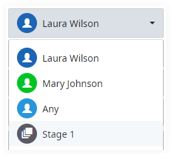
The prepare document view provides the existing stages in the field assignment dropdown for selection.
Fields assigned to a stage appear in grey, having a stage icon on the upper right. Fields assigned to a stage can be edited
like fields assigned to a signer.
TSP signature overlay image
Depending on the TSP provider, an overlay image can be configured for the TSP signature signing method. This overlay image is displayed on signature fields instead of the default signature field style when TSP signature is selected as signing method. When preparing the document, a preview of the overlay image is displayed in the corresponding signature fields to see how it is shown later in the signer's signing session. Per default, the overlay is displayed when TSP signature is the only available signing method of the signature field (TSP signature is required). An administrator can change this in the configuration so that the overlay is also displayed when TSP signature is one of the available signing methods (TSP signature is optional).
Example of an overlay image:
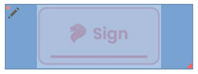
The overlay image is rendered into the signature field dimensions by keeping its aspect ratio.
Done button
The
Done button saves the changes and brings the user back to the documents and
recipients page.