
Add a local data model
You need to define the structure to hold the vehicle details.
You can create data models globally (to reuse across forms or processes), or locally to a form or process. As you will
only be using this data model on the form, you define the model locally to the form.
You can create the model manually, but most services give you a sample of what the response will be, so using a sample JSON is much quicker. In this tutorial, you will use the Vehicle Search API.
- On the Data models tab on the form, click New.
- Change the name of the model to Vehicle.
-
Click
Load from external source.
The Load from external dialog box appears.
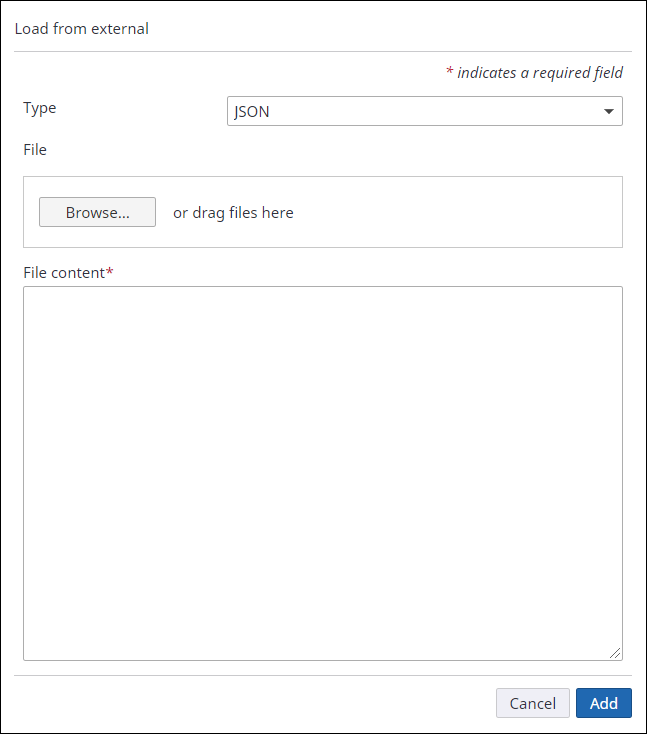
- Click the following URL:
-
When the
Vehicle Search API page appears, click
Try it out.
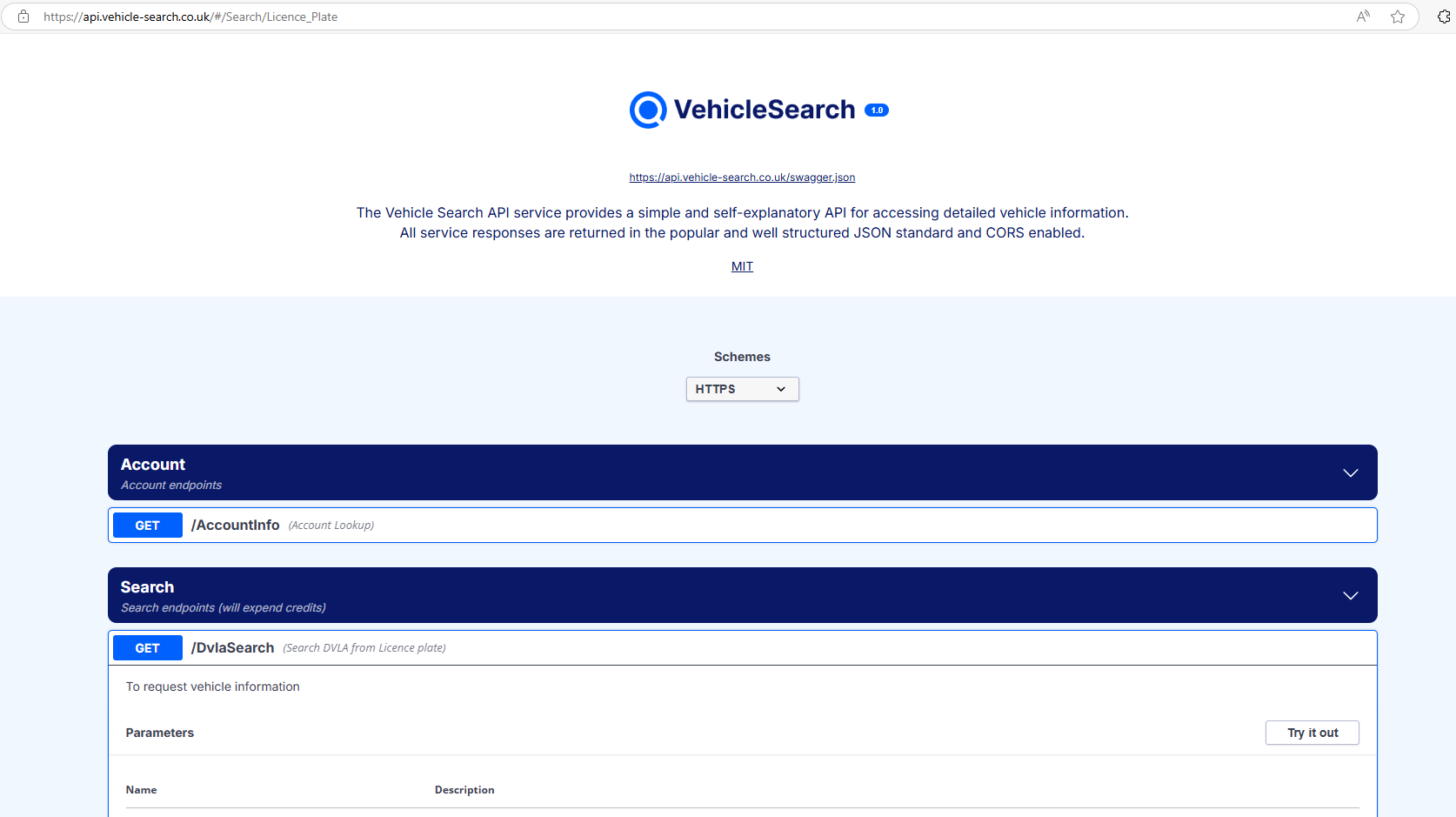
-
Leave the default values for
apikey and
licencePlate and click
Execute.
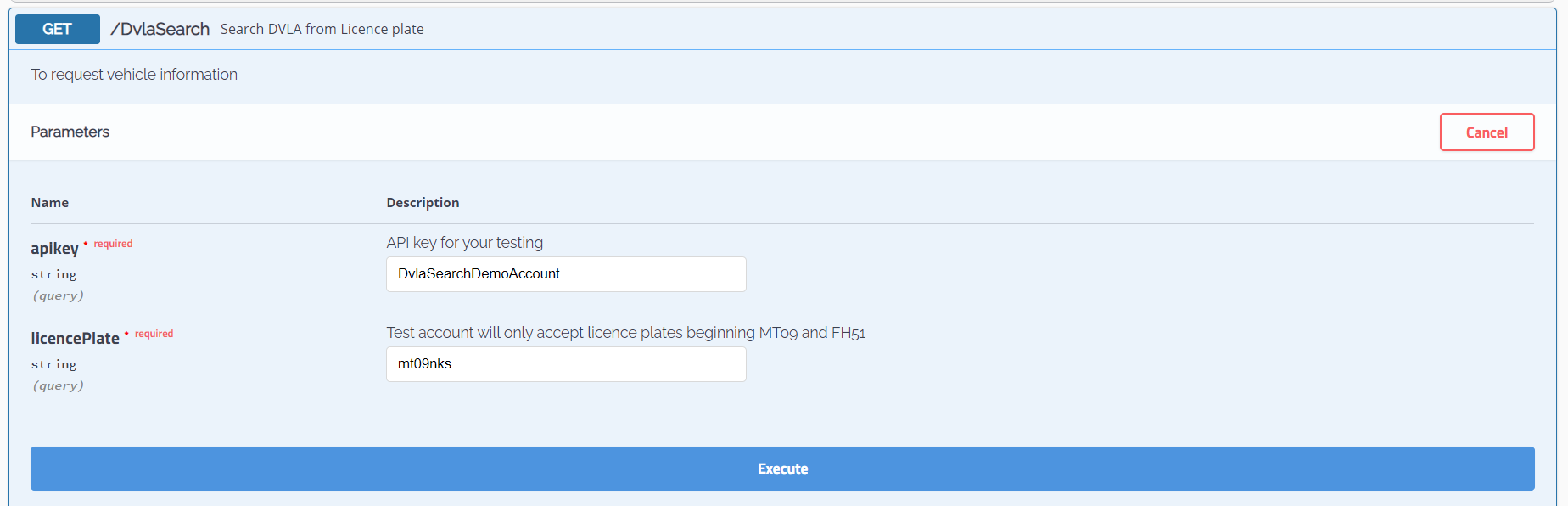
-
Copy the JSON sample from the
Response body.
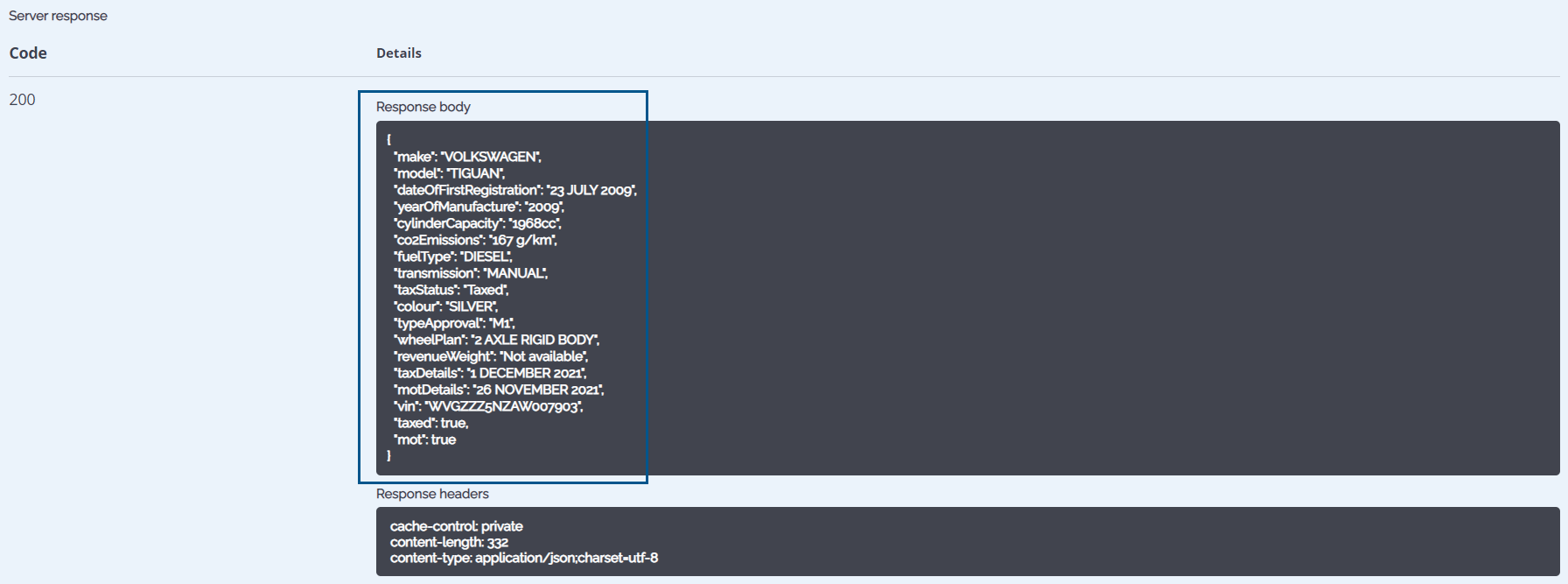
-
Return to the
TotalAgility Designer
and paste the JSON sample into the
File content box and click
Add.
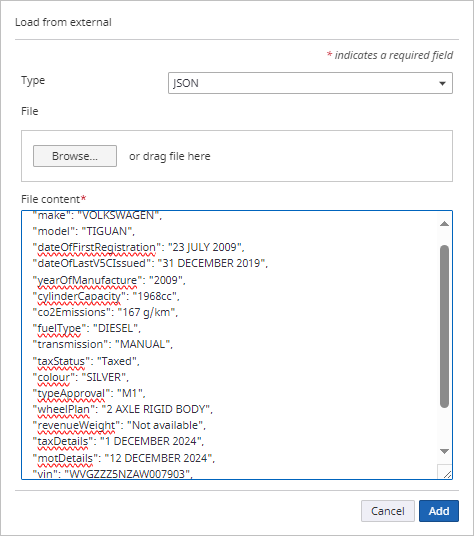
The fields are automatically added to the Vehicle data model structure.
-
Click
Add again to add the model to your form.
Well done, you have created your first data model and added to your form! Continue to Create a form variable.