
Design a process
Design a process to review each of the failed tests.
- On the TotalAgility Designer Home page, navigate to .
-
Click
New.
A new process opens in a different browser tab.
- Enter MOT Test Failure Review as the Name.
- Proceed with the following steps to design and configure the process:
Add variables
- On the Variables tab of the MOT Test Failure Review process, click New.
- Enter Test Details History as the Name.
- Select Data object as the Type.
- Select Initialization.
-
In the
Value field, select the
MOT History data model and drill down to select
motTestReports.
This is a quick way to create an object based on the structure of a row in a list.
-
Use the same procedure to create the following variables.
Name Type Initialization Value Licence Plate String Selected Engineer Inspection Required Bool Clear false Inspection Request Document Clear default JOBID System AWF_JOBID 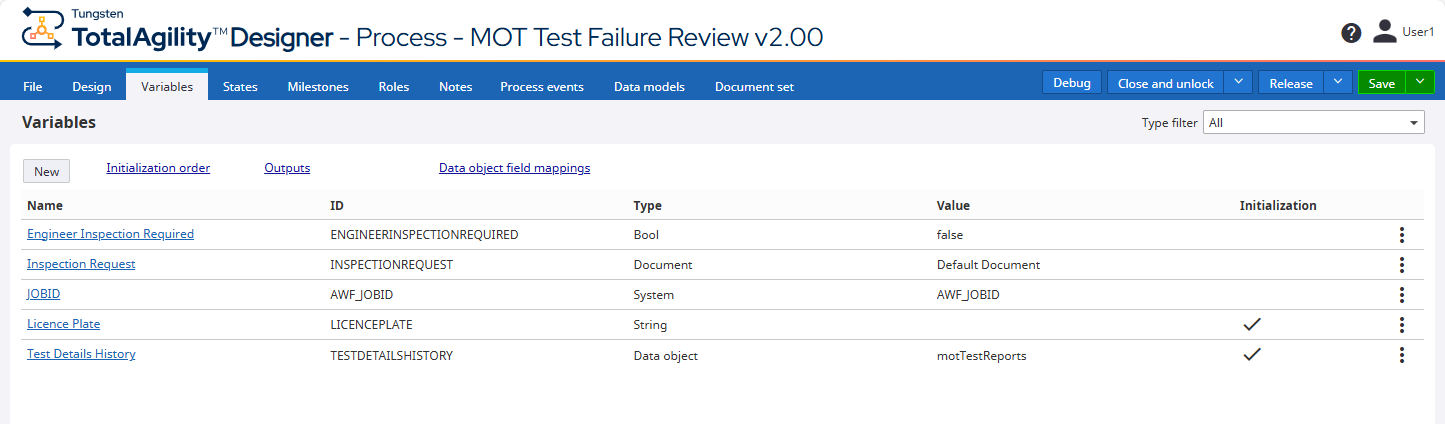
Add and configure activities
-
On the
Design tab of the
MOT Test Failure Review process, add an activity to the
Start node.
- Enter Review as the Name.
- Select Ordinary activity as the Type.
-
Add the following
Input variables:
-
License plate
-
Test Details History.testDate
-
Test Details History.testResult
-
Test Details History.odometerReading
-
Test Details History.odometerUnit
-
Test Details History s.motTestNumber
-
Test Details History
-
JOBID
-
- Add the following Output variables: Engineer Inspection Required
- Select the Review activity and add a decision.
- Select the decision and add an activity and End node.
-
Configure the decision:
- Rename to Manual Inspection Required?.
- Right-click on the rule editor and set the Condition text as Engineer Inspection Required.
- Select Activity 3 (the activity added at step 3) as the True path.
-
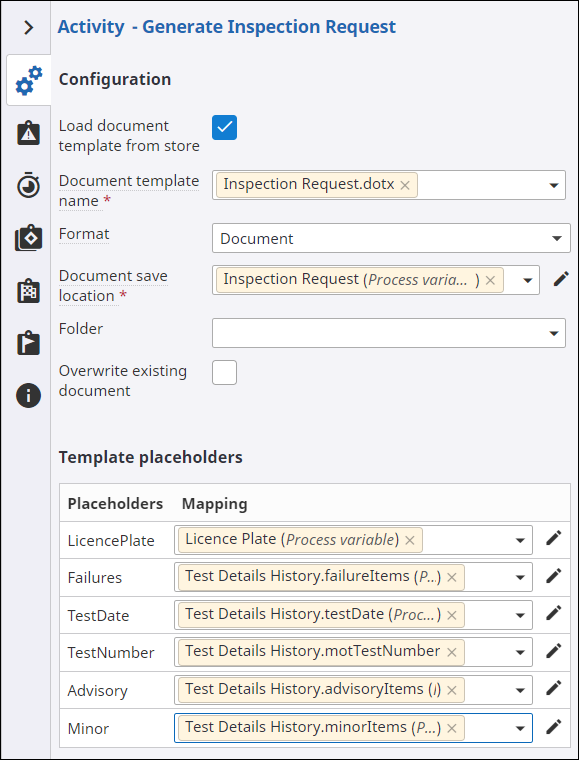
Configure Activity 3:
- Rename to Generate Inspection Request.
- Select as the Type.
- Select Load document template from store.
- Select Inspection Request.dotx as the Document template name.
- Select Document as the Format.
- Select the Inspection Request process variable as the Document save location.
-
Map the
Template placeholders as shown below:
- Select the Generate Inspection Request activity and add an activity to it.
-
To convert the Microsoft Word document that is generated to .tiff format so you can easily view it, configure
Activity 5 (the activity added at step 6) as follows:
- Rename the activity to Convert to Tiff.
- Select as the Type.
- Select the Inspection Request variable as the Input document/folder.
- Leave all other properties at their default value.
-
Add an
End node to the
Convert to Tiff activity.
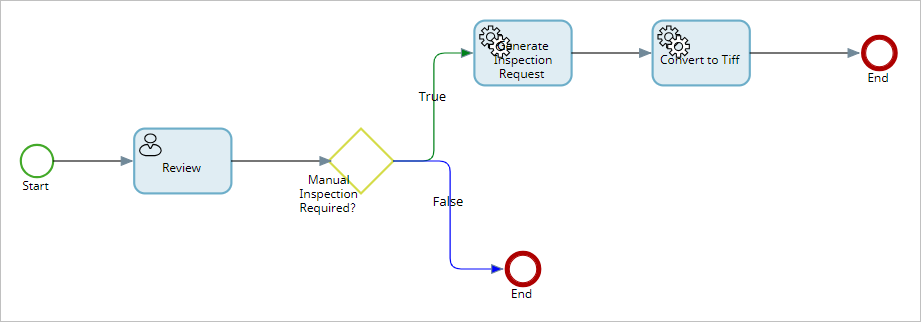
The process looks similar to the following example.
- Release your process.
Next, update your business rule to create a new job for every failed test. Continue to Update the business rule.