
Tungsten AutomationTutorial for TotalAgility Data Objects
  • Overview
  • TotalAgility concepts used in this tutorial
  • Part 1: Create a solution using Data objects
    • Prerequisites
    • Access TotalAgility Designer
    • Import the document template
    • Create a solution
      • Create a Web service reference
      • Design a form
        • Add form controls
        • Add a local data model
        • Create a form variable
        • Create a form action to call the web service
        • Create form action to display data
        • Release your form
        • Test your form
      • Design a business rule
        • Create a global data model
        • Create variables
        • Add and configure activities
      • Update your form
      • Design a process
      • Update the business rule
    • Test your solution
  • Part 2: Use Data objects in POST and PUT Operations
    • Prerequisites
    • Access TotalAgility Designer
    • Create a web service reference
    • Create a process
    • Test your solution
 › Part 1: Create a solution using Data objects › Create a solution › Design a form

Design a form

  1. On the TotalAgility Designer Home page, click User interface > Forms and click New.

    The Create new form dialog box appears.

  2. Enter VehicleDetails as the Name and click OK.
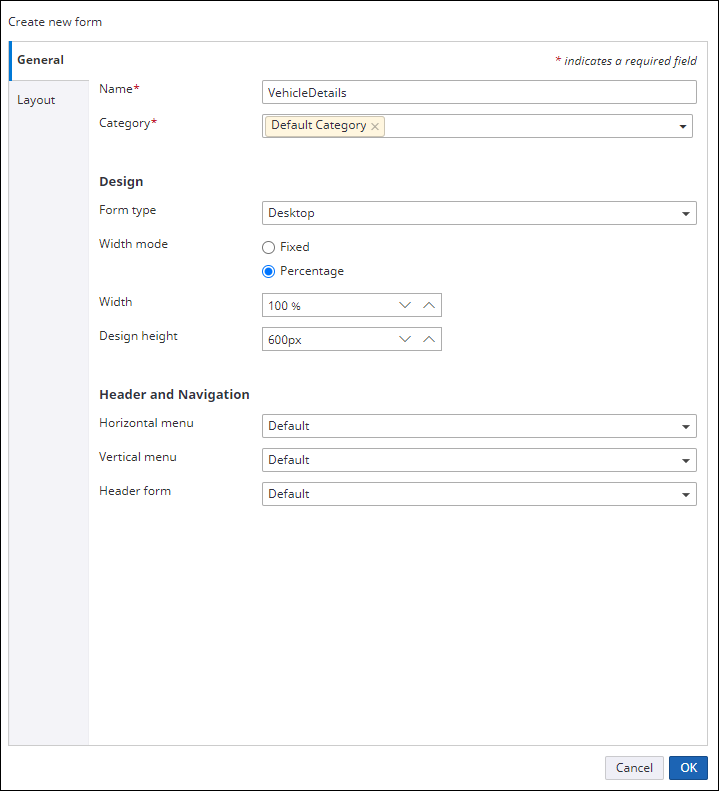
    Create new form dialog box
  3. When prompted to open the form, click Yes.

    The form opens in a new browser tab. Design vehicle details form
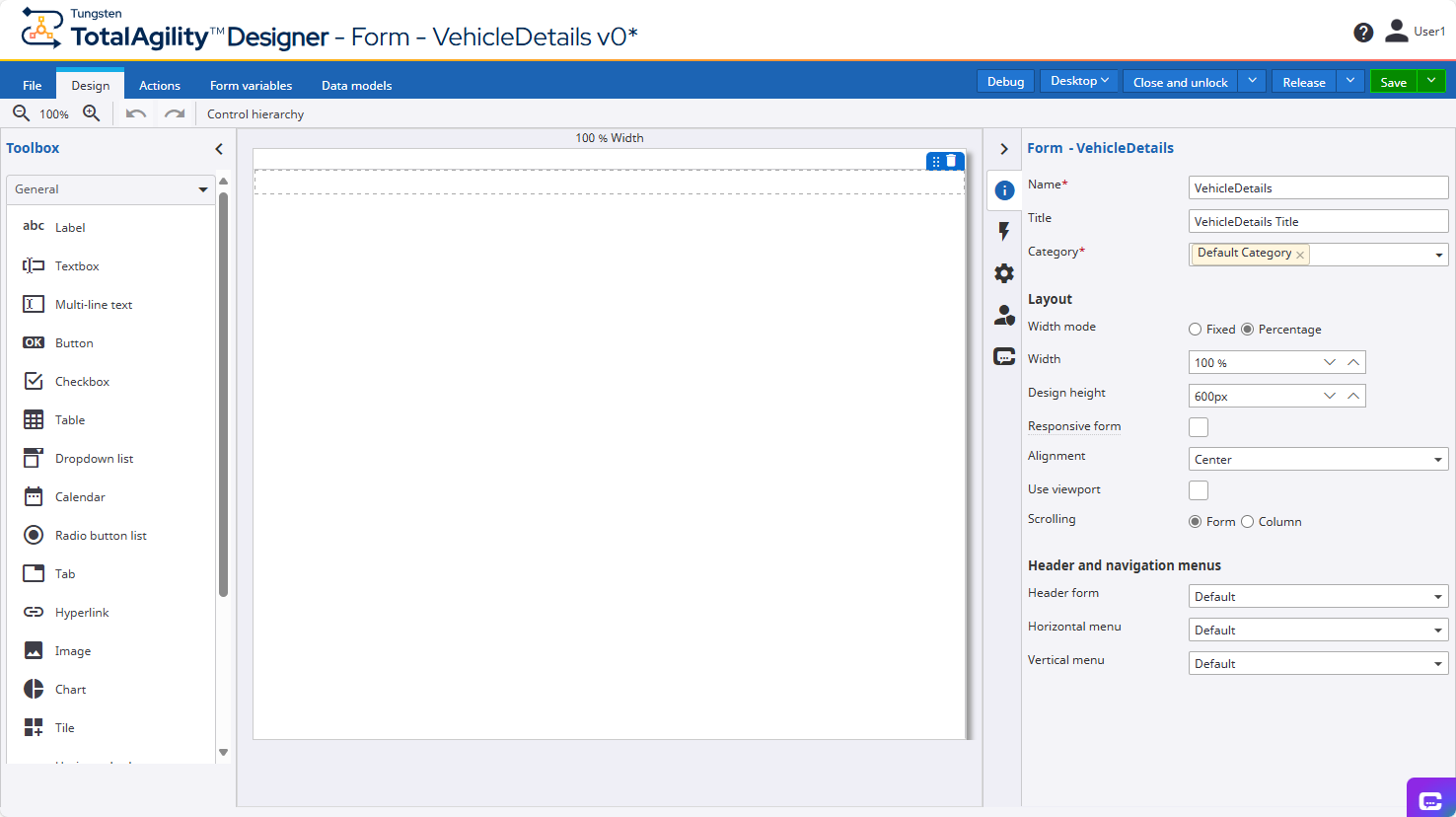
  4. Proceed with the following steps to design your user interface and logic:

    1. Add form controls

    2. Add a local data model

    3. Create form variables

    4. Create a form action to call the web service

    5. Create a form action to display data

Tungsten TotalAgility 2025.2
×